Microsoft finally retired Windows 10 1511

The company also ended support for 1607 to users of Windows 10 Home and Pro.

Microsoft finally retired a 2015 version of Windows 10, marking 29 months of support for the untitled feature upgrade, nearly as long a stretch as the time between the releases of Windows 8 and Windows 10.

Windows 10 1511 – Microsoft labels its feature upgrades in a yymm format – received a final set of security patches on April 10.

The retirement date had originally been slated for Oct. 10, 2017, but last November Microsoft extended it an additional six months, albeit only for commercial customers. “To help some early enterprise adopters that are still finishing their transition to Windows as a service, we will be providing a supplemental servicing package for Windows 10, version 1511, for an additional six months, until April 2018,” Michael Niehaus, at the time a director of product marketing for Windows, said in a 2017 post to a company blog.

Customers running Windows 10 Enterprise or Windows 10 Education were given the support reprieve; those operating lesser SKUs (stock-keeping units), including Windows 10 Home and Windows 10 Pro, had their support curtailed last October.

Earlier this year, Microsoft added six months of support to all versions of Enterprise and Education, raising the support roof from 18 months to 24 for not only 1511, but also for 1607, 1703 and 1709. The less expensive, less expansive, Home and Pro, however, retained the 18-month support timeline.

Also destined for an April 10 retirement party was Windows 10 1607, the mid-2016 feature upgrade that received its last security patches that day on Windows 10 Home and Windows 10 Pro. Meanwhile, version 1607 on Enterprise and Education will continue receiving fixes until Oct. 9.

Windows 10’s bifurcated support timelines – 18 months for some SKUs, 24 months for others – complicate what had been an easy-to-understand practice of patching versions for a year and a half. Period.

Microsoft has tried to inform customers of the support due them by reminding them in January’s and February’s cumulative updates that patches end for Enterprise and Education, version 1511. “The additional servicing offer for Windows 10, version 1511 ends on April 10, 2018, and doesn’t extend beyond this date. To continue receiving security and quality updates, Microsoft recommends updating to the latest version of Windows 10,” the March documentation said.

The company has extended the lifespan of other software previously, including the original version of Windows 10, tagged as 1507. In February 2017, it added six weeks to the timetable. Generally, however, Microsoft has been hard-nosed about support deadlines, and for good reason.

“The danger is that customers won’t believe Microsoft will end support when they say [they will],” said Gartner analyst Michael Silver in a 2017 interview. “It would set a bad precedent if organizations think that they can rely on Microsoft to constantly extend [support].”

By hewing to the once-revised deadline for 1511, Microsoft had drawn a line in the sand, showing commercial customers that while it may bend to their demands, it will not break with critical policies, like these, which are foundation to its Windows-as-a-service concept.

Microsoft: 200M Now Use Windows 10 In The Enterprise

The latest numbers from the company show businesses are close to schedule to move away from Windows 7 before the older OS retires in early 2020.
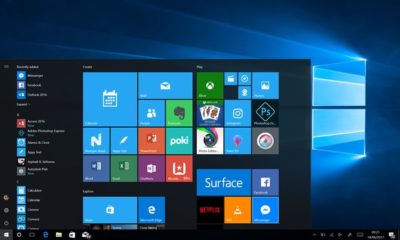
Windows10 Enterprise

Microsoft on Tuesday said that some 200 million enterprise workers now run Windows 10, a sign that corporations and other businesses are close to schedule to scrub Windows 7 from their machines before that older OS retires in about 20 months, an analyst argued.

“The 200 million resonates with me, based on what I’m hearing from clients,” said Stephen Kleynhans of Gartner Research. Migrations to Windows 10, he added, are progressing “pretty aggressively.”

Joe Belfiore, a corporate vice president who leads the Windows 10 team, revealed the number at Microsoft’s Build developers conference Tuesday. “Right now, there are over 200 million people in corporate accounts using Windows 10,” Belfiore said as he claimed deployment is “really ramping up” in the enterprise. “We’ve seen that [Windows 10] adoption rate increase now at 79% year-over-year growth.”

The day before, Microsoft contended that “nearly 700 million” devices are running Windows 10 worldwide. On that basis, enterprises accounted for less than 30% of all copies of Windows 10.

(Although the two numbers – Belfiore’s 200 million people using Windows 10 in corporate settings and Microsoft’s 700 million devices powered by the operating system – measured two different things, it’s not uncommon for Microsoft to obfuscate this way to prevent direct comparisons. In actuality, because Microsoft typically sells licenses on a per user basis, with multiple devices allowed for each user, 200 million people may be using more than that number of Windows 10 devices.)

While neither the percentage nor the 200 million are to be sneezed at, the former is significantly less than the average overall for commercial PCs, which have historically accounted for more than half – 55% has been an often-cited figure – of all personal computers.

And while Kleynhans did not dispute Microsoft’s claim of 200 people running Windows 10 in the enterprise, he sounded a bit disappointed in the number. “Is it a low number? It’s a little behind where I thought it would be,” Kleynhans said, noting that he expected it to be around 250 million by this point, perhaps even close to 300 million.

That 2009 operating system will fall off Microsoft’s support list on Jan. 14, 2020, meaning that while Windows 7 will continue to work as before, the Redmond, Wash. will stop distributing security updates to it.

It’s unrealistic to expect that all commercial customers will have purged Windows 7 by the retirement date, Kleynhans said, pointing out that he has recently spoken with clients who still run some instances of Windows XP (retired from support in 2014) and even Windows 98 (2006).

“What we [Gartner] expect is that enterprises will get to the 85%-90% level by the deadline,” Kleynhans said of the percentage of corporate devices shifted to Windows 7, “maybe even a little higher than that.” Nothing that’s happened has changed that estimate, he added.

“There are always laggards,” Kleynhans said.

According to other metrics, there may be a considerable number of them.

Estimates from analytics vendors, including U.S.-based Net Applications, which measure user and usage shares, signal that a large resorvoir of Windows 7 users will remain after the operating system’s retirement in 20 months. Net Applications’ latest data, for example, drove a Computerworld forecast that of the world’s Windows personal computers – all the PCs, not just those in the enterprise – 42% would still be running Windows 7 in January 2020, a much larger percentage than the 29% powered by Windows XP when that edition fell off the support list in April 2014.

In the end, large organizations will do what it takes to get off Windows 7 and onto Windows 10 by the former’s support cut-off date. The 200 million touted by Belfiore this week will be quite different a year from now, Kleynhans was certain.

“The speed with which I see Windows 10 moving now, it’s not going to be an issue,” he said.

Windows 10 deployment is, like previous iterations of the OS, on a timetable not of its own making. Instead, because of the vagarities of Microsoft’s historical release schedule and corporate acceptance (or rejection) of some editions, there is a clock ticking on Windows 10 because of the impending retirement of the current corporate standard, Windows 7.

Have questions?

Get answers from Microsofts Cloud Solutions Partner!
Call us at: 856-745-9990 or visit: https://southjerseytechies.net/

South Jersey Techies, LL C is a full Managed Web and Technology Services Company providing IT Services, Website Design ServicesServer SupportNetwork ConsultingInternet PhonesCloud Solutions Provider and much more. Contact for More Information.


Remote Desktop Error – An Authentication error has occurred – CredSSP encryption oracle remediation – SOLUTION

CredSSP encryption oracle remediation


We recently had an issue with remote desktop connection to a Windows 2012 server from a Windows 10 Pro client computer that was recently updated.

An Authentication error has occurred.
The function requested is not supported.
Remote computer: <servername>
This could be due to CredSSP encryption oracle remediation

CredSSP updates for CVE-2018-0886

Solution


We had to create a registry key HKLM\Software\Microsoft\Windows\CurrentVersion\Policies\System\CredSSP\Parameters; both the CredSSP and Parameters keys had to be created, and then create the AllowEncryptionOracle DWORD and give it a value of 2, worked for me on both Windows 7 and Windows 10 Pro computers. A reboot was not needed.
Registry path: HKLM\Software\Microsoft\Windows\CurrentVersion\Policies\System\CredSSP\Parameters
Value: AllowEncryptionOracle
Data type: DWORD

Have Questions?


Leave us a comment or visit: https://southjerseytechies.net/

South Jersey Techies, LLC is a full Managed Web and Technology Services Company providing IT Services, Website Design ServicesServer SupportNetwork ConsultingInternet PhonesCloud Solutions Provider and much more. Contact for More Information.

To read this article in its entirety click here.

DFSR – Windows Server Standard 2016 – The replicated folder has been offline for too long at Site – SOLUTION

We recently had an issue with and Active Directory DFSR – The replicated folder has been offline for too long at Site error for a Windows Server Standard 2016 single Domain Controller environment.

Event ID 4012 – DFSR – The DFS Replication service stopped replication on the folder with the following local path: C:\Windows\SYSVOL\domain. This server has been disconnected from other partners for 149 days, which is longer than the time allowed by the MaxOfflineTimeInDays parameter (###). DFS Replication considers the data in this folder to be stale, and this server will not replicate the folder until this error is corrected.

To resume replication of this folder, use the DFS Management snap-in to remove this server from the replication group, and then add it back to the group. This causes the server to perform an initial synchronization task, which replaces the stale data with fresh data from other members of the replication group. .

Summary


Consider the following scenario:

You want to force the non-authoritative synchronization of SYSVOL on a domain controller. In the File Replication Service (FRS), this was controlled through the D2 and D4 data values for the Burflags registry values, but these values do not exist for the Distributed File System Replication (DFSR) service. You cannot use the DFS Management snap-in (Dfsmgmt.msc) or the Dfsradmin.exe command-line tool to achieve this. Unlike custom DFSR replicated folders, SYSVOL is intentionally protected from any editing through its management interfaces to prevent accidents.

How to perform a non-authoritative synchronization of DFSR-replicated SYSVOL (like “D2” for FRS)

  1. In the ADSIEDIT.MSC tool modify the following distinguished name (DN) value and attribute on each of the domain controllers that you want to make non-authoritative:CN=SYSVOL Subscription,CN=Domain System Volume,CN=DFSR-LocalSettings,CN=<the server name>,OU=Domain Controllers,DC=<domain>msDFSR-Enabled=FALSE
  2. Force Active Directory replication throughout the domain.
  3. Run the following command from an elevated command prompt on the same servers that you set as non-authoritative:DFSRDIAG POLLAD
  4. You will see Event ID 4114 in the DFSR event log indicating SYSVOL is no longer being replicated.
  5. On the same DN from Step 1, set:msDFSR-Enabled=TRUE
  6. Force Active Directory replication throughout the domain.
  7. Run the following command from an elevated command prompt on the same servers that you set as non-authoritative:DFSRDIAG POLLAD
  8. You will see Event ID 4614 and 4604 in the DFSR event log indicating SYSVOL has been initialized. That domain controller has now done a “D2” of SYSVOL.

More Information


If setting the authoritative flag on one DC, you must non-authoritatively synchronizeall other DCs in the domain. Otherwise you will see conflicts on DCs, originating from any DCs where you did not set auth/non-auth and restarted the DFSR service.For example, if all logon scripts were accidentally deleted and a manual copy of them was placed back on the PDC Emulator role holder, making that server authoritative and all other servers non-authoritative would guarantee success and prevent conflicts.

If making any DC authoritative, the PDC Emulator as authoritative is preferable, since its SYSVOL contents are usually most up to date.

The use of the authoritative flag is only necessary if you need to force synchronization of all DCs. If only repairing one DC, simply make it non-authoritative and do not touch other servers.

This article is designed with a 2-DC environment in mind, for simplicity of description. If you had more than one affected DC, expand the steps to includeALL of those as well. It also assumes you have the ability to restore data that was deleted, overwritten, damaged, etc. previously if this is a disaster recovery scenario on all DCs in the domain.

Have any questions?

Call us at: 856-745-9990 or visit: https://southjerseytechies.net/

South Jersey Techies, LLC is a full Managed Web and Technology Services Company providing IT Services, Website Design ServicesServer SupportNetwork ConsultingInternet PhonesCloud Solutions Provider and much more. Contact for More Information.

To read this article in its entirety click here.

FIX – Windows 10 USB devices and on-board devices, such as a keyboard or mouse, stop working – OS Build 16299.251 – KB4090913

We have had a number of users that were unable to use their keyboard or mouse on their Windows 10 computer. Microsoft released an update that addresses the issue yesterday.

Addresses an issue in which some USB devices and onboard devices, such as a built-in laptop camera, keyboard, or mouse, stop working. This may occur when the Windows Update servicing stack incorrectly skips installing the newer version of some critical drivers in the cumulative update and uninstalls the currently active drivers during maintenance.

Known issues in this update


Symptom

Workaround

Windows Update History reports that KB4054517 failed to install because of error 0x80070643.

Even though the update was successfully installed, Windows Update incorrectly reports that the update failed to install. Select Check for Updates to verify that there are no additional updates available. You can also type About your PC in the search box on the taskbar to verify that your device is using the expected OS build. Microsoft is working on a resolution and will provide an update in an upcoming release.

Because of an issue that affects some versions of antivirus software, this fix applies only to computers on which the antivirus ISV updated the ALLOW REGKEY.

Contact your antivirus manufacturer to verify that their software is compatible and that they have set the following REGKEY on the computer: Key=”HKEY_LOCAL_MACHINE”Subkey=”SOFTWARE\Microsoft\Windows\CurrentVersion\QualityCompat” Value Name=”cadca5fe-87d3-4b96-b7fb-a231484277cc” Type=”REG_DWORD” Data=”0x00000000″

After installing this update, some devices may fail to start, and return INACCESSIBLE_BOOT_DEVICE. This issue occurs when the windows update servicing stack incorrectly skips installing the newer version of some critical drivers in the cumulative update and uninstalls the currently active drivers during maintenance.

Microsoft is working on a resolution and will provide an update in an upcoming release. Workaround steps are available in KB4075150.

Because of an AD FS server issue that causes the WID AD FS database to become unusable after a restart, the AD FS service may fail to start.

There is no way to undo the database corruption. To return your AD FS server to a functional state, you must restore it from a backup.

How to get this update

Read More

Did you know? Mac Office 2011 support conks out on Oct. 10

End of support is sneaking up on enterprise employees running Office on a Mac

Companies that have employees running Office for Mac 2011 have just over 100 days to replace the suite’s applications with those from last year’s upgrade, Office for Mac 2016.

Support ends for Office for Mac 2011 on Oct. 10, a date that Microsoft first stamped on the calendar two years ago, but has not widely publicized since. As of that date, the Redmond, Wash., developer will cease supplying patches for security vulnerabilities or fixes for other bugs.

The individual applications — Excel, PowerPoint, Outlook and Word — will continue to operate after support ends, but companies will be taking a risk, however small, that malware exploiting an unpatched flaw will surface and compromise systems.

To receive security and non-security updates after Oct. 10, IT administrators must deploy Office for Mac 2016 or instruct workers covered by Office 365 to download and install the newer suite’s applications from the subscription service’s portal.

Office for Mac 2011’s end-of-support deadline was originally slated for January 2016, approximately five years after the productivity package’s release. But in the summer of 2015, when it was clear that 2011’s successor would not be ready by early 2016, Microsoft extended its lifespan by 21 months. At the time, Microsoft cited the long-standing policy of supporting a to-be-retired product for “2 years after the successor product is released” when it added time to 2011.

Mac users: Steerage Class

The impending cutoff for Office for Mac 2011 is an issue only because Microsoft shortchanges Office for Mac users. Unlike the Windows version of Office, which receives 10 years of security support, those that run on macOS are allotted half that. Microsoft has repeatedly classified Office for Mac as a consumer product to justify the half-measure, even for the edition labeled “Home and Business.”

Nor does Microsoft update and service Office for Mac for corporate customers as it does the far more popular Windows SKU (stock-keeping unit). The latter will be upgraded with new features, Microsoft said in April, twice each year for enterprise subscribers to Office 365 ProPlus, with each release supported for 18 months before giving way to a pair of successors.

Mac editions, however, are refreshed with new tools at irregular intervals, often long after the same feature debuts in the same Windows application. (Recently, for example, Microsoft added a delivery-and/or-read receipt option to the Mac version of Outlook; that functionality has been in Outlook on Windows since 2013.) And because there are no regular, large-scale feature upgrades to Office for Mac, support is not curtailed by the release schedule as with Windows.

The difference between Offices — the behemoth Windows on one side, the niche Mac on the other — has been put into even starker relief recently: Microsoft has adopted March and September dates for launching new upgrades to Windows 10, Office 365 ProPlus, and last week, Windows Server, but made no similar promises for Office for Mac 2016.

It’s clearly the odd app out.

Have questions?

Get answers from Microsofts Cloud Solutions Partner!
Call us at: 856-745-9990 or visit: https://southjerseytechies.net/

South Jersey Techies, LL C is a full Managed Web and Technology Services Company providing IT Services, Website Design ServicesServer SupportNetwork ConsultingInternet PhonesCloud Solutions Provider and much more. Contact for More Information.

To read this article in its entirety click here.

10 Windows 7 tips to get the most out of your machine

If you’re one of the many business users who has not upgraded their computer to Windows 10, there are still resources to boost your experience. Here are 10 tips for getting the most out of the OS.

Windows 10 faced a controversial roll-out, with privacy concerns, bugs, and other issues plaguing many users. And as of August 2016, just 1% of business machines had upgraded to Windows 10, according to a study from Softchoice. Instead, 91% of the machines were operating with Windows 7—an 18% increase over the same period of time in 2015.

“It seems businesses don’t see an urgent need to move operating systems, so long as their cloud-based applications are still running fine on Windows 7,” Softchoice’s Microsoft director Craig McQueen wrote in a press release at the time. “In addition to the security benefits, I think once organizations grasp the user benefits—such as touch and Cortana—we will start to see a boost in adoption.”

While experts predict Windows 10 deployments will pick up this year, it’s important for those still using Windows 7 for business to get the most out of their machines. Here are 10  articles with Windows 7 tips that will help enterprise users operate the machines more effectively.

Read More

10 Windows 7 commands every administrator should know

The command line is often the best place to resolve Windows 7 desktop problems. These basic commands will help speed your troubleshooting tasks.

PC troubleshooting is becoming less common in larger organizations, but consultants and techs in smaller shops still have to get their hands dirty identifying and fixing desktop problems. Oftentimes, troubleshooting Windows 7 means delving into the command line. Here are 10 fundamental Windows 7 commands you might find helpful.

Read More

10+ Windows 7 services you may not need

If you evaluate your organization’s need for certain Windows 7 services, you may find that a number of them can be safely disabled.

Every version of Windows has shipped with a core set of system services that must run so that the system can perform basic operations. However, your organization may not necessarily need to have all the services running, and disabling unnecessary services can enhance performance and security. We’ve put together a list of 13 services you can disable on your Windows 7 systems that will probably not negatively affect your business operations at all.

Before you take drastic action, such as disabling a service on every PC in your organization, make sure that the service you’re disabling is not actually in use. This article makes a couple of broad assumptions: that your company doesn’t need to share Windows Media files and doesn’t use Windows 7’s HomeGroup features.

This is not a definitive list of services that can be disabled; these are just some obvious ones. Read carefully and make sure you test changes before deploying them across your organization.

Read More