The problems stems from June 2017 security updates. Microsoft is investigating the issues and will update this page when a fix is available. In the meantime, please use the workarounds suggested for each issue. They have categorized it in seven scenarios.
Issue#1: Error when opening an attachment is an email, contact, or task formatted as Rich Text.
This issue affects Outlook 2007 and Outlook 2010.
When you open an attachment in an email, contact, or task formatted as Rich Text you get the following error: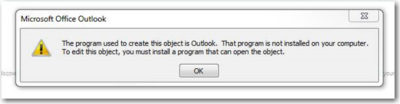
You may also see:
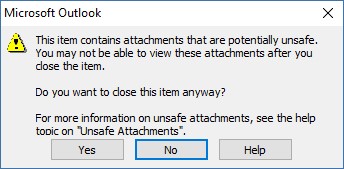
STATUS: WORKAROUND
- Forward the email to yourself and then open the attachments from the forwarded email.
- Change the email format to HTML, or Text format.
- Save the attachments to your computer, using one of the following methods, then open them from the saved location: Drag and drop the attachments to your desktop.
Go to File > Save Attachments.
Copy and paste the attachment to your computer.
Issue#2: Opening Mail Attachment warning when opening an attachment that includes consecutive periods
This issue affects Outlook 2007, Outlook 2010, Outlook 2013, and Outlook 2016.
When opening an attachment that includes consecutive periods (…), or an exclamation point (!), the files are blocked and you receive an Opening Mail Attachment warning.
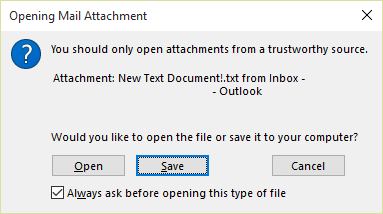
Or if an email message includes an attached email message, and the attached email message’s subject line ends with an unsafe file name extension as listed in the Blocked attachments in Outlook, the email attachment will be blocked for recipients.
STATUS: WORKAROUND
If you get the Opening Mail Attachment warning, and you’re sure the attachment was sent from a trusted source, proceed to Open or Save the attachment.
If the file is blocked because of a potentially unsafe file extension, ask the sender to save the email message to their computer and rename its subject line so that it does not end with an unsafe file name extension. Then, attach it to the email message and resend.
Issue#3: Error when setting ShowLevel1Attach to allow Outlook to display Level 1 attachments
This issue affects Outlook 2013 and Outlook 2016.
If you set ShowLevel1Attach to allow Outlook to display Level 1 attachments, you may see the error: “One or more objects in this file have been disabled due to your policy settings”.
WARNING: Typically, Level 1 attachments are blocked. If you have enabled this policy, users can see Level 1 attachments in Outlook. If you use any of the workarounds to open the files, please make sure they are safe to open. See: Information for administrators about e-mail security settings in Outlook 2007.
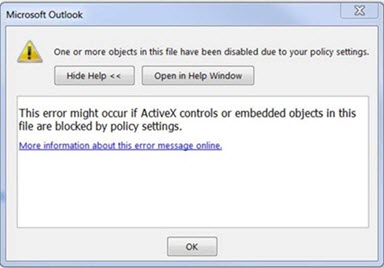
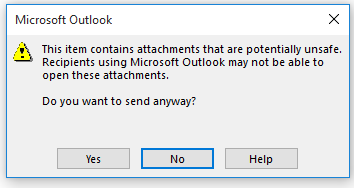
If you set ShowLevel1Attach to allow Outlook to display Level 1 attachments, and you send an email with an attachment you may see this message: “This item contains attachments that are potentially unsafe. Recipients using Microsoft Outlook may not be able to open these attachments.”
STATUS: WORKAROUND
- Change the email format to HTML, or Text format.
- Save the attachments to your computer, using one of the following methods, then open them from the saved location:
- Drag and drop the attachments to your desktop.
- Go to File > Save Attachments.
- Copy and paste the attachment to your computer.
Issue#4: VBScript does not run or you receive malicious code warning when using a custom form for Outlook
This issue affects Outlook 2007, Outlook 2010, Outlook 2013, and Outlook 2016.
When you use a custom form that you have created for Outlook, you see the following two symptoms:
- VBScript does not run.
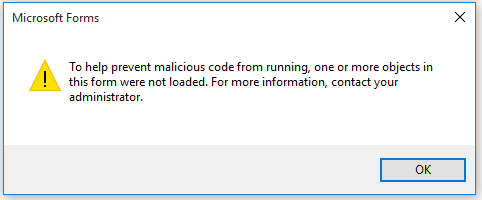
- You get a malicious code warning:
STATUS: INVESTIGATING
We’re investigating this issue and will update this page when a fix is available.
Issue#5: “Something went wrong….” or “Search results may be incomplete” error when searching in Outlook
This issue affects all Outlook versions on Windows 7, Windows 8, Windows 10.
When searching in Outlook, you get this error: “Something went wrong and your search couldn’t be completed.”, or “Search results may be incomplete because items are still being indexed“.

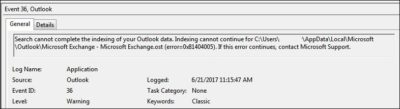
And you’ll see this Event Log warning:
STATUS: WORKAROUND
Until the Windows Update fix release on 6/27, you can set a registry key that will cause Outlook to stop using the local Windows Search service. When this registry key is set, Outlook will use its own built-in search engine. The built-in search will display the message below to indicate it is not using the Windows Search service.

Disable Windows Desktop Search Service for Outlook:
NOTE: The following steps show you how to modify the registry. However, serious problems might occur if you modify the registry incorrectly. Please make sure that you follow these steps carefully. For added protection, back up the registry before you modify it. Then, you can restore the registry if a problem occurs. For more information about how to back up and restore the registry, see this article.
- Open Registry Editor.
- Go to: Computer\HKEY_LOCAL_MACHINE\SOFTWARE\Policies\Microsoft\Windows\Windows Search
- PreventIndexingOutlook
- Set DWORD: 1
Detailed Instructions:
- Click Start, click Run, type regedit in the Open box, and then click OK.
- Locate and then click the following subkey in the registry:
HKEY_LOCAL_MACHINE\SOFTWARE\Policies\Microsoft\Windows
- On the Edit menu, point to New, and then click New Key and name the key Windows Search.
- Click on the new key Windows Search.
- On the Edit menu, point to New, and then click DWORD Value.
- Type PreventIndexingOutlook for the name of the DWORD, and then press Enter.
- Right-click PreventIndexingOutlook, and then click Modify.
- In the Value data box, type 1 to enable the registry entry, and then click OK.
- Note to disable the PreventIndexingOutlook setting, type 0 (zero), and then click OK.
- Exit Registry Editor, and then restart Outlook.
Issue#6: iCloud fails to load properly in Outlook 2007
iCloud fails to load properly in Outlook 2007.
When accessing Calendar, Contacts, or Tasks in Outlook 2007, you get the following error:
The set of folders cannot be opened. MAPI was unable to load the information service C:\PROGRA~2\COMMON~1\Apple\Internet Services\APLZOD.dll. Be sure the service is correctly installed and configured.”

STATUS: WORKAROUND
The loading of unregistered MAPI services has been disabled by default to make Outlook more secure.
WARNING: This workaround may make your computer or your network more vulnerable to attack by malicious users or by malicious software such as viruses. Microsoft does not recommend this workaround but is providing this information so that you can choose to implement this workaround at your own discretion. Use this workaround at your own risk.
If you have trusted applications that depend on being loaded in this manner, you can re-enable those applications by setting the following registry key:
REG_DWORD HKEY_CURRENT_USER\Software\Microsoft\Office\12.0\Outlook\Security\AllowUnregisteredMapiServices
You can use the following registry subkey to apply the registry setting as a domain policy:
HKCU\Software\Policies\Microsoft\Office\12.0\Outlook\Security\AllowUnregisteredMapiServices
Value 0 (default): Block loading of unregistered MAPI services. This is the recommended setting to avoid unexpected execution of unknown code.
Value 1: Enable loading of unregistered MAPI services.
IMPORTANT: The following steps show you how to modify the registry. However, serious problems might occur if you modify the registry incorrectly. Please make sure that you follow these steps carefully. For added protection, back up the registry before you modify it. Then, you can restore the registry if a problem occurs. For more information about how to back up and restore the registry, see this article.
To make these registry changes, follow these steps:
- Click Start, click Run, type regedit in the Open box, and then click OK.
- Locate and then click the following subkey in the registry:HKCU\Software\Microsoft\Office\12.0\Outlook\Security\
- On the Edit menu, point to New, and then click DWORD Value.
- Type AllowUnregisteredMapiServices for the name of the DWORD, and then press Enter.
- Right-click AllowUnregisteredMapiServices, and then click Modify.
- In the Value data box, type 1 to enable the registry entry, and then click OK.
NOTE: To disable the AllowUnregisteredMapiServices setting, type 0 (zero), and then click OK.
- Exit Registry Editor, and then restart the computer.
Vulnerability information (applies to all versions)
MAPI does not validate that a provider’s DLL that it is requested to load is registered correctly in MapiSVC.inf or even that it comes from the local machine. This can be exploited by creating a file together with an OLE object in such a way to cause MAPI to load a DLL from a network share when the OLE object is activated. This can allow arbitrary code execution to occur.
Issue#7: When printing a specific iframe or frame in a web page, the print output may be blank, or text is printed with a 404
This issue affects all Outlook versions on Windows 7, Windows 8, Windows 10.
When you print a specific iframe or frame in a web page, the print output may be blank, or text is printed that resembles the following:

NOTE: A frame is a part of a web page or browser window that displays content independent of its container. A frame can load content independently.
This problem has also been observed in both Internet Explorer 11, and in applications that host the IE Web Browser Control.
STATUS: INVESTIGATING
There is currently no workaround for this issue. However, if you print the entire web page, it will print correctly. We’re investigating this issue and will update this page when a fix is available.
Option: Uninstall Recent Microsoft Update
It is not recommended to uninstall the update as it applies to some other issues but if none of the workarounds help then you have this option until a new fix is releases.
For Outlook 2010:
- Go to the Control Panel – Programs and features and select view installed updates on the left.
- Search or look for KB3203467 and highlight it and uninstall it.
For Outlook 2007:
- Go to the Control Panel – Programs and features and select view installed updates on the left.
- Search or look for KB3191898 and highlight it and uninstall it.
Have any questions?
Call us at: 856-745-9990 or visit: https://southjerseytechies.net/
South Jersey Techies, LLC is a full Managed Web and Technology Services Company providing IT Services, Website Design Services, Server Support, Network Consulting, Internet Phones, Cloud Solutions Provider and much more. Contact for More Information.
To read this article in its entirety click here.