Zero-Day Security Vulnerability in Chrome, Firefox and Others

Google Chrome, Microsoft Edge, Mozilla Firefox and Apple’s Safari browser have all been impacted by a single zero-day vulnerability. The flaw, tracked as CVE-2023-4863, is caused by a heap buffer overflow in the WebP code library. Once exploited it can lead to system crashes and arbitrary code execution, where hackers can gain control over an infected device.

Where Does it Originate?

CVE-2023-4863 was first identified by researchers at The Citizen Lab, a research arm of the University of Toronto. The institution subsequently informed Google and Apple of the vulnerability’s existence. Both companies have now released patches. They were joined by Mozilla, which released its own advisory on CVE-2023-4863 yesterday and updates for several versions of its Firefox browser and Thunderbird email client, and Microsoft.


Vulnerability Originates In Webp Reader. Users of the affected browsers should update to the most up-to-date version in order to ensure the zero-day vulnerability is patched on their machines. The problem isn’t with the browsers — the vulnerability originates in the WebP Codec. Many applications use the WebP codec and libwebp library to render WebP images.


In more detail, a heap buffer overflow in WebP allowed attackers to perform an out-of-bounds memory write. A heap buffer overflow allows attackers to insert malicious code by “overflowing” the amount of data in a program. Since this particular heap buffer overflow targets the codec (essentially a translator that lets a computer render WebP images), the attacker could create an image in which malicious code is embedded. From there, they could steal data or infect the computer with malware. The vulnerability was first detected by the Apple Security Engineering and Architecture team and The Citizen Lab at The University of Toronto on September 6.

How Dangerous Is This Flaw?

Since many browsers, including Microsoft Edge, Brave, Opera, and Vivaldi are built on the Chromium platform, the same platform that Chrome is based on, this could affect their users as well. The same risk is also applicable for Firefox browser clones.


Such a widespread exploit in ubiquitously used software is dangerous, widening the attack surface for most organizations.


Patching will mitigate the risk, but users must act quickly as hackers will already be at work. Attackers will be working over the coming days and weeks to make the exploit more reliable meaning remote code execution will be more likely. Modern web browsers are exceptionally good at pushing out security updates rapidly and applying them as quickly as practicable, so users will shortly be protected.


The biggest risk is to organizations which don’t allow automatic updates and push out updates at their own release schedule.

What Steps Should You Take?

Google, Mozilla, Brave, Microsoft and Tor have released security patches for this vulnerability. Individuals running those apps should update to the latest version. In the case of other applications, this is an ongoing vulnerability for which patches may not exist; NIST noted that the vulnerability has not yet received full analysis.


If you are already a Managed Services client, please follow the steps below to check for updates


Google Chrome – Click the 3 dots in the top right corner for the menu and choose Help->About Google Chrome.  Chrome will check and install updates automatically from this screen.


Microsoft Edge – Click the 3 dots in the top right corner for the menu and choose Help and feedback->About Microsoft Edge.  Edge will check and install updates automatically from this screen.


Mozilla Firefox – Click the 3 lines in the top right corner for the menu and choose Help->About Firefox.  Firefox will check and install updates automatically from this screen.


If you have any questions, please email us at support@sjtechies.com or call us at (856) 745-9990

Microsoft Releases Emergency Fixes for Windows Server, VPN bugs

Microsoft has released emergency out-of-band (OOB) updates to address multiple issues caused by Windows Updates issued during the January 2022 Patch Tuesday.

January 2022 Patch Tuesday

This update addresses issues related to VPN connectivity, Windows Server Domain Controllers restarting, Virtual Machines start failures, and ReFS-formatted removable media failing to mount.

All OOB updates released are available for download on the Microsoft Update Catalog, and some of them can also be installed directly through Windows Update as optional updates. You will have to manually check for updates if you want to install the emergency fixes through Windows Update because they are optional updates and will not install automatically.

Windows 10 – KB5010793
Details Here

Option 1: Run Windows Update, KB5010793 will appear under optional download.

Option 2: Download the patch from there: Microsoft Update Catalog
Please download the matching Windows 10 Version.

Windows 11 – KB5010795 or KB5008353 (may vary based on Windows Edition)
Details Here

Option 1: Run Windows Update, KB5010795 will appear under optional download. Select and install.

Option 2: Download the patch from there: Microsoft Update Catalog

If you have any questions, please email us at support@sjtechies.com or call us at (856) 745-9990.


L2TP VPN Connections Break as part of January 2022 Patch Tuesday

Update 1/28/2022: South Jersey Techies has released OOB updates to fix the Windows L2TP VPN connection issues.

Microsoft released Windows updates to fix security vulnerabilities and bugs as part of the January 2022 Patch Tuesday that came with fixes for six zero-day vulnerabilities and a total of 97 flaws.

These updates also included KB5009566 for Windows 11 and KB5009543 for Windows 10 2004, 20H1, and 21H1.

Problems are being reported rapidly from Windows 10 users and administrators who are trying to make L2TP VPN connections after installing the recent Windows 10 KB5009543 and Windows 11 KB5009566 cumulative updates and receiving the error below. L2TP VPN connections are being reported as broken when attempting to connect using the Windows VPN client by Windows users.

You will also receive an error code in the Event Log entries, code 789, stating that the connection to the VPN failed.

The bug is not affecting all VPN devices and seems only to be affecting users using the built-in Windows VPN client to make the connection. Some users have reported the bug affecting their Ubiquiti Site-to-Site VPN connections for those using the Windows VPN client. The bug also affects connections to SonicWall, Cisco Meraki, and WatchGuard Firewalls, with the latter’s client also affected by the bug.

How to fix the break?

Admins have been forced to remove the KB5009566 and KB5009543 updates, which immediately fixes the L2TP VPN connections on reboot.

However, you face the risk of removing all fixes for vulnerabilities patches released during the January 2022 Patch Tuesday when removing the update due to Microsoft’s bundling of all security updates in a single Windows cumulative update.

Weighing the risks of unpatched vulnerabilities versus the disruption caused by the inability to connect to VPN connections is something all Windows admins need to consider, carefully.

Microsoft’s January 2022 Patch Tuesday fixed numerous vulnerabilities in the Windows Internet Key Exchange (IKE) protocol (CVE-2022-21843, CVE-2022-21890, CVE-2022-21883, CVE-2022-21889, CVE-2022-21848, and CVE-2022-21849) and in the Windows Remote Access Connection Manager (CVE-2022-21914 and CVE-2022-21885) that could be causing the problems.

Unfortunately, there is no known fix or workaround for the L2TP VPN connection issues at this time.

If you have any questions, please email us at support@sjtechies.com or call us at (856) 745-9990.

Teams Vs. Zoom

6 Microsoft Teams features Zoom doesn’t have

One of the major news in March 2016 was that Microsoft was considering bidding $8 billion to purchase Slack. However, Bill Gates and the team decided that instead of buying Slack, they would develop their own chat app tool. Teams is mostly a Slack alternative, but it’s also meant to replace Skype for Business, which up until recently was Microsoft’s corporate video conferencing service. The app’s main functionality is the group chat that comes with plenty of features. Some of these features include editing, deleting, pinning messages, as well as starting a new thread and sharing files. You can even send .gif images, as well as emojis. Possibly due to Skype’s legacy, Teams includes a bunch of video features that Zoom doesn’t. There are real-time captions, built-in meeting notes, and a bizarre feature where you can pretend you’re in the same room as your coworkers!

To be clear: Zoom is a perfectly capable and liked solution. That doesn’t mean other apps are not offering anything interesting, and Microsoft in particular is trying a bunch of new things in the space. Here are a few highlights.

  1. Built-in meeting notes
  2. Persistent chat with rich formatting
  3. Blurred background
  4. Virtual classroom with your coworkers
  5. Live captions
  6. Included with Microsoft subscription

1. Built-in meeting notes

Zoom is a video conferencing app—and that’s about it. What happens if you’re in the middle of an important meeting, but need a way to take some notes? You think you’d have to use Microsoft Word or another program, but did you know that Teams has its own meeting notes feature, too? Microsoft Teams is built around the idea that it will be the all in one tool you use for all collaboration: team chat, video calls, and even internal documentation.

Meeting Notes in Microsoft Teams

Click Meeting notes, and a new tab for meeting minutes will be created in the current channel.

Notes get saved as part of the meeting itself, and can go anywhere with you, and will be saved for later or for sharing with your coworkers.

Meeting notes link in the Teams channel

This is a quick way to ensure there’s a written record of the meeting in a place where everyone can access it, which is very slick.

2. Persistent chat with rich formatting 

Zoom chat is very simple. Microsoft Teams’ chat for meetings, on the other hand, has more formatting features than AIM.

We’re not sure if you have the multitasking skills to format text during a meeting, but it’s there if you want it. And this is just the beginning—there’s a large sticker collection and, for some reason, a meme creator. Imagine how much fun this can make your meetings!

Microsoft Teams also keeps a record of the chat from every meeting and posts all comments in the channel.

Have you ever lost track of helpful links and information during a Zoom meeting? With Teams, you can review the comments after the meeting, and any points made there can be found using search alongside the rest of your chats. It’s easy to see why this is useful.

3. Blur your background

Zoom backgrounds are, at this point, an important part of our collective human culture—the ultimate form of self-expression. With this best practice, you can have your meeting almost anywhere, and disguise whatever happens in the background around you. Naturally, Microsoft Teams offers custom backgrounds for meetings.

4. Pretend you’re in the same room as your coworkers

Zoom  has two views that you can switch between. Speaker View and Gallery View: essentially, you can see the person talking right now or see everyone at once. Microsoft Teams adds another: Together Mode. Everyone on the call is shown as though they’re sitting next to each other in some kind of classroom, or sporting event like we’ve seen on TV with the NBA,MLB, NHS and NFL.

This is optional, and turning it on only changes things on your screen. 

Is this useful? No. Will it make you feel slightly less alone during a year in which in-person interaction is rare? No. Is it somewhat amusing? Yes.

5. Live captions

Teams can detect what’s said in a meeting and present real-time captions. And, if you’ve turned on the new meeting experience, your captions will include speaker attribution—so you’ll see not only what’s being said, but who’s saying it. 

Zoom offers a closed captioning feature, but someone has to manually type them out. Microsoft’s system recognizes speech automatically. Live captions can make your meeting more inclusive to participants who are deaf or hard-of-hearing, people with different levels of language proficiency, and participants in loud places by giving them another way to follow along.

6. There’s a good chance you’re already paying for it

Zoom is free, but the free version limits meetings to 40 minutes. Microsoft Teams’ free version has no such restrictions for video meetings.

There’s also a good chance you’re already paying for the full version. Microsoft Teams is included with every version of Microsoft 365 for business. This means that, if your company pays for a Microsoft Office subscription, you already have access to Teams. You should probably give it a chance and consider not paying for Zoom and/or Slack on top of it.

Features

  • Group and private chat.
  • Video calling, audio calling, and screen sharing.
  • Schedule video calling.
  • Thread messaging.
  • Works seamlessly with any other Office app.
  • Up to 250 people per video call.
  • Over 270 integrations.
  • Available in 53 languages.

Best for

  • Microsoft-centric teams.
  • Organizations that want to keep ideas organized and compartmentalized.

If you have any questions, please email us at support@sjtechies.com or call us at (856) 745-9990.


The End of Life for Windows 7, Server 2008 R2, & Small Business Server 2008 + 2011

End of Life Windows 7, Server 2008 R2, & Small Business Server 2011

Microsoft has announced that its support for Windows 7, Windows Server 2008 R2, and Small Business Server (SBS) 2011 will be coming to an end on January 14, 2020.

What does that mean for you? First, security patches and updates will no longer be implemented, leaving Windows 7 workstations and servers susceptible to security breaches. On January 13, 2015, Microsoft ended mainstream support for Windows 7, but now extended support is ending as well. Extended support is still safe to use until 2020 currently. Normally Microsoft would add new features during the mainstream support phase, but they will not be being doing this anymore. They will however, continue to patch any security treats. South Jersey Techie’s strongly recommends upgrading your business’s servers and workstations before the January 2020 deadline- and to start planning now to avoid the urgency of the deadline. Businesses in the healthcare industry will be impacted by the changes in relation to HIPPA violations if their server isn’t updated before the deadline. The deadline will be here before you know it and updating an IT infrastructure is a large task and shouldn’t be put off until the last minute.

What are the next steps for your business? Many of our clients are starting to upgrade now or are planning to include the upgrades in their 2019 budget. Send us an email or give us a call and we will evaluate your line of business software for Windows 10 and upgraded server compatibility. If your company decides to upgrade its old server and workstations to meet the January 2020 deadline, South Jersey Techie’s has the reliable solutions and experienced technicians you need for managing the data migration and even the retired hardware. You can have peace of mind knowing your old data will be securely erased and destroyed.

Unsure if this deadline will affect your business? South Jersey Techie’s can review your server for you and determine its end of life date or if it will be affected by the 2020 end of support date. If you have any questions or concerns about your office and the 2020 end of support date, please give us a call today: (856)745-9990.

GET STARTED WITH A NEW WINDOWS 10 PC

Can’t Find What You’re Looking For?


Organize your intranet with SharePoint hub sites

New SharePoint hub sites make organizing and connecting your intranet easy. 

As business goals and team structures evolve, so too must your sites and the content that lives within them. Ideas must flourish and grow, not become rigid or stale. SharePoint hub sites bring flexible, dynamic building blocks to your company intranet – connecting collaboration and communication. Associating sites together in a hub site enhances discovery and engagement with content, while creating a complete and consistent representation of your project, department or region.

Microsoft first disclosed SharePoint hub sites during Ignite 2017. And recently they announced that they are now rolling out to Targeted Release customers in Office 365. Microsoft encouraged by early adopter feedback, can’t wait for every customer to use and adopt them.

SharePoint hub sites bring the following new capabilities to you and your intranet:

  • Cross-site navigation – increase visibility of and navigation among associated sites
  • Content rollup – read aggregated news and discover related site activities
  • Consistent look-and-feel – establish a common theme to improve visitor awareness of connected sites
  • Scoped search – focus on finding content that resides within the hub site’s associated sites

Hub sites support good governance, giving admins a growth framework to maintain relationships between sites over time. They are easy for admins to establish and bring efficiencies for people who work inside and across the sites on a day-to-day basis. And when managing change within the business, it is easy to move a site from one hub site to another.

Getting started with SharePoint hub sites in Office 365

You can convert an existing communication site or modern team time into a hub site, or you can start with a brand-new modern site. We recommend selecting a communication site as the hub site. You can associate multiple team sites and communication sites to model and promote an intranet that reflects the way your people organize. It is easy for admins to create one or more hub sites. After a hub site is created, approved site owners can associate existing team sites and communication sites with the hub site.

Use the SharePoint Online Management Shell to establish your hub sites

Admins, you are the enablers. And the SharePoint Online Management Shell (aka, PowerShell for SharePoint in Office 365) is your enabling tool of choice.

The PowerShell cmdlet you’ll want to get most familiar with is: Register-SPOHubSite https://contoso.sharepoint.com/sites/HR (where HR URL is the full-path address of the existing site that you want to convert into a hub site). You then will assign a unique security group to designate approved site owners that can associate sites to this new hub. You simply create a mail-enabled security group and add the users. You then run an additional PowerShell command to give that group permissions to associate their sites to the hub site.

Note: You must be a SharePoint administrator or above in Office 365 to create SharePoint hub sites. Site owners, however, can associate a SharePoint site with a hub site that already exists.

Learn more how admins create and manage hub sites.

Associating a site under a hub site

Once a hub site is established, it’s then a two-click process to associate to the hub site.

As the site owner, go to the site you want to have associated to the hub site. Click Settings (gear icon) > Site information > hub site association and select the desired hub.  You’ll only see the hubs you have permission to associate to. And then click Save. You will see the hub navigation appear above. The site itself will inherit the hub theme, and news and activities will begin to flow up to the hub site home page – along with a search crawl of content for any site associated to the hub site. And at any time, per a reorg or change in business direction, you can easily move sites between hub sites. This is the power of a dynamic intranet, one that can change and adapt with the ebb and flow of your ever-changing business landscape. Note: individual sites can only be associated to one hub site at a time.

Note: Sites associated with a SharePoint hub site don’t inherit the permissions of the hub site or any other sites associated with it. Each site, including the hub site, will retain their current permission settings. And as easy as it is to associate a site to a hub site, you, too, can dissaciate from one.

Learn more how to associate and dissociate your sites to and from hub sites.


Design your layout and choose you theme

Once the hub site has been established, you’ll then want to further set it up and refine it for that organization — so the hub site carries the right name and logo, the preferred navigation elements, a preferred theme, and the desired layout for news, sites and highlighted content. And all will re-flow and present beautifully within the SharePoint mobile apps.

The SharePoint mobile apps will display hub sites, and their pages, news, and content, with smooth navigation between associated sites and the scoped search experience. Find what you need on the go and get going! Install or update the SharePoint mobile app today: aka.ms/getSPmobile.

Outlook issues in the June 2017 security updates

The problems stems from June 2017 security updates. Microsoft is investigating the issues and will update this page when a fix is available. In the meantime, please use the workarounds suggested for each issue. They have categorized it in seven scenarios.

Issue#1: Error when opening an attachment is an email, contact, or task formatted as Rich Text.

This issue affects Outlook 2007 and Outlook 2010.

When you open an attachment in an email, contact, or task formatted as Rich Text you get the following error:outlook-2010-2007-this-program-used-to-create-is-outlook-not-installed
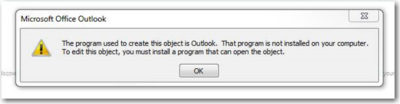
You may also see:

STATUS: WORKAROUND

  • Forward the email to yourself and then open the attachments from the forwarded email.
  • Change the email format to HTML, or Text format.
  • Save the attachments to your computer, using one of the following methods, then open them from the saved location: Drag and drop the attachments to your desktop.
    Go to File > Save Attachments.
    Copy and paste the attachment to your computer.

Issue#2: Opening Mail Attachment warning when opening an attachment that includes consecutive periods

This issue affects Outlook 2007, Outlook 2010, Outlook 2013, and Outlook 2016.

When opening an attachment that includes consecutive periods (…), or an exclamation point (!), the files are blocked and you receive an Opening Mail Attachment warning.
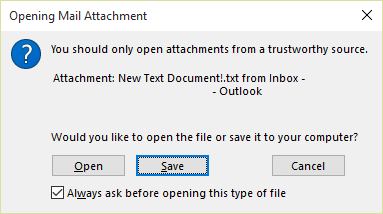
Or if an email message includes an attached email message, and the attached email message’s subject line ends with an unsafe file name extension as listed in the Blocked attachments in Outlook, the email attachment will be blocked for recipients.

STATUS: WORKAROUND

If you get the Opening Mail Attachment warning, and you’re sure the attachment was sent from a trusted source, proceed to Open or Save the attachment.

If the file is blocked because of a potentially unsafe file extension, ask the sender to save the email message to their computer and rename its subject line so that it does not end with an unsafe file name extension. Then, attach it to the email message and resend.

Issue#3: Error when setting ShowLevel1Attach to allow Outlook to display Level 1 attachments

This issue affects Outlook 2013 and Outlook 2016.

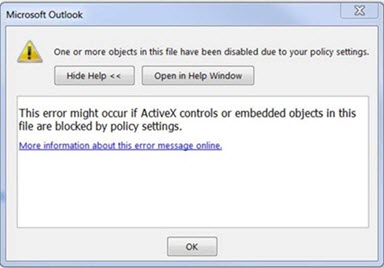
If you set ShowLevel1Attach to allow Outlook to display Level 1 attachments, you may see the error: “One or more objects in this file have been disabled due to your policy settings”.

WARNING: Typically, Level 1 attachments are blocked. If you have enabled this policy, users can see Level 1 attachments in Outlook. If you use any of the workarounds to open the files, please make sure they are safe to open. See: Information for administrators about e-mail security settings in Outlook 2007.
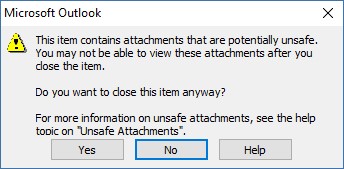
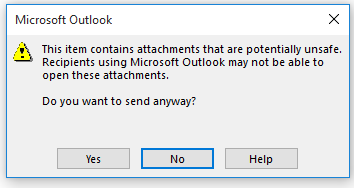
If you set ShowLevel1Attach to allow Outlook to display Level 1 attachments, and you send an email with an attachment you may see this message: “This item contains attachments that are potentially unsafe.  Recipients using Microsoft Outlook may not be able to open these attachments.”
STATUS: WORKAROUND

  • Change the email format to HTML, or Text format.
  • Save the attachments to your computer, using one of the following methods, then open them from the saved location:
    • Drag and drop the attachments to your desktop.
    • Go to File > Save Attachments.
    • Copy and paste the attachment to your computer.

Issue#4: VBScript does not run or you receive malicious code warning when using a custom form for Outlook

This issue affects Outlook 2007, Outlook 2010, Outlook 2013, and Outlook 2016.

When you use a custom form that you have created for Outlook, you see the following two symptoms:

  • VBScript does not run.
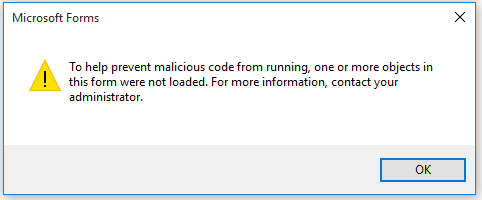
  • You get a malicious code warning: 

STATUS: INVESTIGATING

We’re investigating this issue and will update this page when a fix is available.

Issue#5: “Something went wrong….” or “Search results may be incomplete” error when searching in Outlook

This issue affects all Outlook versions on Windows 7, Windows 8, Windows 10.

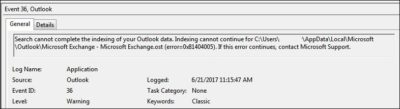
When searching in Outlook, you get this error: “Something went wrong and your search couldn’t be completed.”, or “Search results may be incomplete because items are still being indexed“.

And you’ll see this Event Log warning:
STATUS: WORKAROUND

Until the Windows Update fix release on 6/27, you can set a registry key that will cause Outlook to stop using the local Windows Search service. When this registry key is set, Outlook will use its own built-in search engine. The built-in search will display the message below to indicate it is not using the Windows Search service.

Disable Windows Desktop Search Service for Outlook:

NOTE: The following steps show you how to modify the registry. However, serious problems might occur if you modify the registry incorrectly. Please make sure that you follow these steps carefully. For added protection, back up the registry before you modify it. Then, you can restore the registry if a problem occurs. For more information about how to back up and restore the registry, see this article.

  • Open Registry Editor.
  • Go to: Computer\HKEY_LOCAL_MACHINE\SOFTWARE\Policies\Microsoft\Windows\Windows Search
  • PreventIndexingOutlook
  • Set DWORD: 1

Detailed Instructions:

  1. Click Start, click Run, type regedit in the Open box, and then click OK.
  2. Locate and then click the following subkey in the registry:
    HKEY_LOCAL_MACHINE\SOFTWARE\Policies\Microsoft\Windows
  3. On the Edit menu, point to New, and then click New Key and name the key Windows Search.
  4. Click on the new key Windows Search.
  5. On the Edit menu, point to New, and then click DWORD Value.
  6. Type PreventIndexingOutlook for the name of the DWORD, and then press Enter.
  7. Right-click PreventIndexingOutlook, and then click Modify.
  8. In the Value data box, type 1 to enable the registry entry, and then click OK.
  9. Note to disable the PreventIndexingOutlook setting, type 0 (zero), and then click OK.
  10. Exit Registry Editor, and then restart Outlook.

Issue#6: iCloud fails to load properly in Outlook 2007

iCloud fails to load properly in Outlook 2007.

When accessing Calendar, Contacts, or Tasks in Outlook 2007, you get the following error:

The set of folders cannot be opened. MAPI was unable to load the information service C:\PROGRA~2\COMMON~1\Apple\Internet Services\APLZOD.dll. Be sure the service is correctly installed and configured.”

STATUS: WORKAROUND

The loading of unregistered MAPI services has been disabled by default to make Outlook more secure.

WARNING: This workaround may make your computer or your network more vulnerable to attack by malicious users or by malicious software such as viruses. Microsoft does not recommend this workaround but is providing this information so that you can choose to implement this workaround at your own discretion. Use this workaround at your own risk.

If you have trusted applications that depend on being loaded in this manner, you can re-enable those applications by setting the following registry key:

REG_DWORD HKEY_CURRENT_USER\Software\Microsoft\Office\12.0\Outlook\Security\AllowUnregisteredMapiServices

You can use the following registry subkey to apply the registry setting as a domain policy:

HKCU\Software\Policies\Microsoft\Office\12.0\Outlook\Security\AllowUnregisteredMapiServices

Value 0 (default): Block loading of unregistered MAPI services. This is the recommended setting to avoid unexpected execution of unknown code.

Value 1: Enable loading of unregistered MAPI services.

IMPORTANT: The following steps show you how to modify the registry. However, serious problems might occur if you modify the registry incorrectly. Please make sure that you follow these steps carefully. For added protection, back up the registry before you modify it. Then, you can restore the registry if a problem occurs. For more information about how to back up and restore the registry, see this article.

To make these registry changes, follow these steps:

  1. Click Start, click Run, type regedit in the Open box, and then click OK.
  2. Locate and then click the following subkey in the registry:HKCU\Software\Microsoft\Office\12.0\Outlook\Security\
  3. On the Edit menu, point to New, and then click DWORD Value.
  4. Type AllowUnregisteredMapiServices for the name of the DWORD, and then press Enter.
  5. Right-click AllowUnregisteredMapiServices, and then click Modify.
  6. In the Value data box, type 1 to enable the registry entry, and then click OK.

    NOTE: To disable the AllowUnregisteredMapiServices setting, type 0 (zero), and then click OK.

  7. Exit Registry Editor, and then restart the computer.

Vulnerability information (applies to all versions)

MAPI does not validate that a provider’s DLL that it is requested to load is registered correctly in MapiSVC.inf or even that it comes from the local machine. This can be exploited by creating a file together with an OLE object in such a way to cause MAPI to load a DLL from a network share when the OLE object is activated. This can allow arbitrary code execution to occur.

Issue#7: When printing a specific iframe or frame in a web page, the print output may be blank, or text is printed with a 404

This issue affects all Outlook versions on Windows 7, Windows 8, Windows 10.

When you print a specific iframe or frame in a web page, the print output may be blank, or text is printed that resembles the following:

NOTE: A frame is a part of a web page or browser window that displays content independent of its container. A frame can load content independently.

This problem has also been observed in both Internet Explorer 11, and in applications that host the IE Web Browser Control.

STATUS: INVESTIGATING

There is currently no workaround for this issue. However, if you print the entire web page, it will print correctly. We’re investigating this issue and will update this page when a fix is available.

Option: Uninstall Recent Microsoft Update

It is not recommended to uninstall the update as it applies to some other issues but if none of the workarounds help then you have this option until a new fix is releases.

For Outlook 2010:

  1. Go to the Control Panel – Programs and features and select view installed updates on the left.
  2. Search or look for KB3203467 and highlight it and uninstall it.

For Outlook 2007:

  1. Go to the Control Panel – Programs and features and select view installed updates on the left.
  2. Search or look for KB3191898 and highlight it and uninstall it.

Have any questions?

Call us at: 856-745-9990 or visit: https://southjerseytechies.net/

South Jersey Techies, LLC is a full Managed Web and Technology Services Company providing IT Services, Website Design ServicesServer SupportNetwork ConsultingInternet PhonesCloud Solutions Provider and much more. Contact for More Information.

To read this article in its entirety click here.