Chrome is marking all HTTP sites as ‘not secure’

Google sends a nudge toward the unencrypted web

Starting in July, Google Chrome marked all HTTP sites as “not secure,” according to a blog post published today by Chrome security product manager Emily Schechter. Chrome currently displays a neutral information icon, but starting with version 68, the browser is warning users with an extra notification in the address bar. Chrome currently marks HTTPS-encrypted sites with a green lock icon and “Secure” sign.

Google has been nudging users away from unencrypted sites for years, but this is the most forceful nudge yet. Google search began down-ranking unencrypted sites in 2015, and the following year, the Chrome team instituted a similar warning for unencrypted password fields.

The Chrome team said the announcement was mostly brought on by increased HTTPS adoption. Eighty-one of the top 100 sites on the web default to HTTPS, and a strong majority of Chrome traffic is already encrypted. “Based on the awesome rate that sites have been migrating to HTTPS and the strong trajectory through this year,” Schechter said, “we think that in July the balance was tipped enough so that we can mark all HTTP sites.”

HTTPS encryption protects the channel between your browser and the website you’re visiting, ensuring no one in the middle can tamper with the traffic or spy on what you’re doing. Without that encryption, someone with access to your router or ISP could intercept information sent to websites or inject malware into otherwise legitimate pages.

HTTPS has also become much easier to implement through automated services like Let’s Encrypt, giving sites even less of an excuse not to adopt it. As part of the same post, Google pointed to its own Lighthouse tool, which includes tools for migrating a website to HTTPS.


How I deleted Google from my life

I realized handing over my entire life to one platform had its downsides.

I deleted Google from my life, and I can show you how to do it, too.

After being a devoted Googler for many years, I realized putting all my data on one platform had its downsides. A couple of factors in particular drove me to make a clean break.

Deleting Google for privacy and security

The appeal of escaping Google comes down to privacy. Google collects an alarming amount of data about you. It’s safe to say that if you’re not a paying customer then you’re the product being sold, and that’s Google’s business model.

Security goes hand-in-hand with that. I’m sure Google’s servers are closely guarded, but I still didn’t want all my data to be concentrated in one place.

To Google’s credit, the company gives you tools to opt out of the give-us-your-private-data-for-our-services game altogether. We cover the basics in these two articles:

  • How to download your Google data so you can see what’s being recorded.
  • How to delete your Google data to protect yourself.

Deleting Google for social impact

Another reason to get rid of Google is make your choice as a consumer for a healthier, more responsible media. As a working journalist, I’m acutely aware that Google and Facebook jointly dominate the media distribution and discovery landscape. With no strong competitors to Google Search in particular, Google’s algorithms hold unprecedented sway over the discourse in our society.

The importance of search discovery means that publishers and journalists must write stories to match the queries typed in by readers. That means coverage is guided by readers’ preconceived notions about a news event, not by objective reporting. That’s a deeply disturbing state of affairs for any democratic society.

Google outwardly seems as dedicated to responsible stewardship as one could hope, but it’s still concerning enough to merit supporting alternatives and competitors.

How my Google-free experiment started

When I decided to drop Google, I had just left a full-time job at a company that used Google mail and other apps. I stopped using all Google products while I freelanced. Note: If you’re an Android user, this is basically a no-go. Fortunately, I use a combination of Windows PCs, Macs, and iOS devices, so I wasn’t trapped.
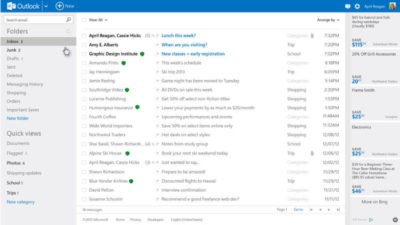
Everyone uses Google differently, but I focused on forgoing the services that are core to the experience: Gmail, Docs, Drive, Calendar, Maps, and Search.

Dropping Gmail was easier than expected. I tried Yahoo! Mail, but there were too many ads for my taste. The web interface for Apple Mail at icloud.com was just adequate. I found Microsoft’s overhauled Outlook web interface (and truly excellent mobile app) was the best alternative.
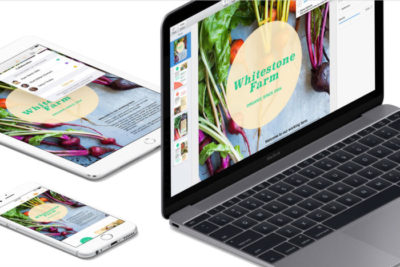
Apple’s iWork for iCloud lets you use its productivity applications and share content across devices.

Instead of Docs, I tried Office 365 and iWork for iCloud. I liked them both better than Docs because I prefer native apps to web apps, and because I think both have more elegant designs—especially iCloud. Apple’s iWork for iCloud is similar to Docs in that it’s online-only, and designed for collaboration. It also has a mobile app. Office 365 will be pretty familiar to anyone who’s worked with Office’s desktop versions.

It was also pretty easy to kick Drive to the curb. Cloud storage competitors abound. I always preferred Dropbox to Drive anyway because I find that its OS X and Windows apps are better-integrated into the OS’s normal file browsing experience. Google Drive feels like it’s meant to be a place to store documents and back up files, not seamlessly augment your local storage—even though it does that in some ways.
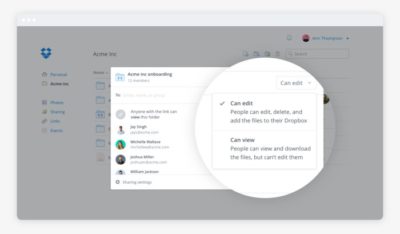
Dropbox’s file-sharing features are competitive and in some ways better than those in Google Docs.

Google Calendar has plenty of competition. This is a more personal choice, and people can get very attached—consider the furor when Microsoft shuttered Sunrise Calendar. On the other hand, it inspired us to find third-party alternative calendars, which could also replace Google Calendar.

What didn’t go well

I tried Apple Maps. I tried Waze. Google Maps is still the best.

I couldn’t quit everything Google offered so easily. Google Maps alternatives were a challenge. Your best bets are Waze or Apple Maps, but let’s be honest—they have nothing on Google Maps. Unlike Apple Maps, Waze has a web app, and powerful community-sourced data is its biggest selling point. But guess what? Google uses Waze’s data in Maps! So rather than gaining that feature, you’re just losing all the stuff Maps has that Waze doesn’t.

Google Search rules for a reason. The only two decent alternatives I found were Bing and DuckDuckGo.

Bing is as good or better than Google in many respects, but Google’s algorithms and semantic search win hands-down.

Bing is a strong competitor. Some features, like video search, are even better than what Google offers. But Bing’s algorithm and the semantic search show more cracks than Google’s do.

DuckDuckGo isn’t as full-featured, but it records no user data—that’s the primary selling point of the platform. Both search options were passable, but Google has nailed semantic search with a precision that no one else can touch.

Back in Google’s grasp

I lived Google-free for five months, compromises and all. Then I was hired at a new job that required me to use Google. I considered the experiment a success, to the point that I was dismayed to abandon it at the new gig.

Google has us in its grasp for good reason. Looking back at my life without it, I can honestly say some alternatives couldn’t compare. Your mileage may vary based on which services you value most. If you decide to delete Google from your life, too, let us know how it goes on our Facebook page.

Have questions?

Get answers from Microsofts Cloud Solutions Partner!
Call us at: 856-745-9990 or visit: https://southjerseytechies.net/

South Jersey Techies, LL C is a full Managed Web and Technology Services Company providing IT Services, Website Design ServicesServer SupportNetwork ConsultingInternet PhonesCloud Solutions Provider and much more. Contact for More Information.

To read this article in its entirety click here.

7 advanced Google Chrome tips and tweaks that save you time

If you spend most of your workday with Google’s browser, you’ll want to put these Chrome tips to work so you can get more done in less time.

Live your best Chrome life

You probably live most of your computing day inside Google’s browser. Despite its tendency to be a resource hog, it’s still the most capable browser for its speed and optimization on the web’s most important sites.

But there’s always room to improve, especially given Chrome’s flexibility and strong feature set. This collection of tips will help you start the day off with just the sites you want, work quicker with keyboard commands, and ensure you can save the stuff you need for later use.

Stick a pin in it

Pinning tabs that you use throughout the day saves you screen real estate and keeps you from having to reopen tabs several times over. Right-click on a tab and select Pin tab to minimize it to the left side of the browser. It’ll be identifiable by the page’s favicon.

Keep in mind, when you close the browser, those tabs will reopen as pinned tabs when you relaunch Chrome. So if you don’t want to start your next session with 10 pinned tabs, you’ll need to unpin them by right-clicking and then selecting Unpin tab before closing the browser.

Reopen that tab you didn’t mean to close

There’s one, specific hotkey command that saves my bacon about 25 times a day: Control-Shift-T, which reopens the last tab closed. When you’ve got 70 or so different tabs open, you’re bound to close the wrong one from time to time.

That’s why it behooves you to memorize this command. Better yet, take a few moments to learn some of the other hotkeys shown here that will help you zip through your tabs, close them all, or quit Chrome altogether. Just as hotkeys help you work faster in Windows, the same level of convenience applies to Chrome.

Grab a Chrome extension

It’s very likely that your favorite desktop software has an accompanying Chrome extension that let’s you perform related tasks within the browser. If so, grab it. After all, the web touches a lot of aspects of the work you do. For example, Microsoft’s OneNote offers a useful Chrome extension for grabbing articles and other bits of the internet for later retrieval. Same goes for Evernote, another popular note-taking solution. And there’s a Chrome extension that notifies you of Skype alerts. Head to the Chrome Web Store to find the extensions you need.

Embrace Google Cloud Print

Google Cloud Print may still have that annoying beta tag, but it’s vastly improved since the service’s early days. It’s now reliable, and the fastest way to print a document without needing to futz with the Windows print menu.

Most printers can be added quite easily, so head to the Cloud Print site to enroll yours. Another great feature is that you can also save files right to Google Drive, helping you keep track of tax-payment confirmations or other key documents.

Know your history

Macs and iOS devices talk together very well through a feature called Handoff. Open a browser tab on the iPhone, and you can pull it up right away on your Mac.

Chrome has created something that’s not quite as seamless, but gets the job done for those of us who live outside of Fortress Apple. Control-H pulls up a list of your most recent tabs from all your devices. Next, touch Tabs from other devices to choose the site you want to check out. You can select what you were just looking at or something from a while back.

Go big (with text)

Save your eyes from strain. You can expand the text on a browser page in a couple of different ways. Hit Control+ to zoom in, and Control- to zoom out. Alternatively, pinching-and-zooming on a PC with a touchscreen will do the trick and gives you a more direct feel for what you want to see.

Control 0 will return you to the normal page size once you’re done with the close inspection.

Start off right

You can get right to work more quickly if you launch your browsing session with the sites you use most often. Go to Settings > On Startup and choose Open a specific page or set of pages.

Then, you can add your favorite pages by typing in the URLs or clicking the button for Use current pages. This’ll ensure that next time you launch Chrome, you can get right to work with the pages you need.

Have questions?

Get answers from Microsofts Cloud Solutions Partner!
Call us at: 856-745-9990 or visit: https://southjerseytechies.net/

South Jersey Techies, LL C is a full Managed Web and Technology Services Company providing IT Services, Website Design ServicesServer SupportNetwork ConsultingInternet PhonesCloud Solutions Provider and much more. Contact for More Information.

To read this article in its entirety click here.

Chrome turns 50 and stands at a crossroads

As Google reaches a major milestone, let’s reflect on its uncertain future.

google_chrome

Google’s Chrome browser has just reached a major milestone, hitting its 50th release.

For Google, it’s a moment for positive reflection. To emphasize Chrome’s might, the company points to the browser’s 771 billion page loads per month, 1 billion monthly active mobile users, 9.1 billion auto-filled forms, and 145 million malicious webpages averted. One might also point to Chrome’s ever-growing usage, accounting for 47 percent of all worldwide pageviews, including mobile, according to StatCounter.

Indeed, Chrome has become an indispensable tool for many web users, and has served as a leader in the browser world. It introduced the idea of limiting menu clutter around actual webpages, and popularized the syncing of bookmarks, tabs, and browser history across devices. After all these years, it remains PCWorld’s most highly-recommended web browser.

Yet for all the good Chrome has done, Google’s browser now stands at a crossroads. Aside from just another way to browse the Internet, it’s unclear exactly what Google wants Chrome to be.

Browser or platform?

In the beginning, Google’s key tenets for Chrome were speed and simplicity. The browser’s minimal menu system (or “chrome,” hence the name) got out of the way, and its JavaScript engine crushed the competition as websites grew more advanced in the late aughts.

Those advantages are less pronounced now. Nearly every other browser has embraced restraint with their own chrome, and Chrome is no longer the clear victor in benchmarks. Meanwhile, the ever-increasing demands of the modern web have given Chrome a reputation for being a resource hog and a battery killer, even if other browsers aren’t markedly better.

A few years after Chrome launched, Google started broadening its ambitions. It introduced the Chrome Web Store, and eventually the concept of native Chrome apps with offline functionality. A Chrome app launcher followed, along with push notifications from web services and Google Now. These new features were supposed to turn Chrome into a platform-within-a-platform on Windows and Mac, while making Chrome OS into a legitimate desktop operating system.

But over the last year, Google has dismantled or abandoned many of those efforts. The Chrome notification center is now dead on Windows and Mac, as Google considersembracing native notifications on those platforms. The Chrome Web Store fell into disrepair years ago, and Google has shown little interest in cleaning it up. The Chrome app launcher got nixed on Windows, Mac, and Linux because no one was using it.

As for Chrome OS, its future is far from certain. Although the platform has traction in the education world, and probably isn’t going away, a merged Chrome-Android operating system for consumers seems likely.

chromeoslauncher

Amid all these retrenchments, Chrome has introduced no big noteworthy features to its desktop browser. The most interesting browser developments are instead happening on alternatives such as Microsoft Edge (with its page annotation and embedded Cortana assistant) and Vivaldi (with its web panels and tab stacking).

Google may arguably be more interested in mobile Chrome, now that smartphone usage has eclipsed the desktop. But in a world of apps, Facebook, and Instant Articles, the idea that users will spend significant amounts of time in a browser seems quaint. Perhaps that’s why Google’s 1 billion mobile user statistic is on a monthly basis, not a daily one.

So as Google celebrates Chrome’s 50th release, it should also ask itself what Chrome is now trying to accomplish. Will it recommit to its original focus on speed and simplicity, or will it try to innovate with new features? Is Chrome a platform unto itself, or just a really good way to access webpages? Are the fates of the desktop and mobile versions intertwined, or are they separate? If Google can’t answer those questions, version 100 might not be so celebratory.

Have questions?

Get answers from Microsofts Cloud Solutions Partner!
Call us at: 856-745-9990 or visit: https://southjerseytechies.net/

South Jersey Techies, LL C is a full Managed Web and Technology Services Company providing IT Services, Website Design ServicesServer SupportNetwork ConsultingInternet PhonesCloud Solutions Provider and much more. Contact for More Information.

To read this article in its entirety click here.