Category Internet Security

Cyber Security Awareness

As school, socializing, and many aspects of life have moved online this year, it’s more important than ever that you protect your digital devices and steer clear of cybercriminals. Computer security threats are relentlessly inventive. Masters of disguise and manipulation, these threats constantly evolve to find new ways to annoy, steal and harm. Arm yourself with information and resources to safeguard against complex and growing computer security threats and stay safe online.

Examples of Online Cybersecurity Threats

Computer Viruses

Probably the most eminent computer security threat, a computer virus is a program written to alter the way a computer operates, without the permission or knowledge of the user. A virus replicates and executes itself, usually doing damage to your computer in the process.

What can you do to avoid computer viruses? Carefully evaluate free software, downloads from peer-to-peer file sharing sites, and emails from unknown senders. These things are critical to avoiding viruses. Most web browsers have security settings which can be configured for top defense against online threats. But, as we’ll say again and again, the single most-effective way of fending off viruses is up-to-date antivirus software and monitoring agent, like we include in our Managed Service Plans.

Spyware Threats

A serious computer security threat, spyware is any program that monitors your online activities or installs programs without your consent for profit or to capture personal information.

While many users won’t want to hear it, reading terms and conditions is a good way to build an understanding of how your activity is tracked online. As always, if a company you do not recognize is advertising for a deal that seems too good to be true, be sure you have an internet security solution in place and click with caution.

Hackers and Predators

People, not computers, create computer security threats and malware. Hackers and predators are programmers who victimize others for their own gain by breaking into computer systems to steal, change, or destroy information as a form of cyber-terrorism. These online predators can compromise credit card information, lock you out of your data, and steal your identity. As you may have guessed, online security tools with identity theft protection are one of the most effective ways to protect yourself from this brand of cybercriminal.

Phishing

Masquerading as a trustworthy person or business, phishers attempt to steal sensitive financial or personal information through fraudulent email or instant messages. Phishing attacks are some of the most successful methods for cybercriminals looking to pull off a data breach. Antivirus solutions with identity theft protection can be taught to recognize phishing threats in fractions of a second.

Cyber Safety Tips

  • Keep software systems up to date and use a good anti-virus program.
  • Examine the email address and URLs in all correspondence. Scammers often mimic a legitimate site or email address by using a slight variation in spelling.
  • If an unsolicited text message, email, or phone call asks you to update, check, or verify your account information, do not follow the link provided in the message itself or call the phone numbers provided in the message. Go to the company’s website to log into your account or call the phone number listed on the official website to see if something does in fact need your attention.
  • Do not open any attachments unless you are expecting the file, document, or invoice and have verified the sender’s email address.
  • Scrutinize all electronic requests for a payment or transfer of funds.
  • Be extra suspicious of any message that urges immediate action.
  • Confirm requests for wire transfers or payment in person or over the phone as part of a two-factor authentication process. Do not verify these requests using the phone number listed in the request for payment.


If you have any questions, please email us at support@sjtechies.com or call us at (856) 745-9990.

Shark Tank host, Barbara Corcoran loses $388,700 in phishing scam

South Jersey Techies

Barbara Corcoran of ABC’s “Shark Tank” has lost nearly $400,000 in a phishing scam this week. Corcoran told “People” that she was tricked as a result of an email scheme sent to her team.

The high-powered businesswoman told People that she received a scam invoice approving a real estate renovation, but she didn’t think twice about verifying it because she invests in real estate. It was only until her bookkeeper caught Corcoran’s assistant’s email was misspelled by 1 letter and it was later found to be the address used by the scammer.

“I was upset at first, but then remembered it was only money,” Corcoran told the magazine.

Corcoran’s assistant Emily Burke told CNN Business that the “Shark Tank” star wouldn’t provide any additional comment “at the advisement of her attorneys until the authorities are done investigating.”

However, Corcoran tweeted: “Lesson learned: Be careful when you wire money!” with a link to a TMZ story.

In addition to being an investor and a judge on the hit ABC show, Corcoran formerly owned the global real estate agency that shares her name. She sold it for $66 million in 2001.

Corcoran fell for a phishing scam. It’s common, too: Nearly 30,000 people reported being a victim of that type of scam last year. Together they reported nearly $50 million in losses, according to the FBI’s 2018 Internet Crime Report.

Phishing attacks are common methods of stealing usernames, passwords and money. Hackers pretend to be a trustworthy source to convince you to share personal data. To be safe, it’s important to make sure the sender is authentic before clicking on a link. Google has rolled out security protections that warns people of potential unsafe emails.

If you or your team have any questions or concerns please contact support at (856) 745-9990.

Scams that Target Small Businesses and How to Spot Them

Consumers are not the only ones vulnerable to scams.  If you own a small business or are part of a nonprofit organization, you could be open to several different types of cons without even realizing it.

The Federal Trade Commission (FTC) has put together a list of some of the more common scams and posted them on the website along with plenty of resources to help you spot con artists and keep them from taking advantage of you and your business.

“Your best protection? Learn the signs of scams that target businesses,” the FTC says. “Then tell your employees and colleagues what to look for so they can avoid scams.”

From the FTC website:

Fake Invoices

Scammers create phony invoices that look like they’re for products or services your business uses — maybe office or cleaning supplies or domain name registrations. Scammers hope the person who pays your bills will assume the invoices are for things the company actually ordered. Scammers know that when the invoice is for something critical, like keeping your website up and running, you may pay first and ask questions later. Except it’s all fake and if you pay, your money may be gone.

Unordered Office Supplies and Other Products

Someone calls to confirm an existing order of office supplies or other merchandise, verify an address, or offer a free catalog or sample. If you say yes, then comes the surprise — unordered merchandise arrives at your doorstep, followed by high-pressure demands to pay for it. If you don’t pay, the scammer may even play back a tape of the earlier call as “proof” that the order was placed. Keep in mind that if you receive merchandise you didn’t order, you have a legal right to keep it for free.

Directory Listing and Advertising Scams

Con artists try to fool you into paying for nonexistent advertising or a listing in a nonexistent directory. They often pretend to be from the Yellow Pages. They may ask you to provide contact information for a “free” listing or say the call is simply to confirm your information for an existing order. Later, you’ll get a big bill, and the scammers may use details or even a recording of the earlier call to pressure you to pay.

Utility Company Imposter Scams

Scammers pretend to call from a gas, electric, or water company saying your service is about to be interrupted. They want to scare you into believing a late bill must be paid immediately, often with a wire transfer or a reloadable card or gift card. Their timing is often carefully planned to create the greatest urgency — like just before the dinner rush in a restaurant.

Government Agency Imposter Scams

Scammers impersonate government agents, threatening to suspend business licenses, impose fines, or even take legal action if you don’t pay taxes, renew government licenses or registrations, or other fees. Some businesses have been scared into buying workplace compliance posters that are available for free from the U.S. Department of Labor. Others have been tricked into paying to receive nonexistent business grants from fake government programs. Businesses have received letters, often claiming to be from the U.S. Patent and Trademark Office, warning that they’ll lose their trademarks if they don’t pay a fee immediately, or saying that they owe money for additional registration services.

Tech Support Scams

Tech support scams start with a call or an alarming pop-up message pretending to be from a well-known company, telling you there is a problem with your computer security. Their goal is to get your money, access to your computer, or both. They may ask you to pay them to fix a problem you don’t really have, or enroll your business in a nonexistent or useless computer maintenance program. They may even access sensitive data like passwords, customer records, or credit card information.

Social Engineering, Phishing and Ransomware

Cyber scammers can trick employees into giving up confidential or sensitive information, such as passwords or bank information. It often starts with a phishing email, social media contact, or a call that seems to come from a trusted source, such as a supervisor or other senior employee, but creates urgency or fear. Scammers tell employees to wire money or provide access to sensitive company information. Other emails may look like routine password update requests or other automated messages but are actually attempts to steal your information. Scammers also can use malware to lock organizations’ files and hold them for ransom.

Business Promotion and Coaching Scams

Some scammers sell bogus business coaching and internet promotion services. Using fake testimonials, videos, seminar presentations, and telemarketing calls, the scammers falsely promise amazing results and exclusive market research for people who pay their fees. They also may lure you in with low initial costs, only to ask for thousands of dollars later. In reality, the scammers leave budding entrepreneurs without the help they sought and with thousands of dollars of debt.

Changing Online Reviews

Some scammers claim they can replace negative reviews of your product or service, or boost your scores on ratings sites. However, posting fake reviews is illegal. FTC guidelines say endorsements — including reviews — must reflect the honest opinions and experiences of the endorser.

Credit Card Processing and Equipment Leasing Scams

Scammers know that small businesses are looking for ways to reduce costs. Some deceptively promise lower rates for processing credit card transactions, or better deals on equipment leasing. These scammers resort to fine print, half-truths, and flat-out lies to get a business owner’s signature on a contract. Some unscrupulous sales agents ask business owners to sign documents that still have key terms left blank. Don’t do it. Others have been known to change terms after the fact. If a sales person refuses to give you copies of all documents right then and there — or tries to put you off with a promise to send them later — that could be a sign that you’re dealing with a scammer.

Fake Check Scams

Fake check scams happen when a scammer overpays with a check and asks you to wire the extra money to a third party. Scammers always have a good story to explain the overpayment — they’re stuck out of the country, they need you to cover taxes or fees, you’ll need to buy supplies, or something else. By the time the bank discovers you’ve deposited a bad check, the scammer already has the money you sent them, and you’re stuck repaying the bank. This can happen even after the funds are made available in your account and the bank has told you the check has “cleared.”

Chrome is marking all HTTP sites as ‘not secure’

Google sends a nudge toward the unencrypted web

Starting in July, Google Chrome marked all HTTP sites as “not secure,” according to a blog post published today by Chrome security product manager Emily Schechter. Chrome currently displays a neutral information icon, but starting with version 68, the browser is warning users with an extra notification in the address bar. Chrome currently marks HTTPS-encrypted sites with a green lock icon and “Secure” sign.

Google has been nudging users away from unencrypted sites for years, but this is the most forceful nudge yet. Google search began down-ranking unencrypted sites in 2015, and the following year, the Chrome team instituted a similar warning for unencrypted password fields.

The Chrome team said the announcement was mostly brought on by increased HTTPS adoption. Eighty-one of the top 100 sites on the web default to HTTPS, and a strong majority of Chrome traffic is already encrypted. “Based on the awesome rate that sites have been migrating to HTTPS and the strong trajectory through this year,” Schechter said, “we think that in July the balance was tipped enough so that we can mark all HTTP sites.”

HTTPS encryption protects the channel between your browser and the website you’re visiting, ensuring no one in the middle can tamper with the traffic or spy on what you’re doing. Without that encryption, someone with access to your router or ISP could intercept information sent to websites or inject malware into otherwise legitimate pages.

HTTPS has also become much easier to implement through automated services like Let’s Encrypt, giving sites even less of an excuse not to adopt it. As part of the same post, Google pointed to its own Lighthouse tool, which includes tools for migrating a website to HTTPS.


What Terms You Need to Know to Get Your Business GDPR-Ready

What Is EU GDPR? 

The EU GDPR is a law designed to protect and empower residents of the EU by guiding business usage of personal data. In essence, it is reshaping the way corporations handle personal data by controlling its collection, use, and storage. It will replace the regulations and frameworks of the existing 20-year-old directive (95/46/EC).


Who Is the GDPR Protecting and Empowering? 

The data subject: This is any individual that can be directly or indirectly identified or uniquely singled out in a group of individuals, from any stored data.


What Is the GDPR Protecting? 

Personal data: This is any information relating to an individual, whether in reference to their private, professional, or public life. It includes things like names, photos, email addresses, location data, online identifiers, a person’s bank details, posts on social networking websites, medical information, work performance details, subscriptions, purchases, tax numbers, education or competencies, locations, usernames and passwords, hobbies, habits, lifestyles, or a person’s computer’s IP address.


Who Is the GDPR Regulating? 

The data controller: This is the person who, alone or jointly with others, determines the purposes for, and means of, processing personal data. A data controller is not responsible for the act of processing (this falls to the data processor); they can be defined as the entity that determines motivation, condition, and means of processing.

Generally, the role of the controller is derived from the organization’s functional relation with the individual. That is, a business is the controller for the customer data it processes in relation to its sales, and an employer is the controller for the employee data they process in connection with the employment relationship.


Who Else Is the GDPR Regulating? 

Data processors: This is the person who processes personal data on behalf of the controller. Typical processors are IT service providers (including hosting providers) and payroll administrators. The processor is required to process the personal data in accordance with the controller’s instructions and take adequate measures to protect the personal data. The GDPR does not allow data processors to use the personal data for other purposes beyond providing the services requested by the controller.


What Does the GDPR Consider “Processing?” 

Processing refers to any operation or set of operations performed upon personal data, whether or not by automatic means—such as collection, recording, organization, storage, adaptation or alteration, retrieval, consultation, use, disclosure by transmission, dissemination or otherwise making available, alignment or combination, blocking, erasure, or destruction. Processing must be fair and lawful, although transparency is significantly strengthened. The processor may not use the personal data for their own purposes.


What Rights Do the Data Subjects Have? 

Under the GDPR, data subjects can request the following:

  • To be informed about the data processing
  • To consent to the processing of their personal data (opt in) or object to the processing of their personal data (opt out)
  • To obtain their personal data in a structured and commonly used format in order to transfer that data, in certain circumstances, to another controller (data portability)
  • To not be subject to fully automated data processing or profiling
  • To know what data is processed (right of access)
  • To correct where any data is incorrect
  • To have data erased under certain circumstances, for example, where the retention period has lapsed or where consent for the processing has been withdrawn (referred to commonly as the “right to be forgotten”) and to register a complaint with the supervisory authority


Other Key Elements to Consider in Preparing for GDPR

We’re not done yet. There are four more important elements to consider with GDPR as you become ready.


1) Data Breach Notification

For controllers, GDPR requires that breach notice must be provided, where feasible, within 72 hours of becoming aware of a breach; processors need to provide notice to controllers without undue delay. Any data breaches must be documented.

2) Data Minimization

This requires the level and type of data being processed to be limited to the minimum amount of data necessary. This requires you to ensure that the purpose in which the data is agreed and the purpose in which the data was collected are materially similar. The processors should ensure that individuals’ privacy is considered at the outset of each new processing, product, service, or application, and only minimum amounts of data are processed for the specific purposes collected and processed.

3) Data Pseudonymization

The GDPR defines pseudonymization as “the processing of personal data in such a way that the data can no longer be attributed to a specific data subject without the use of additional information.” To pseudonymize data, the “additional information” must be “kept separately and subject to technical and organizational measures to ensure non-attribution to an identified or identifiable person.” In other words, it is a strategy designed to enhance protection and privacy for applicable identifying data.

Although similar, anonymization and pseudonymization are two distinct techniques that permit data controllers and processors to use de-identified data. The difference between the two techniques rests on whether the data can be re-identified.

4) Fair Processing of Personal Data

This requires the processing of personal data to be fair and lawful. Generally, only the level and type of data collected should be limited to the minimum amount of data necessary (see data minimization above). There are a number of methods in which the data may be processed, including: express consent (which may be withdrawn at any time), legitimate interest basis (the subject of which legitimacy may be challenged by the data subject), honoring obligations under the agreement with the data subject, or any other legal basis that may apply.


What We Can Do to Help

We know this information can be overwhelming, but taking the proper steps now will save you headaches later. SolarWinds provides products that can help you with getting ready. Our Risk Intelligence software is one of them, providing you with hard data on:

  • A business’ quantified financial risk
  • Personally identifiable information (PII)
  • Protected health information
  • Payment information located in storage
  • Access permissions for sensitive data

Search your ‘data at rest’ for risk areas and start the data mapping you need to get ready for GDPR.

What You Need to Know About the Big Chip Security Problem

According to Intel Corp.,most of the processors running the world’s computers and smartphones have a feature that makes them susceptible to hacker attacks. The chipmaker, working with partners and rivals, says it has already issued updates to protect most processor products introduced in the past five years, but the news sparked concern about this fundamental building block of the internet, PCs and corporate networks.

The revelation of the so-called Meltdown and Spectre vulnerabilities spurred a scramble among technology’s biggest players, from Apple Inc. to Amazon.com Inc., to enact fixes and reassure customers they were on top of the problem.

1. What’s the problem?

Modern processors guess what they’ll have to do next and fetch the data they think they’ll need. That makes everything from supercomputers to smartphones operate very fast. Unfortunately, as Google researchers discovered, it also provides a way for bad actors to read data stored in memory that had been thought to be secure. In a worst-case scenario, that would let someone access your passwords.

2. How bad is it?

The vulnerability won’t stop your computer working and doesn’t provide an avenue for hackers to put malicious software on your machine. Though it could put important data at risk, there’s been no report so far of anyone’s computer being attacked in this manner. More broadly, though, the new fears could undermine longtime assurances that hardware and chip-level security is more tamper-proof than software.

3. How was it discovered?

The weakness was discovered last year by folks Google employs to find such issues before the bad guys do. Usually, solutions are developed in private and announced in a coordinated way. This time the news leaked before the companies involved had a chance to get a fix in place.

4. What’s being done to fix it?

Chipmakers and operating system providers, such as Alphabet Inc.’s Google and Microsoft Corp., are rushing to create software patches that will close the potential window of attack. Intel said that it expects to have issued updates for more than 90 percent of recently introduced processor products. Amazon.com Inc. said “all but a small single-digit percentage” of its servers have already been protected. In a blog post, Google said its security teams immediately “mobilized to defend” its systems and user data. Some customers of Android devices, Google Chromebook laptops and its cloud services still need to take steps to patch security holes, the company said. Patches for Windows devices are out now and the company is securing its cloud services, Microsoft said in a statement.

5. Is this just an Intel problem?

No, though that seems to be what panicky investors initially thought. Intel says it’s an issue for all modern processors. But rival Advanced Micro Devices Inc. stated that its products are at “near-zero risk.” ARM Holdings, which has chip designs that support all smartphones, said that, at worst, the vulnerability could “result in small pieces of data being accessed” and advised users of its technology to keep their software up to date. Google fingered all three companies. Apple said all Mac computers and iOS devices — including iPhones and iPads — were affected, but stressed there were no known exploits impacting users and that steps taken to address the issue haven’t dented performance.

6. What will the fallout be?

Some computers, mostly older ones, could be slowed down by the software patches that will make them more secure. Intel said that in common situations software might be slowed down by as much as 3 percent or not at all. But in other rare situations, performance might be reduced as much as 30 percent. The company doesn’t expect any financial impact and said it thinks customers will keep buying. As the fixes haven’t been widely deployed yet, it’s unclear whether anyone will even notice or whether computer slowdowns will be widespread. Intel has only done lab tests.

Old Windows PCs can stop WannaCry ransomware with new Microsoft patch

In a rare step, Microsoft published a patch for Windows XP, Windows Server 2003 and Windows 8

Users of old Windows systems can now download a patch to protect them from this week’s massive ransomware attack.

In a rare step, Microsoft published a patch for Windows XP, Windows Server 2003 and Windows 8 — all of them operating systems for which it no longer provides mainstream support.

Users can download and find more information about the patches in Microsoft’s blog post about Friday’s attack from the WannaCry ransomware.

The ransomware, which has spread globally, has been infecting computers by exploiting a Windows vulnerability involving the Server Message Block protocol, a file-sharing feature.

Computers infected with WannaCry will have their data encrypted, and display a ransom note demanding $300 or $600 in bitcoin to free the files.

Fortunately, Windows 10 customers were not targeted in Friday’s attack. In March, Microsoft patched the vulnerability that the ransomware exploits — but only for newer Windows systems. That’s left older Windows machines, or those users who failed to patch newer machines, vulnerable to Friday’s attack.

Researchers originally believed the ransomware was spread through attachments in email phishing campaigns. That no longer appears to be the case.

Infection attempts from the WannaCry ransomware.

Once a vulnerable PC becomes infected, the computer will attempt to spread to other machines over the local network as well as over the internet. The ransomware will specifically scan for unpatched machines that have the Server Message Block vulnerability exposed.

Businesses can prevent this by disabling the Server Message Block protocol in vulnerable PCs. They can also use a firewall to block unrecognized internet traffic from accessing the networking ports the Server Message Block uses.

Fortunately, Friday’s ransomware attack may have been contained. A security researcher who goes by the name MalwareTech has activated a sort of kill-switch in WannaCry that stops it from spreading.

As a result, over 100,000 new infections were prevented, according to U.K.’s National Cyber Security Centre. But experts also warn that WannaCry’s developers may be working on other versions that won’t be easy to disable.

“It’s very important everyone understands that all they (the hackers) need to do is change some code and start again. Patch your systems now!” MalwareTech tweeted.

Unfortunately, the kill-switch’s activation will provide no relief to existing victims. The ransomware will persist on systems already infected.

Friday’s ransomware attack appears to have spread mainly in Europe and Asia, with Russia among those nations hardest hit, according to security researchers.

Security experts are advising victims to wait before paying the ransom. It’s possible that researchers will develop a free solution that can remove the infection.

Have questions?

Get answers from Microsofts Cloud Solutions Partner!
Call us at: 856-745-9990 or visit: https://southjerseytechies.net/

South Jersey Techies, LL C is a full Managed Web and Technology Services Company providing IT Services, Website Design ServicesServer SupportNetwork ConsultingInternet PhonesCloud Solutions Provider and much more. Contact for More Information.

To read this article in its entirety click here.

Cyber Ransom Attacks in 2016

Ransom is the top motivation behind cyber attacks, according to a report from Radware, and IT professionals are most concerned about data loss. Here’s what you need to know.

Nearly half of businesses report that they were the subject of a cyber-ransom campaign in 2016, according to Radware’s, Global Application and Network Security Report 2016-2017.

Data loss topped the list of IT professionals’ cyber attack concerns, the report found, with 27% of tech leaders reporting this as their greatest worry. It was followed by service outage (19%), reputation loss (16%), and customer or partner loss (9%).

Read More

How to take control of your privacy in Windows 10

Where do you draw the line on personal privacy? The right options are different for everyone. This guide shows the privacy settings that will help you to create the right balance of privacy and convenience in Windows 10.

windows-10-privacy-blinds

Over the past year, We’ve read countless “privacy guides” for Windows 10. Most are well-intentioned, but they invariably take a simplistic approach to privacy: Just turn off every switch in the Privacy section of the Settings app.

If you do that, you’re not understanding the privacy landscape, which encompasses far more than just those settings. You’re also missing some important additional steps.

Windows 10 is a mix of software and services. With every session, a Windows 10 device exchanges a great deal of information with Microsoft’s servers. That’s neither unusual nor alarming. Microsoft’s chief rivals, Google and Apple, are also blending services into their software, with the goal of making your life easier and making that software more reliable.

So are other tech companies that you don’t think of as software companies: Amazon, with the Echo. Tesla, with its self-updating, software-driven cars. Your thermostat and your home security system.

There’s something profoundly satisfying about a service that anticipates your every move, reminding you when to leave for an appointment to arrive on time, or to pick up flowers for your anniversary tomorrow. Your digital personal assistant, whether it’s Siri or Cortana or Alexa or Google, needs to be able to see your calendar and contacts to make that magic happen.

But when that sort of personal attention goes too far, it “crosses the creepy line,” to use a phrase that Eric Schmidt probably regrets uttering when he was Google’s CEO.

The thing about that line is that it’s drawn in a different place for everyone. There are people who are thrilled at the idea that their PC or mobile device is so familiar with their actions that it can anticipate what they’ll do next. I know others who would like to build a virtual Faraday cage around their computing hardware so that none of their personal details can escape.

Both of those viewpoints, and everything in between, are perfectly valid. That’s why the software and services we use are loaded with switches and dials designed to help you take control of their potential privacy impact.

In this post, We’ll walk you through the big privacy questions for Windows 10, with enough context to help you decide which settings are right for you.

Note that this guide assumes you are using Windows 10 on a personal PC or one in your small business. If you are in an enterprise setting, or if you are in a regulated industry, you should seek professional assistance to ensure that you’re meeting proper standards.

Let’s start with the part of your PC that has the biggest impact on your personal privacy.

THE NETWORK

No one knows more about your online identity than your Internet service provider. Every packet you send or receive from anywhere online goes through their servers. When you travel and connect to Wi-Fi networks that are under the control of others, the owners of those networks can see every connection you make and can intercept their contents.

Regardless of the platform you use, that’s why it’s important you use encrypted connections for any kind of sensitive communications. Using a virtual private network whenever possible is an excellent best practice.

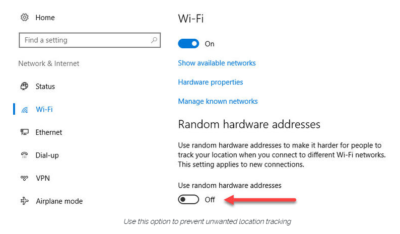
Windows 10 does offer one obscure option that can help protect third parties from tracking your movements based on your connections to Wi-Fi networks. (Note that this feature requires support from your Wi-Fi adapter, so if you don’t see this option, the most likely explanation is that your hardware doesn’t support it.) Under Settings > Network & Internet > Wi-Fi, turn the Use random hardware addresses setting to On.
windowsprivacy02

That step keeps third parties from matching your Wi-Fi adapter’s hardware address with your personal information, making it more difficult to track your location.

THE BROWSER

Countless third-party ad networks and analytics companies use cookies and other tracking technology to record your movements around the web and to correlate your online activities with your offline identity.

The result is a digital fingerprint that can be extraordinarily detailed and, unfortunately, outside of your ability to change.

To limit the amount of information that those ad and analytics companies know about you from your web browsing, consider third-party anti-tracking software such as Abine’s Blur, which is available for every web browser except Microsoft Edge. (That lack of solid support for add-ons is one reason I can’t yet recommend Edge as a full-time browser for most Windows 10 users.)

Another privacy product worth considering is Ghostery, although some are suspicious of this browser extension because of its uncomfortably close ties to the online advertising industry.

Ad-blocking software can also provide some privacy protection as a side-effect of performing its basic function. Here, too, watch out for close ties between some ad-blocking add-ins and the third-party trackers they supposedly protect you from.

Note that none of these steps is unique to Windows 10. Anti-tracking software is typically a browser add-in and works with most popular browsers.

THE OPERATING SYSTEM

With those two big, platform-independent factors out of the way, we can now turn to Windows 10 itself. When you use a Windows 10 device, it is capable of sharing the following types of information with Microsoft’s servers:

Your location

Windows 10 can determine your location to help with actions like automatically setting your current time zone. It can also record a location history on a per-device basis. Go to Settings > Privacy > Location to control the following:

  • Location on/off?Use the master switch at the top of this page to disable all location features for all users of the current device.
  • Location service on/off?If location is on for Windows, you can still turn it off for your user account here.
  • General location?This allows you to set a city, zip code, or region so that apps can deliver relevant content.
  • Default location?Click Set default to open the Maps app and specify the location you want Windows to use when a more precise location is not available.
  • Location history?Click Clear to erase the saved history for a Windows 10 device.

If location is on, a list at the bottom of the Settings > Privacy > Location page allows you to disable access to that data on a per-app basis.

Your input

If you enable Cortana, Windows 10 uploads some info from your devices, such as your calendar, contacts, and location and browsing history, so that Cortana can make personalized recommendations. If you don’t want any accounts on your PC to use Cortana, follow the steps in this article to disable the feature completely: Turn off Cortana completely.

Windows 10 uses some feedback from the way you type, write, and speak to improve performance for you and as a way to improve the overall platform. This isn’t keystroke logging; rather, the operating system uses a very small amount of information. A separate feature uses your speech and writing history to make better suggestions in Windows and Cortana.

You can control this collection with two sets of controls:

Under Settings > Privacy > General, click Info about how I write and turn it off so that your typos aren’t used to improve things like the built-in spell checker.

Under Settings > Privacy > Speech, inking, & typing, under the Getting to know you heading, click Stop getting to know me to turn off personalization.

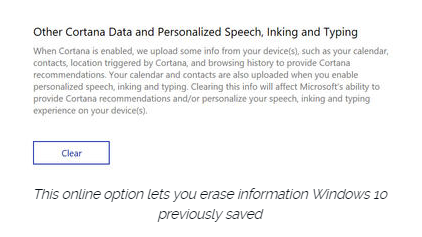
To clear previously saved information associated with your Microsoft account, click the first link under the Manage cloud info heading. That takes you to this Bing Personalization page, which includes this prominent button:
windows-privacy01

Click Clear to remove that saved information from the cloud.

Files and settings

When you sign in with a Microsoft account, you have the option to save files to the cloud using OneDrive. Windows 10 also syncs some settings to OneDrive, allowing you to have the same desktop background, saved passwords, and other personalized settings when you sign in with that account on multiple PCs.

If you use a local account, of course, none of your settings are synced. If you use a Microsoft account, you can turn off syncing completely or remove certain settings from the sync list by going to Settings > Accounts > Sync Your Settings.

OneDrive is an opt-in service. If you don’t sign in, it does nothing. You can’t save files to OneDrive accidentally, and no files are uploaded without your explicit permission, which you can revoke any time. To disable OneDrive for all users on your PC, follow these instructions: Shut down OneDrive completely.

Telemetry

Microsoft, like all modern software companies, uses feedback from its installed base to identify problems and improve performance. In Windows 10, this feedback mechanism produces diagnostics data (aka telemetry) that is uploaded to Microsoft at regular intervals. The data is anonymized and is not used to create a profile of you.

The default telemetry setting for all consumer and small business versions of Windows 10 is Full, which means that the uploaded data also includes details (also anonymized) about app usage. If you are concerned about possible inadvertent leakage of personal information, I recommend that you go to Settings > Privacy > Feedback & diagnostics and change the Diagnostic and usage data setting to Basic.

THE APPS

Although the number of subcategories under the Privacy heading in Settings seems daunting, most of them govern access to your information by Windows Store apps. That set of apps includes those that are preinstalled (Mail, Calendar, Groove Music, Photos, and so on) as well as those you acquire from the Store.

Most of the categories offer a single on-off switch at the top, which you can use to disable all access to that feature by all apps. If you leave the feature enabled, you can use a list of apps at the bottom of the page to enable or disable access on a per-app basis.

This capability works the same with the following categories: Camera, Microphone, Notifications, Account Info, Call History, and Radios. The Other Devices category lets apps automatically share and sync info with wireless devices that aren’t explicitly paired with your PC. Use the Background Apps category to specify which apps are allowed to work in the background.

If Location is enabled, you have the option to disable location access on a per-app basis and to disable Geofencing.

The Contacts, Calendar, Email, and Messaging categories allow you to control which apps can have access to these features. If you want to share content from an app using email or messaging, this option has to be on for that app. Note that Mail and Calendar, People, and Phone always have access to your contacts; Mail and Calendar are always allowed to access and send email and always have access to your calendar.

Finally, one horribly misunderstood setting is available under Settings > Privacy > General. Advertising ID controls whether Microsoft serves personalized ads to ad-supported apps. If you turn this option off, you still get ads, but they’re not personalized. In any case, your information is not shared with advertisers.

Have questions?

Get answers from Microsofts Cloud Solutions Partner!
Call us at: 856-745-9990 or visit: https://southjerseytechies.net/

South Jersey Techies, LL C is a full Managed Web and Technology Services Company providing IT Services, Website Design ServicesServer SupportNetwork ConsultingInternet PhonesCloud Solutions Provider and much more. Contact for More Information.

To read this article in its entirety click here.

10 killer PC upgrades that are shockingly cheap

Looking to put more pep in your PC’s step? These surprisingly cheap PC upgrades and accessories do the trick without breaking the bank.

PCupgrades1

No need to break the bank

Sure, swanky new Surface Pros and $1,200 graphics cards may capture all the headlines, but on a practical level, the real story is that PCs aren’t cheap. But if your computer’s starting to feel pokey, there’s fortunately no reason to rush out a spend hundreds on a new one.

Investing small amounts in key new PC hardware can keep your computer running strong for years to come. These upgrades—most costing well under $100—breathe new life into slow machines. You just have to be strategic and make sure you’re putting your money in the best place for your particular system.

PCupgrades2

Speed up your PC with an SSD

Let’s start in the most obvious place. If your PC still runs with a mechanical hard drive, swapping it out with an SSD will make it feel like a whole new computer. SSDs inject face-melting speed into a PC, drastically improving boot times, file transfers, and overall system responsiveness.

A lot of PCs don’t have SSDs, for two reasons: Solid-state drives use to be extravagantly expensive, and computer makers often charge hefty mark-ups for upgrading to an SSD. Fortunately, SSD prices have plummeted in recent years. Superb models like theSamsung 850 EVO ($89.39 for 250GB on Amazon) and the OCZ Trion 150 ($45 for 120GB on Amazon) can be found for well under $100 online. If you find the storage capacities a bit too tight, you can always install the SSD as a boot drive alongside your current hard drive.

A word of warning about SSDs, and all the hardware discussed in this article: You can often find lower prices if you sift through Amazon or Newegg for no-name or lesser-known brands. But you’re gambling on reliability and support when you move away from established PC hardware makers. Stick with name brand gear unless you absolutely, positively can’t afford it.

PCupgrades3

Mass storage is dirt cheap

Good news if your available storage space is filled to the brim: Traditional hard drives are even cheaper than SSDs these days. A 1TB Western Digital Blue hard drive spinning at a speedy 7,200rpm will only set you back $50 on Amazon, while a 3TB WD Blue drive is just $90 on Amazon (albeit at a slower 5,400rpm).

Hybrid drives blend the best of both worlds, combining a large amount of traditional storage with a small, speedy flash storage cache. The drive monitors your oft-used files and keeps them on the cache, where they benefit from SSD-esque speeds. A Seagate 1TB hybrid drive goes for $85 on Amazon with an 8GB SSD cache, or $114 on Amazonwith a 32GB cache.

PCupgrades4

Add RAM for more multitasking

If your computer’s having trouble running multiple tasks simultaneously, low memory is a likely culprit. Two gigabytes of RAM is the absolute minimum modern Windows systems need to run smoothly, and even PCs with 4GB of memory can start to feel pokey if you’re running several programs, keep a dozen Chrome tabs open, or game with some background processes still running.

Fortunately, memory is dirt cheap. Picking up an 8GB memory kit from Corsair ($36 for 2x4GB kit on Amazon) or Kingston ($36 for 2x4GB kit on Amazon)—two reliable brands I’ve had nothing but success with personally—will set you back less than $5 per gigabyte.

Just be sure to get the right type of memory for your PC! RAM comes in all sorts of different packages. The easiest way to tell what type of RAM resides in your PC is to download the free, superb CPU-Z software, then open the Memory tab and look for the “type” option.

PCupgrades5

MAYBE upgrade your CPU

A pokey PC may be the result of an outdated processor. Unfortunately, replacing your CPU often means replacing your motherboard too, making the endeavor pretty pricey. But not always—especially if you have an AMD-powered system.

AMD’s AM3+ and FM2 motherboards have been powering AMD’s CPUs and APUs, respectively, since mid-2012. Since many prebuilt AMD systems sport modest processors, upgrading to a modern CPU can give your PC a shot in the arm. If you’re on FM3+, the new Athlon X4 860K ($75 on Amazon) is a solid entry-level quad-core processor for gaming, while the 8-core FX-8320E ($130 on Amazon) is a great step-up option and price-to-performance champion. If you have an FM2-based system with an AMD APU, the A10-7860K ($110 on Amazon) could be a solid upgrade, complete withintegrated graphics that let you get into e-sports games at modest frame rates.

Intel switches out its motherboards and socket types much more often, and its chips tend to be much more expensive. Replacing Intel chips aren’t really an affordable upgrade in most cases.

It’s important to make sure your new chip is compatible with your existing motherboard! Before you buy, fire up CPU-Z and search for the “Package” entry in the main CPU tab to see what sort of socket your motherboard packs.

PCupgrades6

Gaming doesn’t have to be expensive

Want to dip your toes into PC gaming? Despite what fearmongers may tell you, gaming doesn’t have to cost an arm and a leg.

AMD’s Radeon RX 460 ($110 and up on Newegg) delivers great performance in e-sports games like League of Legends and Overwatch. It also lets you play modern games at a console-esque 30 frames per second with High graphics settings at 1080p, or up to 60fps at Medium settings. That’s damned good for a hair over $100. Even better: Many models pull their power directly from your motherboard, with no need for additional power connectors. That makes AMD’s budget card a great option for adding gaming capabilities to prebuilt “big box” PCs from the likes of HP and Dell, as they often pack modest power supplies that lack extra connectors.

Be careful though: Some of the more potent Radeon RX 460 models require extra 6-pin power connectors. You don’t want that if you don’t have one available—unless you want to buy a power supply, too. A 500 watt power supply from a reputable company doesn’t cost much, as evidenced by the EVGA 500 W1, which only costs $35 on Amazon.

PCupgrades7

Buy some canned air

No, seriously. If you haven’t cleaned out your PC in a year or more, mounds of dust and debris can be collected inside. Clogged fans and exhaust ports lead to overheating, which leads to your PC throttling back performance. Single containers of canned air can be relatively pricey; grab a four pack ($16.22 on Amazon) for a lower price and enough air to clean out your PC for years to come.

PCupgrades8

Improve your cooling, improve your performance

If your PC’s still running hot after blowing out the dust, the thermal paste coating the area where your CPU or GPU touches its cooler could be old, dry, and ineffective, especially if you’ve had the equipment for several years.

First, install SpeedFan and double check that your CPU or GPU is indeed overheating. If one (or both!) is, grab a syringe of thermal paste—Arctic Silver 5 ($7.43 on Amazon)—then use guides to installing a CPU cooler and refreshing your graphics card to help you apply new thermal paste after scraping off the old stuff.

Still running hot overall? Try adding a case fan or two. Case fans from reputable vendors are shockingly cheap ($7.91 from Cooler Master on Amazon, or $9 from NZXT on Amazon) and can be installed in mere minutes.

PCupgrades9

A better monitor

You spend most of your time interacting with your computer’s input and output devices, so it’s definitely worth investing in decent peripherals if you spend considerable time at your PC.

Start with your monitor. If you’re still using a lower-resolution display or (shudder) a fat CRT display, embracing a high-definition 1080p monitor will provide a huge step up in usability. It won’t break the bank either: You can buy a 1080p HP with a 21.5-inch IPS screen for just $100 on Amazon. IPS screens provide a much more vibrant image than the twisted-nematic panels found in most budget monitors.

Alternatively, if you’re a gamer with a Radeon graphics card, consider buying a monitor that supports AMD’s FreeSync technology. FreeSync synchronizes the refresh rate of your graphics card and display to eliminate stutter and screen tearing in games. While monitors with Nvidia’s competing G-Sync technology fetch steep price premiums, FreeSync adds minimal cost to a display. A 22-inch 1080p FreeSync display by ViewSonic costs just $110 on Amazon, for example.

PCupgrades10

Aural bliss

Treat your ears, too. The speakers that come bundled with prebuilt PCs tend to be utter garbage. While audio gear pricing can escalate to frightening levels, some of our favorite headsets will set you back less than a Benjamin.

If you’re a gamer, our favorite all-around gaming headset is the Kingston HyperX Cloud($67.93 on Amazon). The sound quality is second to none in this bracket, the build quality is superb, and it’s extremely comfortable—though its microphone is merely average.

Don’t need a mic? Music lovers will find a lot to love in the Sennheiser HD 280 Pro ($99.95 on Amazon), which I’ve personally been using for years now. The comfortably snug cans lack the extreme bass kick of, say, Beats or Monster headphones, but make up for it by delivering rich, accurate, and dynamic audio across the full sound spectrum. They’re beloved among Amazon buyers for a reason.

PCupgrades11

Enhance the parts you physically touch

If you’re used to crappy bundled PC keyboards, or laptop keyboards, upgrading to a mechanical keyboard will change your life. The well-reviewed Logitech G610 Orion withCherry MX Brown or Red switches only costs $90 on Amazon.That’s probably more than most people have spent on a keyboard before, but it’s cheap by mechanical standards. Once you’ve tried it, you won’t be able to go back to a rubber-dome board.

Likewise, investing in a decent mouse makes interacting with your PC that much more pleasant. The Razer DeathAdder ($42.69 on Amazon) is ostensibly a gaming mouse, but its ergonomic design and high DPI sensor help it feel good in your palm and generate nice, smooth cursor movements. I’ve been using one for more than five years now, and grimace whenever i’m forced to use a cheap mouse bundled with a prebuilt PC.

PCupgrades12

But first…

Speeding up your well-loved PC doesn’t actually have to cost any money. You’ll find a few tips repeated from here—seriously, buy an SSD—but for the most part, it focuses on no-cost software solutions for potentially boosting your computer’s performance. Try those before dropping dough on new gear!

Have questions?

Get answers from Microsofts Cloud Solutions Partner!
Call us at: 856-745-9990 or visit: https://southjerseytechies.net/

South Jersey Techies, LL C is a full Managed Web and Technology Services Company providing IT Services, Website Design ServicesServer SupportNetwork ConsultingInternet PhonesCloud Solutions Provider and much more. Contact for More Information.

To read this article in its entirety click here.