A strange bug is affecting many Safari users today, causing crashes on iPhone, iPad and Mac. For many users, simply tapping in the URL bar will cause the browser app to crash completely. The exact issue causing the crashing has not been locked down, but it appears to be related to Apple’s Safari Suggestions service. It’s a very annoying bug that is affecting a lot of people all of sudden today.
When you type a URL, Apple sends what you type to its servers, returning a response with autocomplete search queries, Top Sites and other info. There appears to be a bug in this server request that is causing Safari to randomly crash. Users are discovering some potential workarounds until Apple fixes the problem properly …
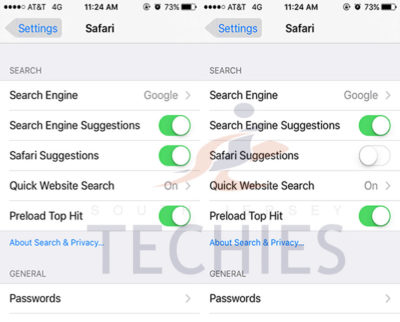
Disabling Safari Suggestions seems to be helping resolve the bug for many people on iOS. On your iPhone or iPad, go into Settings, tap Safari, and toggle off the ‘Safari Suggestions’ switch. This will fix the crashing, obviously its only a temporary fix until Apple sorts its servers out as it will disable the Safari Suggestions functionality.
Another option is to enter Private Browsing mode. In private browsing, by design Safari does not contact the suggestions server for intelligent completion options, so the server is never contacted and the crash never arises.
The bug is affecting users in many countries, but not all. It also depends on the state of your Safari, whether it has certain data cached already. The crash has been seen on iOS 8, iOS 9 and OS X 10.11. The bug could be even more widespread beyond these platforms however. It is pretty crazy flaw that is affecting so many people this morning, with many reports across European iOS customers.
We have contacted Apple about the issue for clarification, but it’s such a serious functional flaw that we expect a fix very shortly. Please note: this is an unrelated incident to the prank site CrashSafari.com.
Update: The Safari crash bug has now been fixed, according to Apple.
Have questions?
Get help from IT Experts/Microsofts Cloud Solutions Partner
Call us at: 856-745-9990 or visit: https://southjerseytechies.net/
South Jersey Techies, LL C is a full Managed Web and Technology Services Company providing IT Services, Website Design Services, Server Support, Network Consulting, Internet Phones, Cloud Solutions Provider and much more. Contact for More Information.
To read this article in its entirety click here.