Archive

Tip For Typing Text Into A Scanned Document

Takeaway: This great quick Microsoft Word Document trick will have you filling in scanned paper forms in just seconds.

Word allows you to fill out scanned paper forms.  A quick easy trick renders most paper forms into an electronic file and isn’t a perfect solution, but works when you are in a jam. 

First, scan the form and save it as a graphics file.  Be sure to save the scanned form in a format that Word can use, such as jpg, png, or bmp. 

Once you have the scanned document file, insert it as a picture as follows:

  1. In a blank document, open the header section. In Word 2007 and 2010, just double-click in the top margin area. In Word 2003, choose Header and Footer from the View menu.
  2. With the header section open, click the Insert tab. Then, click Picture in the Illustrations group. In Word 2003, choose Picture from the Insert menu, and then choose From File. Browse to the file and double-click it or select it and click Insert.
  3. With the picture file selected, choose Behind Text from the Text Wrap dropdown in the Arrange group on the contextual Format tab. In Word 2003, right-click the picture, and choose Format Picture. Click the Layout tab, choose Behind Text, and click OK.
  4. Close the header section.  Don’t worry if the graphic dims a bit.


With the graphic in the header’s background, you can now type as you normally would, using the graphic as your guideline. There are no special controls or tabs to position the cursor for you. You can certainly go that route, but that takes a lot of work, and unless you’re going to reuse the form a lot, it’s probably not worth the effort.

Most likely, the form won’t align just right the first time you try. Simply open the header and adjust the position of the form as needed. You can also change the font, font size, and tab stops to accommodate the form’s fill-in positions.

Are Your Emails Too Long?


Your Emails Are Too Long: Here’s How to Fix Them

Long Emails Don’t Get Read

You may take email for granted. However, effective email communication is as much a skill as anything else. When used effectively, email can be a powerful tool. However, one of the top email inefficiencies is message length. One of the top reasons your email isn’t getting read is because it is too long. Writing long emails doesn’t mean you are getting more work done. As people are fighting to get their inbox to empty, the last thing they want to do is read a multi-page rambling email.

Keep Those Emails Short

Resist the urge to write long and drawn out messages. If you find yourself writing long responses, you probably should be having a conversation, not an email writing contest. The shorter and tighter your email messages, the better chance that they will be read, understood and acted upon.

Here are 10 Reasons That Your Emails Are Too Long

  1. You don’t know what you are trying to say. It’s like when someone calls you and says, “What’s up?” Um, I don’t know… you called me. Hold that email until you have something specific to say or ask.
  2. You don’t know what you are talking about. This is similar to when people endlessly talk in meetings to cover up their lack of information. Writing more isn’t going to cover up the fact that you are lacking knowledge. This practice occurs in many companies when individuals send emails to “appear” busy.
  3. Your signature is unnecessary. Your half-page signature doesn’t need to be on all of your emails. Do you send emails with a 1 word response and then half of a page of signature? As well, please lose the attached graphic and cute quote.
  4. You are writing a book. Emails are not books. If there is additional information, attach supporting documents. If you are putting a large table in your email, you should stop and consider whether it should be in an attachment.
  5. You are spamming. This happens often in larger corporations. Employees feel the need to send each other lengthy updates of what they have been doing. And it’s not just the remote employees.
  6. You are rambling. Don’t write a 2-page email to ask a 1-line question. Be direct. Thanks.
  7. You are forwarding a mess. Instead of taking the time explain, you just forward your email stream. Ever get one of those, “See below..!” messages. Um, I don’t want to read the 45 page back-and-forth that you participated in.
  8. It shouldn’t be an email. Don’t send an email when it should be a meeting or a phone call. Sometimes email isn’t the right medium for your message. If it is taking more than a few lines to explain, then go talk to the person you need to communicate with.
  9. It should be multiple emails. Here is a good one. One boss combines all of the team items into one email. You may think this is an attempt at efficiency, however combining multiple emails into one doesn’t work for everyone involved. And it creates great aftermath when people “Reply All.”
  10. You don’t edit your emails. After you write an email, you should edit it before sending. Besides the obvious spelling and grammatical errors, you should be editing for content, meaning, and conciseness. Another good thumb-rule: the number of times you should re-read an email before sending is equal to the number of people you are sending it to. (And yes, this rule scales.)

Make Sure Your Email Gets to the Point

In today’s high-speed communication, no one wants to read overly long email messages. If your emails are brief and to the point, your recipients will be more likely to get the point. Remember that short and sweet will beat the 3-page email every time.

Customize Outlook’s To-Do Bar

Three tips for making Outlook’s To-Do bar work for you

Takeaway: If you’re tempted to hide Outlook’s new To-Do bar, stop! Customize it and put it to work for you.
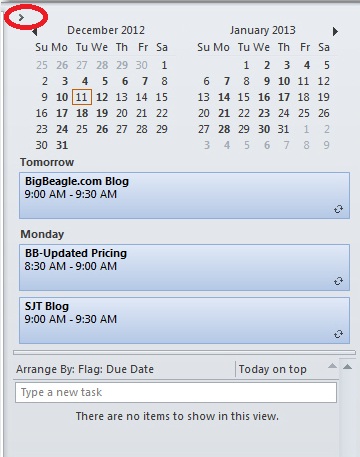
Outlook 2007 introduced the To-Do bar -a means of tracking appointments and tasks with a quick glance. The To-Do bar shows a Date Navigator with upcoming appointments and a list of tasks, but some users don’t take full advantage of it.

Most users spend most of their time in their Mail window and having quick access to other features, via the To-Do bar, without leaving their Inbox is not only convenient, it’s efficient. For instance, the Date Navigator displays upcoming appointments without opening your Calendar. If you decide to open your Calendar, simply click a date. You can also add new tasks, accept or decline meetings, and so on. These three tips will help you learn your way around so that you can customize the feature to suit your work habits.

1: Don’t dismiss it

Outlook displays the full bar, but you can free up space by collapsing it – don’t delete it! To minimize the bar, click the arrow in the top-left corner. You can then expand and collapse the bar, to suit your needs.

2: Customize the settings
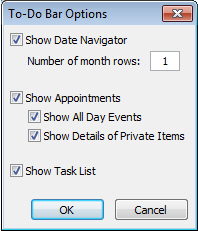
To change the default arrangement of the Date Navigator, appointments, and tasks, right-click the To-Do bar’s header. At this point, you can also turn off the display for all three To-Do bar components, but don’t to so right now. Instead, choose Options. In the resulting dialog box, you can determine the display options that work best for you. For example, you can display more than one month, hide private items, and so on.


3: Customize the Task list

Most of us will use the Task list more than the other two components, so getting this part right will really make you happy. To customize the Task list component, right-click the column header area (Arrange By) and choose View Settings (Custom in Outlook 2007). In the resulting dialog box, you can customize the task features you see. For instance, you might click Columns to add icons to the display. Or, you might want to remove the Follow Up flags.

To display more information about each task, change the single line display. Right-click the column header as before and choose View Settings (or Custom). Click Column and change this setting using the Maximum Number Of Lines dropdown.

You can temporarily filter the tasks you see by clicking the Filter button and entering specific words or choosing existing text from the dropdown. Doing so will display only those tasks that meet your criteria.

I’ve mentioned just a few of the more popular ways to customize the To-Do bar. The key to getting the most out of this feature is to explore its settings and put them to work for you!

Use AutoText to Save Multiple Return Addresses

Takeaway: If you work with multiple return addresses, you don’t have to enter those addresses manually as you use them; use Word’s AutoText feature instead.

Word uses the Mailing Address entered via the options as the return address on envelopes generated by the Envelope wizard. It’s convenient and efficient. You enter the address once, but the wizard uses it for all your envelopes, until you change or delete the address This is a great setup, unless you have more than one return address. In that case, you can delete the default address and enter the second address, when you need to, but there’s an easier way – save the second address as AutoText.

First, let’s review how to store a return address for the wizard:

  1. Click the File tab and choose Options (under Help). In Office 2007, click the Office button and then click Word Options. In Word 2003, choose Options from the Tools menu.
  2. Click Advanced in the left pane. In Word 2003, click the User Information tab.
  3. In the General section, enter the return address in the Mailing Address control.
  4. Click OK.

Now you’re ready to execute the wizard by clicking the Mailings tab and then clicking Envelopes in the Create group. In Word 2003, choose Letters and Mailings from the Tools menu, and then select Envelopes and Labels. In the resulting dialog, the wizard uses the address you just entered as the return address.


If you have to replace the default return address occasionally with another, it’s no big deal. If you use another address frequently, create an AutoText entry for it, as follows:

  1. Enter and format the address.
  2. Then, select the address.
  3. Click the Insert tab, and choose Save Selection To The AutoText Gallery from the Quick Parts dropdown in the Text group. In Word 2003, choose AutoText from the Insert menu and then choose AutoText from the resulting submenu.
  4. Change the name to something simple, such as RT.
  5. If the Save In setting is the Normal.dotx, change it to Building Blocks.dotx.
  6. Click OK.


Now you can use the AutoText entry RT to quickly change the default return address in the envelope wizard, as follows:

  1. Click the mailings tab and choose Envelopes in the Create group. In Word 2003, choose Letters and Mailings from the Tools menu, and then select Envelopes and Labels.
  2. Highlight the default address and type RT.
  3. Immediately press [F3] and Word will replace RT with the AutoText entry of the same name—the second return address.
Replacing the default address with an AutoText entry is temporary. The next time you run the wizard, it will display the default address – not the one you stored as an AutoText entry. Using this simple trick, you can store several addresses as AutoText and use them in multiple spots, not just with the envelope wizard.

Mobile Application Management (MAM)

Mobile Device Management does not stop with configuring policies, getting asset information, and securing a mobile device. The MDM solution should also provide the administrators the ability to manage the Apps that are installed on the devices.

SJT Support also provides the Mobile Application Management (MAM) capability that helps administrators perform the following management functions:

  • App Management
  • App Distribution
  • VPP Integration
  • Reports 

App management:

  • Manage the Apps over the Air (OTA) to groups/devices.
  • Automatically get App information from App Store
  • Maintain a repository of all Apps used in the network
  • View the list of Apps and their installation count on mobile devices.

App distribution:

  • Seamless distribution of both in-house and App Store Apps to devices and group of devices
  • Advertise Apps on App Catalog and make user choose to install themselves
  • Get the status of the deployed Apps on the users’ devices
  • Remove Apps when not required anymore

Integrate with Volume Purchase Program (VPP):

  • Integrates with Apple Volume Purchase Program to install commercial apps.
  • Automatically assign redemption codes to users upon installation or revoke when not installed
  • Get notified on insufficient redemption codes

Reports:

  • Comprehensive reports helps to monitor apps installed in device.
  • Specific reports can be extracted like:
    • Apps by Devices – Generates the report based on apps available in the device.
    • Devices with/without specific app – Generates report based on specific app.

Mobile Device Management (MDM)

SJT Support helps enterprises perform mobile device management to configure and secure their mobile devices from a central place. It simplifies the work of administrators by making them perform both desktop management and mobile device management using a single console.Enterprises have to scrutinize the devices that enter inside the company. It can be a corporate owned or personal device (BYOD).

SJT Support Mobile Device Management (MDM) allows you to perform the following:

  • Enrollment of Devices
  • Profile Management
  • Asset Management
  • Application management

Supported Mobile Devices

Apple iPhone, IPad, IPod Touch running iOS 4 and above.

Enrollment:

  • Over-the-Air (OTA) enrollment of devices
  • Manually enroll mobile devices for management
  • Bulk enrollment of mobile devices using a CSV file
  • Authenticate enrollment with a one-time passcode and/or user’s Active Directory credential.

Profile Management:

  • Configure Policies/Profiles – Configure policy settings to access enterprise resources.
  • Restrict – Restrict the use of camera, youtube, safari browser, etc.
  • Corporate access – Provide access to corporate accounts like Email, Wi-Fi, VPN.
  • Device Group – Create a logical group of devices based on department, location, or to distinguish corporate and BYOD and apply policies, restrictions and distribute Apps to all devices in the group.

Asset Management:

  • Get complete information about the device like device details, certificates, installed Apps, etc.
  • Get complete visibility about the devices with out-of-the-box reports.

Application Management:

  • Manage and distribute both in-house and App Store Apps
  • Integrates with Apple Volume Purchase Program (VPP) for hassle free distribution of commercial Apps.
  • Publish the Apps in App Catalog for users to choose and install the Apps themselves.

Security Management:

  • Passcode: Enforce strict passcode to prevent unauthorized access
  • Remote Lock: To prevent misuse of misplaced/lost devices
  • Complete Wipe: To prevent data loss/theft by erasing all the device data making it as good as new.
  • Corporate Wipe: To remove only the corporate data leaving the personal data like contacts, photos, etc. Useful for BYOD when the employee leaves the company.

Audit and Reports:

  • Audit devices that are inactive or have installed a specific App
  • Check whether the devices are passcode compliant.
  • Out-of-the-box reports on Apps by Devices, Devices by Model, etc.

For more information on Mobile Device Management please contact our support team by email at sales@sjtechies.com or by telephone at (856) 745-9990.

Researching Your Competition for SEO

Curious about what your competition does for Search Engine Optimization (SEO)? If your answer is a resounding “yes,” then you’re ready to take your SEO to the next level.

Checking out your competition and learning which keywords they use can help you refine your strategy. This is a common form of analysis to use on any website, whether it’s your competitor’s site or your favorite website.

You can identify your competitor’s keywords in a few different places on their website:

Keywords in the Code — Start by checking out their meta tags, such as the title tag or the keywords tag. Typically, the first keyword in a title tag is usually the most important. Use these steps to view the code:

  1. Go to the website, and then right-click the page.
  2. Click View Source. A new window opens with the website’s code.

The <title>tag is near the top of the page. If the site includes it, the meta name=”keywords”tag should be a few lines below. Both of these contain your competitor’s keywords.

Keywords in the Text — Checking out your competitor’s content for keywords also helps you analyze your competition. A keyword density checker (search “keyword density checker” in any search engine) can quickly determine which keywords are prominent in their copy. Or, you can simply use “find” (press CTRL-F on your keyboard) to search for specific keywords.

Assuming your competitors follow SEO best practices, it takes only about 10-15 minutes to check these things out and learn some of the ways they handle SEO for their site.

Our highly trained, courteous support staff is waiting to take your call. Whatever time it takes to assist you, that’s the time you’ll receive. We’ll resolve any issue to your complete satisfaction.

Call (856) 745-9990 to get started now or click here