Microsoft Word Formatting Tips

Takeaway:  Save time formatting documents in Microsoft Word by using quick tools and tips.

Copy & Paste Methods:

When copying to Microsoft Word, the original formatting is automatically inserted with text and pictures.

1. Copy the content to the Clipboard: [CTRL]+[C] or Highlight content, right click on highlighted content, and select “Copy”.
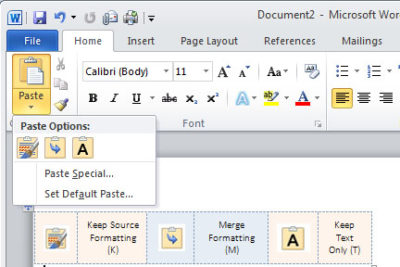
2. Paste the content into a Word document: [CTRL]+[V] or Home Tab, Paste and then select from the three options (see picture below)

–  Keep Source Formatting (K) – Original Formatting
–  Merge Formatting (M) – New content changed to format already in use
–  Keep Text Only (T) – Generic Format and will only Paste text, no pictures
Paste_Blog041013

Changing the default, as follows might be more efficient:

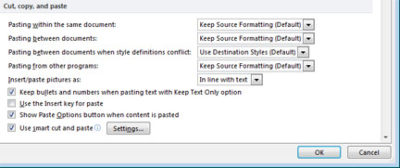
  1. Click the File tab, Help button, Options button and select the Advanced button.
  2. In the Cut, Copy, and Paste section, choose the appropriate option. (Example, you might want to keep formatting when copying from other Word documents but not from any other source)
  3. Click OK.

CCP_Blog041013

In Word 2003, select Tool menu, Options button and Edit Tab, uncheck the “Smart Cut And Paste” option or click the Settings button to customize your settings.

Section Breaks:

Separating a document with Section Breaks allows you to format each “section” differently.  Also, you can copy a previous Section Break

–  Next Page – Insert a section break and start the new section on the next page
–  Continuous – Insert a section break and start the new section on the same page.
–  Even Page – Insert a section break and start the new section on the next even-numbered page.
–  Odd Page – Insert a section break and start the new section on the next odd-numbered page.

SB_Blog041013

 In Word 2003, you can insert a Section Break from the Insert Menu.

Keeping Words Together:

Whether the word is hyphenated or simply two words you do not want to split up , a proper noun or a date, you can keep them together!

–  Hyphenated Words:  When typing the hyphen between use [CTRL]+[SHIFT]+[-]
–  Non-hyphenated Words:  When typing the space between use [CTRL]+[SHIFT]+[SPACEBAR]

Editing Number/Bullet Styles:

When formatting a list (bullets or numbers) you can simply edit the format of one or multiple bullets or numbers.

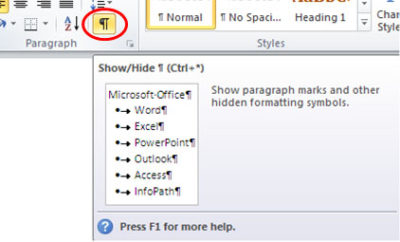
1. Select the Home tab, click Show/Hide in the Paragraph section.
SH_Blog041013

2. Highlight the Paragraph mark(s) at the end of each line you would like to re-format.  For more than one number or bullet, hold [CTRL] while highlighting.
3. Apply format using Style section.

Removing Formats:

You can highlight the entire document or only sections to remove formatting.  If you are trying to remove formatting from a few different sections, hold [CTRL] while selecting the sections.

–  Remove all formatting:  [CTRL]+[SPACEBAR]
–  Remove Paragraph formatting:  [CTRL]+[Q]

Automatically Updating Styles:

When adding a format to text, Word will let you update a style, this can be difficult.

1.  Select the Home tab.
2.  Open the Styles Dialog.
3.  Find the Style from the drop-down list.
4.  Select Modify button.
5.  Uncheck Automatically Update.

Default Line Spacing:
LS_Blog041013

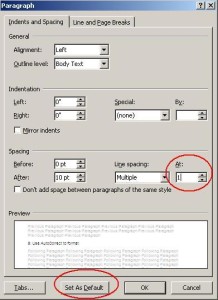
The default line spacing in Word 2007 and 2010 is set for 1.15, commonly used for Web publishing.  You can set your default to 0 or 1 using a few steps.

1.  Select the Home tab.

2.  Right-click Normal in Styles section and select Modify.

3.  Choose Paragraph from the Format list.

4.  In the Spacing section, change the At: setting from 1.15 to 1, Click OK.

5.  You now have the option to set this as your default template for all new documents by selecting “Set As Default” button.

6.  Click OK.


Paragraph Spacing:
PS_Blog041013


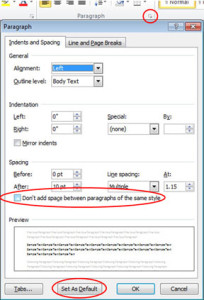
Newest versions of Microsoft Word have increased the spacing between paragraphs.  If you do not want extra space between paragraphs, you can modify it using a few steps.

1.  Select the Home tab.

2.  Open Paragraph Dialog.

3.  Check “Don’t Add Space Between Paragraphs Of the Same Style Option”.

4.  You now have the option to set this as your default template for all new documents by selecting “Set As Default” button

5.  Click OK.


Save Formatted text as AutoCorrect:
AC_Blog041013

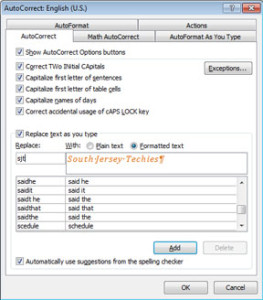
Using AutoCorrect saves time and prevents mistakes.  It can also save the text previously formatted.

1.  Highlight the content you would like to save in AutoCorrect that is pre-formatted.
2.  Open the File tab.
3.  Choose Options and then select Proofing button.
4.  Click AutoCorrect Options button.
5.  Uncheck Automatically Update.
6.  Select the option you would like to use:
–  Plain text (not formatted)
–  Formatted text (keep the format you have already applied)
7.  Enter short key in the Replace control.  (Example:  We use sjt for South Jersey Techies)
8.  Click Add button.
9.  Click OK, twice.


Find and Replace to Edit Format:

Microsoft Word’s Find and Replace tools can be used for more than replacing characters or multiple words, you can also change the format of text.

1.  Copy the text or word you would like to format.
2.  Press [CTRL]+[H] to open tool.
3.  Select More button.
3.  Paste the text or word you previously copied into Find What control.
4.  If the text you paste into Find What is formatted, select the Format button and adjust accordingly.
5.  Paste the same text into Replace With control.
6.  Select the Format button and change to the new format or remove the current Format by leaving the Format Option blank.
7.  You can either, Replace (first instance of the text or word you selected) or you can Replace All (replaces all text or words that are identical).

“Sticky Borders”:

A Sticky Border is when you type three hyphens and press enter directly below text.  This border attaches the the paragraph format or to the bottom of a page.  To easily remove this border follow these steps:

1.  Select the Home tab.
2.  Click inside the paragraph.
3.  In the Paragraph section, choose “No Border” (usually seen with editing tables).


Protection for WiFi

Takeaway:  Five simple ways to protect your information when using WiFi and Hotspots.LOCK2

WiFi is exchanging data through a wireless local area network (WLAN) from electronic devices including smartphones, laptops and tablets.

Also, WiFi is available in public places such as Airports and Restaurants.  Identity Thieves, Hackers and Criminals take advantage of WiFi because it is convenient for users to access personal information.

1.  Avoid accessing your bank accounts & online stores:

When using public WiFi, it is best to avoid using your credit card or banking information.

2.  Double check the WiFi name:

Prior to connecting to a public network double check with an employee for their network name.  Identity thieves can create a false Hot-Spot, have users connect and then steal personal information.

3.  Turn-Off “Auto Connect”:

Stay in control of what networks you connect to, smartphones have a setting that automatically connects you to the closest open network.  Simply, turn this setting off to decide what networks to connect to.

4.  Never use the same Password:

An additional step you can take to keep online accounts safe is to use different passwords for each account.   Using the same password makes stealing your information easier for criminals.

5.  Check the Lock:

The extra layer of security is the locked padlock in the address bar of your browser or “https” which means that your information has been encrypted.

LivingSocial’s Cyber Attack

living-social-logo

Recent victim of a cyber-attack is the local daily deal site, LivingSocial.  Protected during the attack was merchant and customer banking and credit card information.  Regrettably, 50 million subscriber names, date of birth, e-mail addresses and hashed passwords were compromised.

Steps to further protect your personal information:

  1. An e-mail from LivingSocial will provide you with the necessary steps to create a new password.
  2. If you are using the same password for multiple accounts it is strongly recommended to change all passwords.
  3. After an attack, hackers try to use phishing to extract additional information.  Before changing your password make sure that you are directed to www.livingsocial.com.
  4. Always protect yourself by never sending personal information via e-mail to any person or organization.

HP Moonshot Server

HPMoonshot2

On April 8, 2013 Hewlett-Packard took a fairly dramatic departure from traditional server designs with the release of the Moonshot Server.

Moonshot uses low-power smartphone style processors to optimize data center servers.  Although, Moonshot looks traditional, the Moonshot 1500 Chassis contains shared power, cooling, networking, storage and 45 pluggable servers.  There are several chipsets available.

Instead of putting together another server that requires intense power and cooling, HP reconstructed the server design.  Moonshot provides a vast amount of resources such as scalability while reducing the use of physical space, cooling and power.

Many companies partnered with HP on the Moonshot Project including:  AMD, Intel, ARM, Citrix, Cloudera, Redhat, SUSE and many others.

Disadvantages for the Moonshot server could range from an unenthusiastic entrance to the risk of a minimal hardware component failure that could bring down 45 critical servers because an entire rack of servers are set in one box.

If you are looking to purchase new equipment please contact us at (856) 745-9990.


Misunderstanding Cloud Computing

Cloud1Takeaway:  Understanding Cloud Computing for technological infrastructures.

Cloud computing is the delivery of computing resources as a service over the Internet.  The varieties of services offered are Infrastructure as a Service (IaaS), Platform as a Service (PaaS), Software as a Service (SaaS) Desktop as a Service (DaaS) and Network as a Service (NaaS).

Scalability, fast provisioning and agility help all organizations, big and small, reach monetary growth.  

There are a few major misunderstandings associated with joining the Cloud Computing revolution, such as:

It’s A Trend:

Cloud computing is a credible and efficient tool with longevity.  If you use social media, eBay, Gmail or Online Banking, you are already using Cloud Computing.

It’s not as Secure:

Cloud computing is a significantly safe way to store, share and secure your data.  Client’s are highly recommended to use the Cloud’s host-based firewall.  Also available are host-based intrusion protection programs specialized for virtual machines and Cloud Clients

(Example –  Trend Micro Deep Security or Symantec O3). 

It’s Costly:

Even with the move to the cloud and monthly costs, organizations could save money long term on IT Management Services.

It’s Complicated:

There are many different types of Cloud Computing to choose from that should make executing hassle-free.

It’s only for Large Organizations:

The Cloud is not reserved for Large Organizations only.  Virtual Desktop Infrastructure (SaaS or DaaS) can be a cost-effective solution for organizations of any size. 

Changes are not strategic:

Plans are setup to acquire full benefits offered by Cloud Computing by integrating corporate strategy and technology with the advantage of using internal resources.

Cloud is inoperable if the Internet goes down:

Having another provider with a secondary connection is a logical setup for all companies.  Most organizations already operate with a connectivity “safety net”.


To migrate your business to Cloud Computing, please visit BigBeagle.com


Ten Top Microsoft Office Tips

The ten most popular Microsoft Office tips

Takeaway:  Susan Harkins lists ten most popular Office tips published in the Windows and Office Blog, and the now inactive Office Blog.MS_Office_2007_Logo.svg

When considering tips to share, think about ease-of-use and efficiency. A few naturally rise to the top as your favorites. For your commemoration, here are 10 of 2012’s most popular posts from both the Office Blog, which was deactivated in mid-2012, and the current Windows and Office Blog. Thank you for reading, and thank you for sharing your thoughts and enhancements with one another throughout the year.

1: A quick Word trick for typing text into a scanned document

The response to this limited technique surprised me. It’s something only a few will use, but if you’re one of those few, it can be a big help! I was pleasantly surprised at the positive response it received and the way readers enhanced the technique.

2: Use Word macros to save your place in a document

These two short macros make quick work of bookmarking work areas in a Word document. When the built-in navigation techniques just don’t get the job done for you, consider these macros or one of the alternative methods that readers shared.

3: A quick and dirty way to compare columns of Excel data

This quick Go To comparison solution is great for a one-time task. Comparing Excel data is a common task, and I receive frequent questions for solutions. This solution is a great one to add to your bag of tricks.

4: Demystify Excel’s PivotTable feature with this simple method

Sometimes a great tip doesn’t offer a specific solution, but rather guides you to using a feature more efficiently and effectively. Users tend to ignore Excel’s pivot table feature because they don’t really understand it – hence this blog post offers some quick insight into how to use this feature without mind-bending tricks.

5: Create a dynamic Excel chart and make your own dashboard

This blog post is one of my favorites. I enjoyed sharing the technique, but more than that, I loved the way the readers jumped in to help one another with a step I accidentally omitted in the instructions. TechRepublic readers rock!

6: A quick Excel keyboard trick for selecting large ranges

This technique uses Go To ([F5]) in an unusual way – to anchor two cells, creating a range. The ensuing conversation shared a number of great selection tips!

7: Three tips for rounding Excel time values

Using the right function can help you round up your rounding woes. Excel offers three rounding functions and knowing them all will round out your skills nicely. (Okay, I promise to stop that.)

8: Three things you must do when you inherit an Excel workbook

I review a lot of workbooks, so this blog was one of my favorites to write. In my experience, performing these three quick tasks when inheriting a workbook can speed up your troubleshooting time. Fortunately, it sparked some insightful conversation into what others do.

9: Launch Word with the most recently used document

Reader response sometimes surprises me, as it did for this easy technique. I hadn’t expected so many great alternatives from the readers.

10: Run a list of rolling credits at the end of your PowerPoint presentation

I’m glad a PowerPoint technique made the top list, but it wasn’t because the readers loved my technique. Mostly, the conversation centered on the typo I missed, and then my lack of proper contrition for said typo. It was fun while it lasted.

Doomsday – Windows XP End of Life


XP

Takeaway:  Risks with staying with Windows XP after April 8, 2014.

Since being release worldwide on October 25, 2001, Windows XP has become one of the most popular versions of Windows.  OEM and retail sales of Windows XP ended in June 2008, while smaller OEMs continued to sell the Operating System until January of 2009.

On April 10, 2012, Microsoft officially announced that as of April 8, 2014 they will end extended support for Windows XP and Office 2003, after which no new bug fixes or patches will be issued.

Organizations may be taking a spontaneous risk and assume that Window’s XP’s prolonged life means major vulnerabilities have been acknowledged and dealt with.  If XP were secure, there still might be application-level vulnerabilities.  Even the ranges of security breaches are inadequate to persuade some organizations that are still using Windows XP to upgrade.  The dynamics that have safeguarded XP’s success are now working against the organizations that stuck by the operating system.

A major aspect attackers assess during their investigation is the operating system and the applications used within an organization.  With Microsoft ending their support, the vendors for applications running on it will most likely end support.

On the other hand, those preparing to continue using XP after the cut-off date, are going to be in a unpleasant situation trying to protect their intellectual property, but can take certain steps to limit exposure to risk.  There are specific technologies you could deploy that will permit you to remain using legacy systems.  Mitigating technologies like Host-Based Intrusion Protection will be able to identify that a vulnerability exists and make that vulnerability difficult/impossible to exploit by applying a virtual patch to those non-supported environments.

However, XP’s acceptance is down to the technology itself and an operating system format that people are content with.  The significant changes with Windows Vista, Windows 7 and especially Windows 8 are the reason people are resistant to change.

To protect and upgrade your home or business

 please contact us 856-745-9990


Alternatives to Outlook

Takeaway:  Alternative options for mail client’s that are not as costly as Outlook but offer the same features.

Outlook is one of the most widely used email clients in the business world.  For smaller companies, there are email clients that provide cost-effective solutions.  Other email clients offer a variety of features that are comparable to Outlook.  The most significant means of communication in the office is email; communication will suffer if the email client does not work well with the organizations requirements. 

Opera Mail

BLOG_OperaMail2Opera Mail is free and offered for Windows, Mac and Linux.  This e-mail client supports POP, IMAP (no Exchange support), newsgroups, RSS, and Atom feed.  Opera mail has a fast and simple user interface, thread views, spam protection and allows you to browse websites.

Dreammail

BLOG_Dreammail2Dreammail is free and offered for Windows XP/Vista/7.  This e-mail client supports POP3, RSS, and ESMTP/Google/Yahoo.  Dreammail has multiple accounts and multiple-users setup, templates, signature options, anti-spam, address book, message filtering and a web-mail tool.

iScribe

BLOG_iScribe2iScribe is free and offered for Windows and Linux.  This e-mail client supports POP3 and IMAP, as well as international standards.  iScribe has built-in baysian span filter, frequent updates and can be used from a portable drive.

Postbox

Blog_PostBox2Postbox is $9.95 per license and offered for Windows and Mac.  This e-mail client is best for Gmail but it also supports POP and IMAP.  Postbox has native Gmail label support, fast access to your favorite accounts, social networking integration and you can add Dropbox services.

Evolution Mail

BLOG_EvolutionMail2Evolution is free and offered for Linux (open source).  This e-mail client supports POP, IMAP and Exchange.  Evolution has calendar, tasks, contacts, memos, LDAP compatibility, folder search, encryption, multiple accounts, server support, default plugins, as well as, additional plugins.


Will Microsoft Surrender?

Win82

The innovative plan for Windows 8 was to connect the mature personal computer generation with the prospering one of smartphones and tablets.

Many users are finding difficulty with adapting to the new Operating System.  Two major requests for Windows 8.1 (code-named “Blue”) is to bring back the Start button and boot-to-desktop feature.  Currently, the Start button is located in “Charms” which is a secondary taskbar set on the right-side of the screen.  The initial boot screen has much larger icons with live tiles.  Live tiles are software widgets that present dynamic content.

Windows_Start_ButtonMicrosoft is considering allowing users to restore the Start button and initially boot to the traditional desktop with Windows 8.1 (code-named “Blue”).

If Microsoft decides to add the Start button or boot-to-desktop feature to Blue, it will not be the first time a Windows Operating System has changed the user interface backwards to satisfy the users.

Microsoft has still not announced a release date for Windows Blue.  Likely, more information will arise from the Microsoft Build Developer Conference on June 26 – 28, 2013.


Top 4 Smartphones

Takeaway:  Specifications break down of the top four prominent smartphones.

In the United States the top four smartphones are Samsung Galaxy SIII, iPhone 5, Samsung Galaxy Note II and Motorola Razr Maxx HD.  The chart compares mobile carriers, platform, hardware, networks/ Wi-Fi, display, camera and battery for all four leading phones.

If you’re thinking about buying a new smartphone, the chart below will be a quick guide with the necessary feature-to-feature comparisons to make a worthy choice.

Smartphone_Blog_040813_2