Category Quick Reference Guides

Windows 10 Start menu will soon show twice as many ads. Here’s how to get rid of them

Want to never see a promoted app in the Start menu again? Follow this step-by-step guide for home users and businesses.

windows10giffy

Microsoft is to double the number of adverts for apps that appear in Windows 10’s Start menu.

Windows 10’s Start menu currently has five tiles that display ‘promoted apps’, which are Windows Store apps the user hasn’t installed on their PC. Three of these tiles are links to apps on the Windows Store and two are Windows Store apps that Windows 10 has previously automatically installed on the machine.

In future versions of Windows 10, the number of ‘promoted apps’ tiles in the Start menu will rise to 10. To make room, the number of tiles linking to apps installed on the machine will decrease, from 17 to 12.

Microsoft discussed the changes at the Windows Hardware Engineering Conference in late April, as part of a briefing on new features in the Windows 10 Anniversary Update, due out this summer.

It remains unclear whether all versions of Windows 10 will eventually see the Start menu changes or just new installs. Microsoft has been contacted for clarification.

If you don’t want adverts appearing in your Windows 10 Start menu, here’s how to remove them.

For home users

One option for removing these tiles is to install Classic Shell. The software will allow you to customize the look and feel of Windows, including changing the Start menu to resemble that of Windows 7 or earlier Microsoft operating systems.

If you don’t want to do that, here’s how to manually remove each tile from the Start menu.

In the slides below, you can see which tiles you will want to remove to get rid of promoted apps. Figure A shows the layout of promoted app tiles before the Anniversary Update changes and Figure B shows after.

Figure A
win10before
Figure B
win10after

Depending on which version of Windows you’re running, you’ll want to remove each of the tiles highlighted in Figure A or B. Let’s start by removing promoted apps that are installed on your machine. Right clicking on these tiles will show a drop down menu with an ‘Uninstall’ option at the bottom, as shown in Figure C. Click on this option to remove the app.

Figure C

cons5

Next to get rid of those promoted apps that link to the Windows Store. Right clicking on these apps will again show a drop down menu but this time click ‘Unpin from Start’ at the top, as shown in Figure D.

Figure D

consumerlatest

Finally, to remove suggested apps from the sidebar in the Start menu, you’ll need to make a change in Settings. Go to Settings->Personalization->Start and click the slider to ‘Off’ that sits under ‘Occasionally show suggestions in Start’, as shown in Figure E.

Figure E

consumerremoveads

For businesses

If you are running the Education or Enterprise versions of Windows 10 then promoted apps can also be disabled by changing a Group Policy setting. First open the Local Group Policy Editor. Next, as shown in Figure F, open the following folders in the left hand menu: Administrative templates->Windows Components->Cloud Content.

Figure F

cons4


Next double click Turn off Microsoft consumer experiences, as shown in Figure G.

Figure G

biz5

Inside the Turn off Microsoft consumer experiences window, click the radio button marked ‘Disabled’ and then click ‘Ok’ at the bottom of the window, as shown in Figure H.

Figure H

biz3

Have questions?

Get answers from Microsofts Cloud Solutions Partner!
Call us at: 856-745-9990 or visit: https://southjerseytechies.net/

South Jersey Techies, LL C is a full Managed Web and Technology Services Company providing IT Services, Website Design ServicesServer SupportNetwork ConsultingInternet PhonesCloud Solutions Provider and much more. Contact for More Information.

To read this article in its entirety click here.

11 ergonomic gadgets your body will love

If you spend most of your day at a desk, any one of these tech tools will make your work station more comfortable and give your body some much-needed relief.

Ergonomics – they do a body good
Ergonomic-Gadgets

Do you work long hours on your computer? If so, we know the feeling and have identified a list of gadgets that you can use at your workstation, and which offer the necessary support and comfort as you work. While some may require making some adjustments or take some getting used to, your body will grow to love any of these devices — in the form of reduced aches and pain.

Kensington SmartFit Conform Back Rest

If you don’t have an ergonomic chair, the Kensington SmartFit Conform Back Rest lets you convert a plain office chair into one. The attachment fits onto most chairs with a back, and delivers support for your spine and lumbar using two ventilated back panels resting on four independent springs. The fit can be slightly adjusted for support that is highly comfortable, while the fabric itself can be removed for washing.

Price: $60

[ Find it on Amazon ]

Microsoft Sculpt Ergonomic Keyboard

The Microsoft Sculpt Ergonomic Keyboard sets a new standard for the support and comfort of your wrist for those who type a lot at work. The split keyboard layout and arc shape of this wireless keyboard helps keep hands and arms in a relaxed position to significantly reduce the risk of repetitive stress injuries. The numeric keypad comes as a separate device so right-handers can hold their mouse at a more accessible angle. Though the keyboard does take some getting used to, you’re soon be wondering why you ever settled for the cramped layout of a normal keyboard.

Price: $81

[ Find it on Amazon ]

Microsoft Natural Ergonomic Keyboard 4000

The Microsoft Natural Ergonomic Keyboard 4000 adopts a similar split keyboard layout and arc shape of the Sculpt Ergonomic keyboard, though in a more conventional wired keyboard design. In addition, it comes with additional multimedia buttons that can be customized to quickly access files, launch web pages and create hot keys shortcuts to get things done faster. A dedicated slider located in the middle of the Natural Ergonomic Keyboard 4000 also makes it easy to zoom in and out.

Price: $50

[ Find it on Amazon ]

Logitech MX Master

The Logitech MX Master is a wireless desktop mouse that offers a sculpted design meant to support your hand and wrist in a comfortable and natural position. Aside from the usual plethora of technologies such as dual Bluetooth and RF wireless modes and support for pairing with up to three devices, the MX Master also comes with a couple of additional capabilities that should reduce wrist fatigue. For example, a speed-adaptive scroll wheel makes scrolling through long documents easier than ever with its ability to automatically shift between normal “click-to-click” scrolling to hyper fast scroll, while a thumb wheel offers side-to-side scrolling.

Price: $100

[ Find it on Amazon ]

Kensington Expert Mouse Wireless Trackball

Users who find that a normal mouse just doesn’t cut it for them will appreciate the use of a trackball-based solution such as the Kensington Expert Mouse Wireless Trackball. The giant trackball help keeps wrist and hand movement is kept to a minimum, and uses optical tracking technology for smooth control. Notably, the Expert Mouse Wireless Trackball works just as well for right-handed and left-handed users, while a scroll ring positioned around the trackball also makes it easy to scroll up and down lengthy documents or Web pages.

Price: $100

[ Find it on Amazon ]

Microsoft Sculpt Ergonomic Mouse

Shaped almost like a slightly squashed softball, the Microsoft Sculpt Ergonomic Mousewas created to offer a more natural hand, wrist and forearm posture. While its ergonomic design may take get some getting used to, the Sculpt Ergonomic Mouse is arguably more like a normal mouse than some of the other vertical mouse designs on the market. A thumb scoop is positioned to help maintain the correct hand and wrist position, while the scroll wheel supports four ways scrolling: Left, right, front and back.

Price: $60

[ Find it on Amazon ]

Swiftpoint GT Mouse

The Swiftpoint GT mouse is a compact, travel-friendly mouse designed to reduce fatigue caused by your normal portable mouse. The Swiftpoint GT’s pen-like grip is more natural than the claw grip that is necessary for many of the travel mouse out there, yet is small enough to be used on your laptop next to the touchpad. Moreover, it has a touch surface that enables a full range of touch gestures such as swiping, flicking and zooming. You can also easily “park” the Swiftpoint GT on your laptop when moving between meetings with its included magnetic clip.

Price: $149

[ Find it on Amazon ]

Kensington SmartFit Mouse Pad

The Kensington SmartFit Mouse Pad is created to combat improper positioning of one’s wrist when using a mouse. It comes with a soft gel support to relief pressure points on the wrist, and stands out from your run-of-the-mill mousepad by how its height can be adjusted with the use of removable inserts. A nonskid base adds stability, while an anti-microbial surface to resist strains and odors to set the SmartFit Mouse Pad further apart from the rest.

Price: $20

[ Find it on Amazon ]

Ergotron WorkFit-P, Sit-Stand Workstation

Laptop users looking to get off their butts in the office can consider the Ergotron WorkFit-P, Sit-Stand Workstation, an elegant height-adjustable laptop stand. Made of solid-aluminum construction, the WorkFit-P works like a standard monitor arm in how it can be quickly adjusted various positions – including for use while standing. The large surface has more than adequate space for a laptop and external mouse, and can also serve as an adjustable tray for writing or drawing with a graphics tablet.

Price: $299

[ Find it on Amazon ]

HiRise for MacBook
HiRise-MacBook

While its name suggests that it can only be used for a MacBook, the HiRise for MacBook is a height-adjustable stand that works just as well for other laptops. The beautiful brushed metal design aside, the stand lifts your laptop up to a half foot off the desk, bringing it to a more optimal height for your overstrained eyes. You will need a separate keyboard and mouse to work with your machine, but laptop’ keyboard and trackpad were never great for ergonomics anyway.

Price: $70

[ Find it on Amazon ]

Ergotron MX Mini Desk Mount Arm

The Ergotron MX Mini Desk Mount Arm is a monitor arm that offers a slim profile without giving up on the expansive height adjustment range of full-fledged monitor arms, including full tilt, pan and rotation capability. This means you can set the ideal height and angle for optimal individual comfort, and adjust it as necessary to avoid the morning or mid-afternoon glare. The MX Mini Desk Mount Arm works with lightweight LCD monitors of up to 24-inches, as well as tablets such as the Apple’s iPad and Microsoft’s Surface.

Price: $315

[ Find it on Amazon ]

Have questions?

Get answers from Microsofts Cloud Solutions Partner!
Call us at: 856-745-9990 or visit: https://southjerseytechies.net/

South Jersey Techies, LL C is a full Managed Web and Technology Services Company providing IT Services, Website Design ServicesServer SupportNetwork ConsultingInternet PhonesCloud Solutions Provider and much more. Contact for More Information.

To read this article in its entirety click here.

Windows Tip of the week: How to Switch from Bing

Switch from Bing:
Microsoft would like you, and your personal assistant Cortana, to use Bing as your default search engine and not Google, etc. You can force Cortana to use a different search engine, but first you have to change your default web browser.

If Firefox is your default browser in Windows 10, Cortana should be using Google Search. If Chrome is your default browser, you have to install the Chrometana extension and change the default; otherwise, Cortana will be stubborn and keep using Bing.

Have questions?

For More Tips & Info from Microsofts Cloud Solutions Partner!
Call us at: 856-745-9990 or visit: https://southjerseytechies.net/

South Jersey Techies, LL C is a full Managed Web and Technology Services Company providing IT Services, Website Design ServicesServer SupportNetwork ConsultingInternet PhonesCloud Solutions Provider and much more. Contact for More Information.

Windows Tip of the week: Pin File Explorer searches

Pin File Explorer searches:

One of the more powerful features of the Windows 10 File Explorer is the ability to save searches. Figure shows a saved search that identifies all the Word documents in a specific folder. When you have as many .doc files as I do, this is a handy search to have around. However, it would be even more convenient if that search was pinned to the Start Menu, where I can get to it even faster.

Figure

b10quicktips

Open File Explorer and navigate to your Users folder and then to your Searches subfolder. Right-click the saved search and pin it to your Start Menu for easy access.

Have questions?

For More Tips & Info from Microsofts Cloud Solutions Partner!
Call us at: 856-745-9990 or visit: https://southjerseytechies.net/

South Jersey Techies, LL C is a full Managed Web and Technology Services Company providing IT Services, Website Design ServicesServer SupportNetwork ConsultingInternet PhonesCloud Solutions Provider and much more. Contact for More Information.

Windows Tip of the week: Maximize CPU performance

Maximize CPU Performance:

If you are using a desktop PC or a notebook that is always plugged in, you might want to maximize your CPU performance by changing your Power Options. Right-click the Start button in the lower-left corner on the Desktop (Or Windows key + X) and navigate to the Power Options menu item. On the screen shown in Figure, click the High Performance radio button. Remember, changing this setting will burn through a battery charge quickly—use it wisely. Oh, and you might want to make changes to the Plan settings too while you are here.

Figure

WindowsQuickTips

Have questions?

For More Tips & Info from Microsofts Cloud Solutions Partner!
Call us at: 856-745-9990 or visit: https://southjerseytechies.net/

South Jersey Techies, LL C is a full Managed Web and Technology Services Company providing IT Services, Website Design ServicesServer SupportNetwork ConsultingInternet PhonesCloud Solutions Provider and much more. Contact for More Information.

Windows Tip of the week: Get a closer look with the Magnifier tool

Use the Windows Magnifier tool to zoom in:

You don’t have to be myopic to occasionally need a closer look at something on your Windows screen. Maybe you want to see more details in a picture. Maybe the font on the web page is too small to read comfortably.

Whatever the reason, help is a keystroke away. Hold down the Windows key and tap the plus sign (on the top row or on the numeric keypad; it doesn’t matter). That instantly zooms the display to 200% of normal. Keep tapping the plus sign to zoom in further. Moving the mouse to the edges of the screen will pan to areas that aren’t visible.

To zoom back out, hold down the Windows key as you tap the minus sign.

Have questions?

For More Tips & Info from Microsofts Cloud Solutions Partner!
Call us at: 856-745-9990 or visit: https://southjerseytechies.net/

South Jersey Techies, LL C is a full Managed Web and Technology Services Company providing IT Services, Website Design ServicesServer SupportNetwork ConsultingInternet PhonesCloud Solutions Provider and much more. Contact for More Information.

Windows Tip of the week: Add a second clock to the taskbar

Add a second clock to the taskbar:

Quick: What time is it in Dublin right now? How about Sydney? Mumbai? Cape Town?

Sometimes, that question is just a curiosity. But if you or any of your regular contacts are traveling, it’s good to be able to look up a foreign time zone at a glance.

All modern versions of Windows allow you to add up to two extra clocks to the taskbar. The time you see on the taskbar is the local time zone. But hover the mouse pointer over that time and you’ll see the extra clocks you defined. Click the time to see analog (Windows 7) or digital (Windows 10) clocks for all time zones.

To add an extra clock, right-click the taskbar clock and then click Adjust Date/Time. In Windows 7, click the Additional Clocks tab. In Windows 10, click Add Clocks For Different Time Zones. Select Show This Clock, pick a time zone, and add a descriptive label for each custom clock.

Have questions?

For More Tips & Info from Microsofts Cloud Solutions Partner!
Call us at: 856-745-9990 or visit: https://southjerseytechies.net/

South Jersey Techies, LL C is a full Managed Web and Technology Services Company providing IT Services, Website Design ServicesServer SupportNetwork ConsultingInternet PhonesCloud Solutions Provider and much more. Contact for More Information.

Windows Tip of the week: Move your specialized data folders to a different drive

Move Documents, Downloads, and other data folders to a different drive:

Every supported version of Windows includes a group of “known folders” for storing specific data types–Documents, Downloads, Music, Pictures, and so on.

By default, these folders are stored on the system drive in your user profile folder, typically C:Users[username]. But you might want to move them to a more appropriate location if you have multiple physical drives. For example, say you have a relatively small SSD as a system drive (C:) on a desktop PC and a much larger conventional hard disk (D:) for data files. In that configuration, it makes sense to move your folders to the D: drive. (This procedure also works if you’ve expanded storage with a MicroSD card.)

Just open your user profile folder by entering %userprofile% in the Run box to display a list of all the folders in that location. Right-click the first folder you want to move, click Properties, and then click the Location tab. Enter the path of the location you want to use. (I created a new folder on the D: drive to hold data files, so my Downloads folder is at D:EdDownloads.)

If the folder name you entered doesn’t exist, Windows will create it. Be sure to click Yes when asked if you want to move all current data files to the new folder.

Have questions?

For More Tips & Info from Microsofts Cloud Solutions Partner!
Call us at: 856-745-9990 or visit: https://southjerseytechies.net/

South Jersey Techies, LL C is a full Managed Web and Technology Services Company providing IT Services, Website Design ServicesServer SupportNetwork ConsultingInternet PhonesCloud Solutions Provider and much more. Contact for More Information.

5 free anti-malware tools; VR terms you should know

There’s plenty of free, effective anti-malware protection available. Just don’t let it push your browser around.

Although malware was once predicted to become extinct, it remains a constant threat. Thankfully, countless tools are available to help protect your PC against such security threats—including the popular (and free) anti-malware products on this list.

: AVG AntiVirus Free

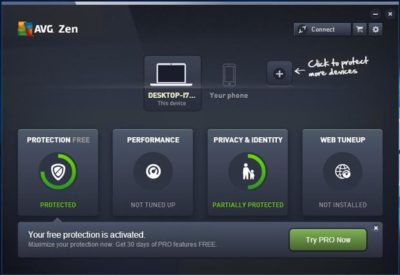
AVG AntiVirus Free (Figure A) provides protection for your computer, your browser, and your mail client. Like many other free products, AVG AntiVirus Free tries to sell you a paid license, which includes an enhanced firewall, anti-spam protection, and a few other features.

Figure A
AVG-SJTechies

Although AVG AntiVirus Free seems to do a good job protecting systems against viruses, you have to be careful about the options you choose when installing and configuring this product. Otherwise, AVG will attempt to “hijack” your browser by installing AVG Web TuneUp, changing your search page, changing your new tab pages, and changing your home page.

2: Malwarebytes Anti-Malware Free

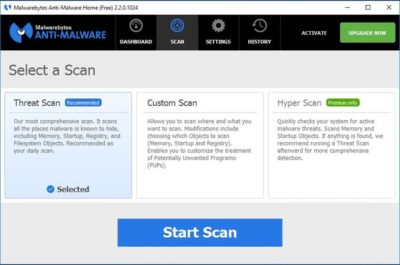
Malwarebytes Anti-Malware Free (Figure B) offers basic protection against malware. There are two main things I like about this app. First, unlike some of the other free anti-malware products, it doesn’t try to change your browser settings or install unwanted toolbars. Second, it has a clean and intuitive interface that doesn’t leave you guessing about what to do.

Figure B
antimalware-SJTechies

The disadvantage to using Malwarebytes Anti-Malware Free is that unlike the premium version, it does not support real-time protection. You can scan your PC for malware at any time, but you won’t be alerted to infections in real time unless you upgrade to the paid version.

3: Avast Free Antivirus 2016

Avast Free Antivirus 2016 (Figure C) is probably the most comprehensive antivirus tool on this list. It offers 12 components, including Rescue Disk, Browser Cleaner, Web Shield, and File Shield. The installer lets you choose which components to install.

Figure C

Avast-SJTechies

During the hour or so that I used Avast Free Antivirus, it did not attempt to take over my browser or engage in any other obnoxious behavior. The software does, however, prominently display a warning message during the installation process telling you in no uncertain terms that Avast Free Antivirus 2016 collects personal information. At least it gives you a way to opt out of this data collection.

4: Panda Free Antivirus

Panda Free Antivirus (Figure D) is another free anti-malware solution that requires a bit of caution during the installation process—otherwise, Panda will install a browser toolbar and change your home page and your default search provider.

Figure D

PandaAntivirus-SJTechies

The free version of Panda Antivirus offers real-time protection against malware, but it does try to get you to upgrade to the paid version. That version, which Panda refers to as the Pro Edition, adds a firewall, Wi-Fi protection, and VIP support.

5: YAC

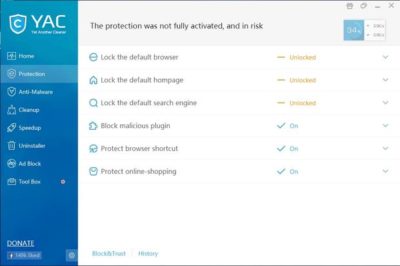
YAC (Figure E) stands for Yet Another Cleaner and—you guessed it—it’s yet another free tool for blocking threats and removing malware from an infected system. It offers a simple, easy-to-follow interface, and it doesn’t try to hijack your browser (which is a personal pet peeve, in case you hadn’t noticed). In fact, the software gives you a way to lock your browser settings so that your preferred home page, default browser, and default search engine can’t be changed without your consent.

Figure E
YAC-SJTechies

In addition to its basic anti-malware capabilities, YAC includes some nice extras, such as a tool for speeding up your computer, an uninstaller, and an ad blocker. The primary disadvantage to using YAC is that you have to upgrade to the paid version if you want to receive real-time protection. Otherwise, you’ll have to initiate anti-malware scans manually.

Have questions?

Get answers from Microsofts Cloud Solutions Partner!
Call us at: 856-745-9990 or visit: https://southjerseytechies.net/

South Jersey Techies, LL C is a full Managed Web and Technology Services Company providing IT Services, Website Design ServicesServer SupportNetwork ConsultingInternet PhonesCloud Solutions Provider and much more. Contact for More Information.

To read this article in its entirety click here.

The BlackBerry platform’s slow fade to black

BlackBerry’s operating system was recently dealt blow by Facebook. Find out how this could be the final nail in the BB10 coffin.

The only reason this headline should surprise anyone is the fact that BlackBerry OS is actually still alive. End of story, right? Truth be told, most assumed BlackBerry’s operating system dead when the company decided to release a device running the Android platform. It seemed to be the only logical step forward for BlackBerry Limited. And yet, BB continues on.

Only now, they continue on without Whatsapp and Facebook support.

When pressed for the reason why they are pulling support, Facebook made their case quite simple, stating that 99.5 % of all smartphone sales are of the Android, iOS, and Windows Mobile platforms.

Makes sense.

What doesn’t make sense is the fact that the BlackBerry OS is still alive and kicking. Yes, I understand BlackBerry was the platform for business users for a very long time, but that time has come and gone and the only relevant platforms are obvious. In fact, even Windows Mobile is barely hanging on to any semblance of relevancy.

What can you expect

If you happen to be a BlackBerry user, you already knew that Whatsapp pulled the plug. Now you can count on the Facebook app functioning (sans updates) until the end of the year. Once 2016 passes, the app will cease to be available in any form.

My guess is, once the Facebook app no longer functions on the platform, the Grim Reaper will swoop into the offices of the BB10 developers and have a field day. Facebook holds a powerful sway over the ebb and flow of the consumer. No Facebook, no platform.

And you may be saying to yourself, “BB10 is a business-centric platform, there’s no need for a Facebook app”. That assumption is false for at least two reasons. First, businesses actually use Facebook as a form of marketing. Second, you’re assuming that business users do not spend any amount of time on Facebook. According to comScore, the average American citizen spends 40 minutes a day on the social network platform. Relatively speaking, that’s a significant amount of time (considering users tend to work on Facebook in a sort of “hit and run” style). And if you factor in the peak Facebook hours of 1 p.m. – 3 p.m., it’s clear that business users do spend time on Facebook.

BlackBerry’s reaction

Of this separation, BlackBerry said:

“We are extremely disappointed in their decision as we know so many users love these apps. We fought back to work with WhatsApp and Facebook to change their minds, but at this time, their decision stands,”

BlackBerry even started a Twitter campaign to change Facebook’s mind, with the hashtag #ILoveBB10Apps. I did a quick Twitter search for that hashtag and found the hashtag (somewhat) backfired on BlackBerry. Tweets ranging from angry users (one user asking how his BlackBerry device could be showing 0% battery, yet still be functioning), to the usual flood of memes and spam. Some users did proclaim they’d be sticking with BlackBerry by way of the PRIV (which, if we’re being honest, at that point you are as much in support of Android as you are BlackBerry). Of course, there were the BlackBerry faithful, extolling the values of BlackBerry 10 multitasking, security, and such to convince Facebook to not pull the plug.

The truth is in the numbers

You really shouldn’t need anything more than that telling number 99.5. That is beyond significant. We’ve watched new (and promising) platforms come and go, thanks to the might that is Android and iOS. Because BlackBerry has been around for a while, doesn’t give them a special hall pass to avoid the apple flavored robotic death hammer.

If BlackBerry wants to continue on, their only hope clearly lies in Android. The BlackBerry faithful will gladly continue on, with their physical keyboards and Android platform. Either that, or they can say goodbye to BlackBerry altogether, because Facebook pulling support could well be the killing blow to the little platform.

Have questions?

Get answers from Microsofts Cloud Solutions Partner!
Call us at: 856-745-9990 or visit: https://southjerseytechies.net/

South Jersey Techies, LL C is a full Managed Web and Technology Services Company providing IT Services, Website Design ServicesServer SupportNetwork ConsultingInternet PhonesCloud Solutions Provider and much more. Contact for More Information.

To read this article in its entirety click here.