Uninstall now! Apple abandons QuickTime for Windows despite lingering critical flaws

Apple is giving up on QuickTime for Windows.

Yet another program is joining Java 6 and Windows XP as big-name software you do not want running on your PC. Security firmTrend Micro and the U.S. Department of Homeland Security are advising all Windows users to uninstall Apple’s QuickTime as soon as possible. (The advisory does not affect Mac users.)

The reason for getting rid of QuickTime for Windows is twofold. First, Apple told Trend Micro it is deprecating the software and will no longer deliver security updates for it. Second, there are two known critical vulnerabilities that could allow an attacker to take control of a system running QuickTime.

That’s a hellacious combo.

Apple was unavailable for comment at this writing, but a quick look at QuickTime’s download page shows the software is still publicly available. It hasn’t been updated since at least January, however.

Trend Micro says it does not yet know of any instances where the two potential security threats are being used in the wild but that could change. Trend Micro’s Zero Day Initiative recently published some technical details about the vulnerabilities. ZDI did this because its disclosure policy requires it to publish threat information when a “vendor indicates that the product is deprecated,” and thus won’t be patched.

If you’re a longtime user of iTunes you may be running QuickTime. To dump the program, open the Control Panel on your PC and then from the “category” view go to Programs > Uninstall a program. Once the list of installed programs populates, scroll down until you find QuickTime. Select it with your mouse, and then click Uninstall towards the top of the window. A pop-up window will then appear asking to confirm that you want to uninstall the program. Click Yes and you’ll be QuickTime-free in no time.

A survey published by Secunia Research in late 2015 found that Apple software is among the programs that are updated the least often by Windows users.

Why this matters: Whenever software is about to be abandoned it’s always a good idea to move away from it—or at least start planning to. That goes double for software with known flaws that allow the bad guys to execute code on your machine. QuickTime used to be an important piece of software for Windows users. But these days you don’t need it to watch movie trailers on Apple’s site and it’s no longer used by iTunes to play media on Windows. There’s little reason for the vast majority of Windows users to keep QuickTime on their PCs.

Have questions?

Get answers from Microsofts Cloud Solutions Partner!
Call us at: 856-745-9990 or visit: https://southjerseytechies.net/

South Jersey Techies, LL C is a full Managed Web and Technology Services Company providing IT Services, Website Design ServicesServer SupportNetwork ConsultingInternet PhonesCloud Solutions Provider and much more. Contact for More Information.

To read this article in its entirety click here.

Windows Tip of the week: Add a second clock to the taskbar

Add a second clock to the taskbar:

Quick: What time is it in Dublin right now? How about Sydney? Mumbai? Cape Town?

Sometimes, that question is just a curiosity. But if you or any of your regular contacts are traveling, it’s good to be able to look up a foreign time zone at a glance.

All modern versions of Windows allow you to add up to two extra clocks to the taskbar. The time you see on the taskbar is the local time zone. But hover the mouse pointer over that time and you’ll see the extra clocks you defined. Click the time to see analog (Windows 7) or digital (Windows 10) clocks for all time zones.

To add an extra clock, right-click the taskbar clock and then click Adjust Date/Time. In Windows 7, click the Additional Clocks tab. In Windows 10, click Add Clocks For Different Time Zones. Select Show This Clock, pick a time zone, and add a descriptive label for each custom clock.

Have questions?

For More Tips & Info from Microsofts Cloud Solutions Partner!
Call us at: 856-745-9990 or visit: https://southjerseytechies.net/

South Jersey Techies, LL C is a full Managed Web and Technology Services Company providing IT Services, Website Design ServicesServer SupportNetwork ConsultingInternet PhonesCloud Solutions Provider and much more. Contact for More Information.

Windows Tip of the week: Move your specialized data folders to a different drive

Move Documents, Downloads, and other data folders to a different drive:

Every supported version of Windows includes a group of “known folders” for storing specific data types–Documents, Downloads, Music, Pictures, and so on.

By default, these folders are stored on the system drive in your user profile folder, typically C:Users[username]. But you might want to move them to a more appropriate location if you have multiple physical drives. For example, say you have a relatively small SSD as a system drive (C:) on a desktop PC and a much larger conventional hard disk (D:) for data files. In that configuration, it makes sense to move your folders to the D: drive. (This procedure also works if you’ve expanded storage with a MicroSD card.)

Just open your user profile folder by entering %userprofile% in the Run box to display a list of all the folders in that location. Right-click the first folder you want to move, click Properties, and then click the Location tab. Enter the path of the location you want to use. (I created a new folder on the D: drive to hold data files, so my Downloads folder is at D:EdDownloads.)

If the folder name you entered doesn’t exist, Windows will create it. Be sure to click Yes when asked if you want to move all current data files to the new folder.

Have questions?

For More Tips & Info from Microsofts Cloud Solutions Partner!
Call us at: 856-745-9990 or visit: https://southjerseytechies.net/

South Jersey Techies, LL C is a full Managed Web and Technology Services Company providing IT Services, Website Design ServicesServer SupportNetwork ConsultingInternet PhonesCloud Solutions Provider and much more. Contact for More Information.

The best new features coming to Microsoft’s latest OS: Windows 10

Windows10

Microsoft continues to build out Windows 10 – with a bumper crop of new features announced at its Build conference last week.

These enhancements will be pushed to to Windows 10 users over the coming months, with many arriving in summer when the OS will get a major upgrade dubbed the Windows 10 Anniversary Edition.

Here are the key upgrades heading to Windows 10.

The write stuff
ink-SJTechies

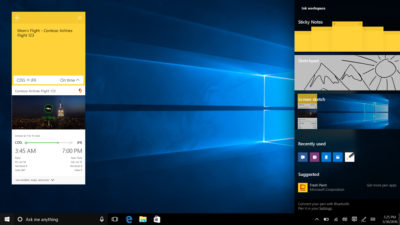
Using a digital pen to write and scribble on the screen of Windows 10 PCs and tablets will get easier.

In a boost to devices that support such pens, such as the Microsoft’s Surface tablet, the OS’ new Windows Ink feature will allow users to jot down notes on the screen without unlocking the device.

Windows Ink will also allow users to write messages on sticky notes and, if appropriate, have them automatically translated into calendar appointments and reminders.

Support for Windows Ink in Microsoft Office, Maps, the Edge browser and other apps will allow users to draw, write and annotate using their pen. Windows Ink will make using the pen in Office more satisfying than it currently is, for example tidying up highlighted marks on documents so they neatly align with text.

Windows 10 will also gain the Ink Workspace, a hub for launching apps that support writing and sketching using the Surface Pen.

Ink everywhere
win10-inking-SJTechies

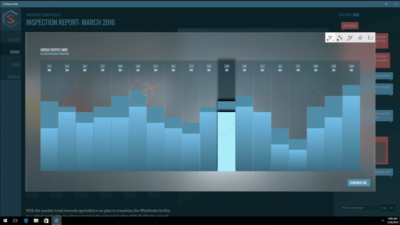
Support for drawing, writing and annotating using digital pens will likely come to many apps.

Microsoft says that support for Microsoft Ink will be easily added to Universal Windows Platform apps, requiring just two lines of XAML code.

Digital ruler
win10-ruler-SJTechies

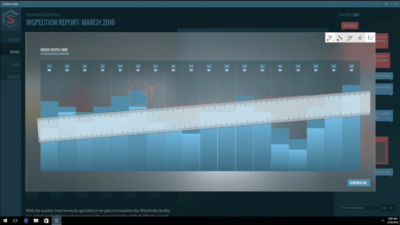
It sounds simple, but the new on-screen ruler should prove to be a useful addition for those who want to draw straight lines using a digital pen.

Smarter Cortana

The attraction of a virtual assistant is the simplicity with which they allow you to carry out tasks.

To ease the process of using Windows 10’s Cortana, the voice-controlled assistant will no longer require you to log into Windows, with users able to make a note, play music or set a reminder from the lock screen.

Cortana will also become more proactive and make suggestions based on a user’s past behaviour – offering to order lunch or to arrange transportation.

More apps will also be able to use Cortana to automatically complete tasks for users or to carry out actions based on context, such as the user’s current location or time of day.

Windows Hello comes to apps and the web
hello-SJTechies

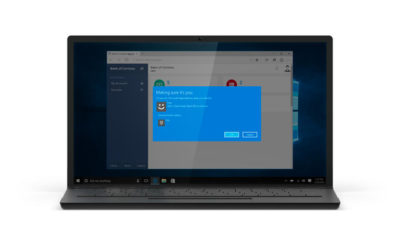
Windows 10 already lets you log into the OS using your face.

The anniversary edition will extend this biometric log-in to Windows apps and websites via Microsoft Edge. As with the OS, users will be able to authenticate their identity using a facial, iris or fingerprint scan.

Another new feature will allow users to unlock a PC running Windows 10 Enterprise Edition by tapping a Windows Hello-enabled phone, although Microsoft has said the feature will only be available on “select premium phones”.

Android app notifications on Windows 10

In future, notifications on Android devices will be able to show on Windows 10 PCs.

Any notification popping up on the Android notification panel can, via the Cortana Android app, also appear as a notification on a linked Windows 10 desktop.

Microsoft demoed the ability at its recent Build conference for developers.

Browser extensions
extensions-SJTechies

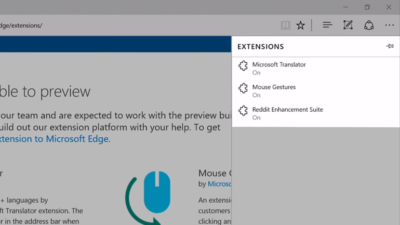
Microsoft’s Edge browser will soon gain support for extensions.

Extensions are small programs that can be downloaded to add new functionality to a browser, and are already found in Chrome, Firefox and other browsers today.

Support for extensions has already been added to Edge for those testing pre-release builds of Windows 10 under the Insider program.

The first extensions to be supported by Edge are Microsoft Translator, an extension that automatically translates pages in over 50 different languages, an extension to augment mouse gestures support, and a preview version of the Reddit Enhancement Suite.

Microsoft promises more extensions will be added later this year, including AdBlock, LastPass and Evernote.

Pinned browser tabs

pinned-tabs-SJTechies

Microsoft is also adding to Edge the ability to pin your favorite sites and web apps so they always have a tab open in the browser.

Updated Maps app
maps-app-pc-SJTechies

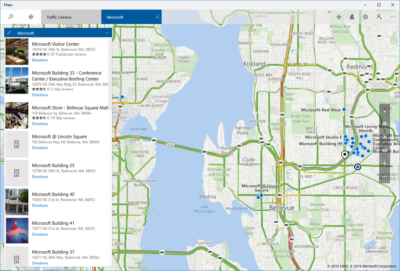
The Maps app has several new features, as well as UI and performance improvements.

Additions include one-tap access to search and directions, the ability to view multiple searches and directions at the same time, labels for search results on the map and turn-by-turn directions read by Cortana.

The improved app is available now to those testing Windows 10 under the Insider program.

Access Linux command-line tools in Windows

bash-win10-SJTechies

More one for developers, Microsoft is also bringing the ability to run the Bash shell to Windows.

The Bash shell is a command line interpreter that is available on many different Linux distributions, as well as Mac OS X.

The shell includes a host of tools that allow power users to carry out and orchestrate complex chains of commands.

Bash will be available via a Universal Windows Platform app, which will provide an image of the Linux distribution Ubuntu and run on the Windows 10 desktop.

Users will be able to use the Bash shell to download and install programs from the command line, as they do from inside Ubuntu. Microsoft says Ubuntu software will run as fast in the Windows app as it does natively, thanks to a software subsystem for handling Linux system calls.

Microsoft has described the app as offering a developer toolset. While it has access to the files on the Windows PC, the app only provides access to a command line — not a graphical desktop — and reportedly has limits on what it can be used for, such as not being able to run a server.

Have questions?

Get answers from Microsofts Cloud Solutions Partner!
Call us at: 856-745-9990 or visit: https://southjerseytechies.net/

South Jersey Techies, LL C is a full Managed Web and Technology Services Company providing IT Services, Website Design ServicesServer SupportNetwork ConsultingInternet PhonesCloud Solutions Provider and much more. Contact for More Information.

To read this article in its entirety click here.

Windows tip of the week: Simplify password management

Manage your saved passwords:

Windows regularly offers to save passwords on your behalf. When you connect to a server on your network with a username and password other than the one you logged in with, for example, you’re prompted to save the credentials for reuse. Likewise, Internet Explorer and Edge allow you to save passwords so you can enter them automatically when you return to that page.

Those passwords are saved in a secure location that only you can open, using a well-hidden tool called Credential Manager.

You’ll find this option in Control Panel, under the User Accounts heading. In Windows 8.1 and Windows 10, it’s easier to just type credential in the search box and click Credential Manager at the top of the search results.

Separate icons at the top of the Credential Manager list let you view and manage saved Web credentials and Windows credentials. The Web Passwords list can’t be sorted and there’s no search option, so you’ll have to scroll through the list to find a specific entry. Click the down arrow to the right of any entry to see the saved username and password and click Remove if you don’t want that password stored. (The only way to change a saved password is to remove it and then save it by entering the new password in your web browser.)

The Windows Credentials screen offers Edit and Remove buttons for every entry, along with a handy option to back up and restore saved credentials. That’s a small timesaver when you’re setting up a new PC.

Have questions?

For More Tips & Info from Microsoft Cloud Solutions Partner!
Call us at: 856-745-9990

TECHIES is a full Managed IT Services Company headquartered in Marlton, New Jersey for over 20 years with a new location opening soon in Wilson, North Carolina. TECHIES provides Managed IT Services, Cybersecurity Solutions, Website Design ServicesDedicated Server SolutionsIT ConsultingVoIP Phone SolutionsCloud Solutions, Network Cabling and much more.

Windows tip of the week: Find out how your PC is managing power

Get the inside story on how your PC is managing power:


One of the most powerful diagnostic tools in Windows doesn’t have a graphical interface.

The Powercfg command, which is available only from a command line, allows you to manage, save, and export power settings. But its best trick is the ability to produce a detailed report of energy usage on your PC, including clues about devices or services that are preventing your system from going to sleep when it should.

To produce the energy report, open an administrative Command Prompt window. (From Windows 8.1 or Windows 10, right-click Start and then click Command Prompt (Admin).)

At the command prompt, type cd %temp% and then press Enter to switch to the Temp folder, where your report will be saved.

Enter the command powercfg /energy to begin generating the report. The process monitors your system for 60 seconds and then analyzes the results, saving the report as a document called energy-report.html in the current folder.

To open that report in your default browser, just enter the command start energy-report.html.

Have questions?

For More Tips & Info from Microsofts Cloud Solutions Partner!
Call us at: 856-745-9990 or visit: https://southjerseytechies.net/

South Jersey Techies, LL C is a full Managed Web and Technology Services Company providing IT Services, Website Design ServicesServer SupportNetwork ConsultingInternet PhonesCloud Solutions Provider and much more. Contact for More Information.

Windows tip of the week: Tap into these Software licensing secrets


Software Licensing secrets:

Every version of Windows dating back to Windows Vista has included the Windows Software Licensing Management Tool, a script file found in the Windows System 32 folder as Slmgr.vbs. The script is designed for a local administrator to run in an elevated Command Prompt window.

Most people never need to use this tool, but it can come in handy when you’re trying to resolve activation problems or upgrade a Windows PC. The secret is knowing which switches to add to the end of the command to achieve the desired result.

If you just type the command, with no switches, you get a series of five dialog boxes that list all those switches. Network administrators who manage a Key Management server for Volume Licensing will find a goldmine here. For the rest of us, the three most commonly used switches are the following:

Slmgr.vbs /dli Displays basic license information, including the last five characters of the product key

Slmgr.vbs /dlv Displays much more detailed license information

Slmgr.vbs /cpky Removes the product key from the registry so that it can’t be copied and reused

Have questions?

For More Tips & Info from Microsofts Cloud Solutions Partner!
Call us at: 856-745-9990 or visit: https://southjerseytechies.net/

South Jersey Techies, LL C is a full Managed Web and Technology Services Company providing IT Services, Website Design ServicesServer SupportNetwork ConsultingInternet PhonesCloud Solutions Provider and much more. Contact for More Information.

Windows tip of the week: Organize your cloud files the easy way

How to set up a Cloud Files library:

Cloud Solutions

You probably have two, three, or maybe even more folders that sync files from cloud to your PC right now: Dropbox, Google Drive, OneDrive, and so on. How do you keep track of all that cloud content? Set up a Cloud Files library in File Explorer. Here’s how:

In Windows 8.1 or Windows 10, right-click any empty space in the navigation pane on the left and make sure Show Libraries is selected. (Libraries are visible by default in Windows 7’s Explorer.)

Right-click the Libraries heading and then click New | Library. Change the default name to something descriptive, like Cloud Files.

Right-click the first locally synced cloud folder and select Include In Library, choosing the name of your newly created library.

Repeat that step for each additional local folder.

That’s it. You can now get a unified view of all your cloud files by selecting that library in File Explorer. Use the search box to quickly find any file, regardless of where it’s stored.

Have questions?

For More Tips & Info from Microsofts Cloud Solutions Partner!
Call us at: 856-745-9990 or visit: https://southjerseytechies.net/

South Jersey Techies, LL C is a full Managed Web and Technology Services Company providing IT Services, Website Design ServicesServer SupportNetwork ConsultingInternet PhonesCloud Solutions Provider and much more. Contact for More Information.

Office 365 gets Six new Excel Functions

Microsoft made several new updates to Office 365 in February, including the addition of six useful functions for Excel.

EcxelOffice365

When it comes to general updates to Microsoft Office 365, February 2016 was a fairly significant month. Microsoft rolled out numerous improvements to Office 365, like better pen annotation integration, the ability to pin documents to the Start menu, a new feature that allows images to be inserted into documents directly from the camera, and the best—adding more functions to Excel.

Six new functions

Using, combining, and creating formulas in Microsoft Excel is where true Excel gurus separate themselves from the pretenders and wannabes. For an Excel aficionado, the satisfaction of creating the perfect nested formula is second to none when it comes to Excel coding. So when Microsoft adds six new functions to Excel in one month it is a very big deal.

Of course, while there is great satisfaction when you figure out the perfect formula, a certain amount of despair also goes with it—because now you have to apply that complicated nested formula over and over again. This is where the six new functions are supposed to help.

The first updated functions are TEXTJOIN and CONCAT, and they are replacements for the old concatenate function, which gave the user the power to join strings of separate text into one cell. This comes up with addresses all the time—a common task for spreadsheets since they were invented.

In the past, the formula would look something like this:

=CONCATENATE(A3, “, “, B3, “, “, C3,”, “, D3, “, “, E3)

With the new TEXTJOIN formula, the same process would look something like this:

=TEXTJOIN(“, “, TRUE, A3:E3)

This is just one example of how these new functions are designed to simplify users’ lives when it comes to advanced Excel tasks.

The next two new functions are IFS and SWITCH, which provide an alternative to using the infamous series of nested IF functions. The old IF function was the mainstay for Excel coders looking to apply logic to sets of data. You know what I mean: If this is larger than this, than this; but if it is larger than this but less than that, then this, etc. The more nested IF functions the more complicated the formula and the more likely you are to make a mistake.

The last two new functions are MAXIFS and MINIFS. They are designed to supplement the MAX and MIN functions by allowing users to apply conditions to the maximum and minimum calculations and thereby filter results. In the past you may have had to use the IF function to create your filtered conditions. These new functions eliminate the need and make your life just that much simpler.

Office365

Bottom line

When Microsoft began trying to convince us that subscribing to Office 365 was a better idea than repurchasing new versions every few years, the ability to update the productivity suite regularly at no extra cost was one of the main selling points. As the new six functions illustrate, that was not a false promise.

These functions are just the tip of the iceberg when it comes to Office 365 improvements. However, the problem with continuous updates to the software is that users have to try to keep up.

Even though there are some users out there who will keep using nested IF functions no matter what improvements come along, for example. But for the rest of us, it would seem to be worthwhile to pay attention to whatever improvements Microsoft rolls out each month. Because for better or worse, changes to Office 365 are going to keep coming.

Have questions?

Get answers from Microsofts Cloud Solutions Partner!
Call us at: 856-745-9990 or visit: https://southjerseytechies.net/

South Jersey Techies, LL C is a full Managed Web and Technology Services Company providing IT Services, Website Design ServicesServer SupportNetwork ConsultingInternet PhonesCloud Solutions Provider and much more. Contact for More Information.

Windows tip of the week: How to save time with environment variables

Save time and keystrokes with environment variables:

When asked to open your user profile in File Explorer, you’ll probably type its full path: C, colon, backslash, Users, backslash, followed by your user name. But there’s a much faster way:

Type %userprofile% and press Enter.

Congratulations, you just saved a half-dozen keystrokes or so by using one of many useful environment variables in Windows. These are reserved names, enclosed between percent signs, that represent the current location of a specific system folder.

Here are a few other useful ones to know:

%localappdata% The hidden folder in your user profile where Windows apps store your data

%windir% The folder containing Windows system files; usually C:Windows

%public% A special user profile that contains folders for Documents, Downloads, Music, Pictures, and Videos, intended for sharing on a home network

%temp% or %tmp% The normally hidden folder where Windows and apps can store files necessary for one-time tasks

Some people write these variables using mixed case (%ProgramFiles%, for example) to make them easier to read. But they’re not case sensitive, so skip the Shift key if you want.

Have questions?

For More Tips & Info from Microsoft Cloud Solutions Partner!
Call us at: 856-745-9990

TECHIES is a full Managed IT Services Company headquartered in Marlton, New Jersey for over 20 years with a new location opening soon in Wilson, North Carolina. TECHIES provides Managed IT Services, Cybersecurity Solutions, Website Design ServicesDedicated Server SolutionsIT ConsultingVoIP Phone SolutionsCloud Solutions, Network Cabling and much more.