Category Microsoft Office 2016

How to Resolve Microsoft Office 365 Activation Hassles

Imagine you are a customer of Microsoft’s Office 365 service, including a subscription to the Office desktop applications like Word, Excel and Outlook.

One day you click on the shortcut for Word, but instead of opening, it just shows a “Starting” splash screen which never progresses.

Being smart, you try to start Word in safe mode by holding down the Ctrl key, but the exact same thing happens.

Annoying, when you want to do your work. What is going on?

We took a look at a case like this. Two things you should do (after the usual reboot):

1. Look in the event viewer. Here, we found a clue that the issue is related to software activation, specifically Event 2011 “Office Subscription Licensing exception”:

2. For all things related to Office licensing, open a command prompt, go to (for example) C:\Program Files (x86)\Microsoft Office\Office16, and type:

cscript ospp.vbs /dstatus

In this case we got the following:

This told us that Windows thinks TWO product keys for Office are installed. One has expired, the other is fine.

The guilty party may (or may not) be the trial version of Office typically pre-installed with a new PC. Or it could be a consequence of changing your Office 365 subscription. Neither would be the fault of the user, who is fully licensed and has done nothing other than follow Microsoft’s normal procedures for installing Office 365.

Solution: we reinstalled Office from the Office 365 portal, and attempted to remove the dud product key with:

cscript ospp.vbs /unpkey:<Last five characters of product key>

as explained here. All is well for the moment.

Activation and subscription license checking is for the benefit of the vendor, not the user, and should never get in the way like this.

Further, cannot Microsoft find some way of informing the user when this happens, and not have Word simply hang on starting? How difficult is it to check for licensing and activation issues, and throw up a message?

Dictate By Microsoft Lets You Type With Your Voice

Dictate with your voice in Office

This feature is available to Office 365 Subscribers only.

Dictate in Word or PowerPoint

1) Turn on your microphone and make sure it works. Troubleshoot microphone settings

2) In Word 2016 or PowerPoint 2016, select Home > Dictate.

3) Wait for the icon to turn red.

4) Start talking. As you talk, text appears in your document or slide.

5) Speak clearly and conversationally. Insert punctuation by saying the name of the punctuation mark you want to add.

6) If you make a mistake while dictating, move your cursor to the mistake and fix it with your keyboard. No need to turn off the microphone.

7) When finished, select Dictate again to stop typing.

Dictate in Outlook

1) Turn on your microphone and make sure it works. Troubleshoot microphone settings

2) Open a new email message and select Message > Dictate.

3) Wait for the icon to turn red.

4) Start talking. As you talk, text appears in your email message.

5) Speak clearly and conversationally. Insert punctuation, by saying the name of the punctuation mark you want to add.

6) If you make a mistake while dictating, move your cursor to the mistake and fix it with your keyboard. No need to turn off the microphone.

7) When finished, select Dictate again to stop typing.

Troubleshooting

I don’t see Dictate, or it’s not working

If Dictate isn’t working, make sure you’re connected to the Internet.

You can enable or disable Dictate by going to File > Options and look for Office intelligent services on the General tab.

Important information about Dictate

Dictate is one of the Office Intelligent Services, bringing the power of the cloud to Office apps to help save you time and produce better results.

Your speech utterances will be sent to Microsoft to provide you with this service, and may also be used to improve speech recognition services. For more information see, What are Intelligent Services?

Office Dictate is not HIPAA (Health Insurance Portability and Accountability Act) compliant.

How to access Compliance Manager by Office 365

Compliance Manager is now available

Compliance Manager is a cross-Microsoft-cloud services feature designed to help organizations meet complex compliance obligations, including GDPR, ISO 27001, ISO 27018, NIST 800-53, and HIPAA. Compliance Manger is rolling out and has been moved from Public Preview to General Availability.

How to access Compliance Manager?

Users can access Compliance Manager by signing into their Office 365, Dynamics 365, or Azure user account via the Service Trust Portal. This new compliance solution is designed to help organizations meet their data protection and regulatory requirements while using Microsoft cloud services. Compliance Manager enables users to perform on-going risk assessments, gain actionable insights to improve data protection capabilities, and simplifies compliance processes through its built-in control management and audit-ready reporting tools.

Compliance Manager is now generally available for Azure, Dynamics 365, and Office 365 Business and Enterprise subscribers in public clouds. Note that Office 365 GCC customers can access Compliance Manager, however, you should evaluate whether to use the document upload feature of compliance manager, as the storage for document upload is currently compliant with Office 365 Tier C only.

What do I need to do to prepare for this change?

By default, everyone in your organization with an Office 365, Dynamics 365 or Azure user account has access to Compliance Manager and can perform any action in Compliance Manager. To change the default permissions, at least one user must be added to each Compliance Manager role (see the instructions on our support page linked from Additional Information below). After a user is added to a role, the default permissions are removed and only users that have been added to a role will be able to access Compliance Manager and perform the actions allowed by that role.

Once you log into Compliance Manager you will see a number of assessments and what Microsoft has completed for the various assessments.  You will also see what controls your organization are responsible for.  You can export the assessment to excel if you need to provide it for an auditor or wish to save it for retention purposes.

Once in an assessment, you can update what your organization is doing to meet the requirements for the various supported standards.  This gives you the ability to track your compliance activities.  Some organization may already have GRC tracking software but they will find this tool useful if for no other reason to see the results of Microsoft Managed controls.

If Microsoft allowed you to have an assessment for your on-premises systems.  Like a blank questionnaire, clients could use it might be able to replace a GRC app for some companies.

When updating the Customer Managed Controls you have the ability to upload documents, lookup the related controls, assign an assessor, a test date and document the test results.

Microsoft provides you with detailed guidance for customer actions and allows you to document your control implementation details along with a test plan and any response to the assessment.

There is a Compliance Score that, “is a new intelligent scoring feature that is calculated based on an analysis of industry standard control components. Compliance Manager analyzes controls for their the impact to the confidentiality, availability, and integrity of protected data, as well as external drivers in order to weigh controls based on their impact.”

We think this is a great tool especially for small to medium businesses and local governments.  Most often these smaller organizations don’t have formal governance practices or necessary skills in-house.  This tool could help them develop those processes. We also see this as a great tool or internal auditors to use. It gives businesses a place to document the testing methods and results.


Microsoft’s new Surface Laptops unveiled

Microsoft’s most direct shot at the MacBook yet

The one Surface product that fans have been clamoring over for years, a straight up Surface Laptop, is finally here. But, in taking design cues from both the Surface Pro and Surface Book lines, Microsoft has set lofty expectations for its first dedicated laptop device.

Priced at $999 (about £770, AU$1,330), the Surface Laptop clearly aims to chip at the MacBook and MacBook Air models that dominate college campuses practically worldwide. In fact, Microsoft claims that its cheaper (and larger) Surface Laptop can last far longer on a charge than Apple’s 12-inch MacBook: 14.5 hours.

Read More

What did Microsoft get right in 2016?

2016 was a very good year for Microsoft in terms of decision making. Here is a  list of five things the company got right.

Since its inception way back in the ancient epoch known as the 1970s, Microsoft has often been ridiculed for making mistakes. Whether it was for bad business strategies, poor products, or unscrupulous practices, Microsoft seemed to bring out the passionate ire in many people.

But what often gets overlooked is what Microsoft does right each year. And by just about any measurement, 2016 was a remarkable year for the company. Under the leadership of Satya Nadella, Microsoft has changed its business strategy to reflect what it describes as a mobile-first, cloud-first business world. And in 2016, that strategy began show results.

Here, in no particular order, are five things Microsoft got right in 2016.

1. Windows 10 Anniversary Update

To mark the one-year anniversary of Windows 10, Microsoft released a large patch it dubbed the Windows 10 Anniversary Update. Okay, so Microsoft is not very clever in naming things. But the patch itself was well received. It included new security measures, new program features, Microsoft Edge browser extensions, and advanced support for digital pens, among many other enhancements. If you were already using Windows 10, the Anniversary Update was a must.

2. Surface Studio
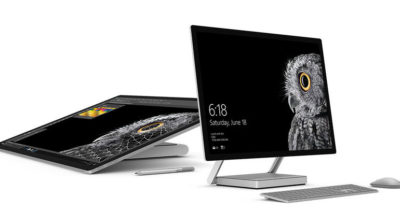
While not its primary business, Microsoft has been developing some noteworthy pieces of hardware the past few years and in 2016, the company generated a large amount of buzz with the release of the Surface Studio. This elegant computer combines the best of the desktop, laptop, and tablet to create a unique and innovative platform perfect for artists, designers, and other creative people. With data visualization becoming ever more important, Microsoft may have invented the perfect tool for the big data generation.

3. Microsoft Office 365

I have been wondering aloud if it is a bit too much, but there can be no doubt that with the dozens of program and feature updates released in 2016, Microsoft Office 365 is the alpha and omega of productivity software. Rather than trying to name all of the new features, it would be best to concentrate on the underlying theme: collaboration. Whether it is Yammer, Skype for Business, or the intelligent cloud, Microsoft is concentrating on features necessary for success in a collaborative environment.

4. LinkedIn
In 2016, Microsoft made several acquisitions of both companies and their technologies. Perhaps the most high-profile of these acquisitions was LinkedIn. Despite all of its efforts to create a collaboration platform with Office 365, the one thing Microsoft needed was a social networking component. LinkedIn gives the company a jump start toward establishing a social networking presence that can compete with the likes of Twitter and Facebook. It will be interesting to see what Microsoft does with this acquisition.

5. IoT, AI, and machine learning

While we may live in a mobile-first, cloud-first world right now, the future may very well revolve around the Internet of Things (IoT), artificial intelligence, and machine learning. To its credit, Microsoft sees the potential of these technologies and has taken steps to get ahead of the curve. In terms of recent history, getting ahead of the curve is not something Microsoft has done very well, so it is difficult to know where the research will lead, but it should prove to be worth watching closely.

Despite what some people may tell you, Microsoft does do some things right. In fact, for the most part, the company does more things right than it does wrong. In 2016, Microsoft did many things right and consumers and businesses have been the beneficiaries. Let’s hope Microsoft can continue the trend in 2017.

Have questions?

Get answers from Microsofts Cloud Solutions Partner!
Call us at: 856-745-9990 or visit: https://southjerseytechies.net/

South Jersey Techies, LL C is a full Managed Web and Technology Services Company providing IT Services, Website Design ServicesServer SupportNetwork ConsultingInternet PhonesCloud Solutions Provider and much more. Contact for More Information.

To read this article in its entirety click here.

Microsoft Stream: The future of secure business video

Microsoft is previewing Stream, a new service for publishing and managing business videos. One day it will be the default video publishing system for Office 365.

MicrosoftStream


On July 18, 2016, Microsoft announced that a preview version of a new service called Microsoft Stream was available. Like most of you, I passed over the news with an indifferent “whatever” attitude. But later I realized that the news was actually more important than I had first thought.

Microsoft Stream fulfills a niche by providing a secure place to share videos created within, and for, businesses. By using a cloud-based service like this, businesses can reap the benefits of video communication without the threat of anonymous forum trolls trashing the brand or harassing employees.

Upload and forget it

While it is still a preview version, Microsoft Stream seems mostly ready for prime time. All you have to do is set up an account with a valid business email—One can use a personal domain email—and then log in. To test how easy Stream is to work with, you can make a 10-second video with a smartphone. Upload your video to Google Drive and then drag and drop it on the Stream portal website.

The web service processes the video while you give it a title and a brief description. Stream then asks if you are ready to publish and when you say yes, it publishes the video after a few seconds of grinding. It takes all of two minutes from start to finish and requires nothing more technical than knowing how to drag and drop a file.

Gone are the days of worrying about file format, aspect ratio, preferred playback applications, and all the other minutia we had to go through in years past to get a video published. You just take the video and then publish the video.

Video management

The key features of Microsoft Stream have to do with managing videos after they are published. Videos can be classified and placed into specific channels. Those channels can have their access restricted to certain individuals or certain groups, like a specific department, for instance. Access is controlled via the Azure Active Directory system.

According to the blog post, Microsoft plans to integrate Stream into the existing Office 365 Video system. Once the integration is complete, Microsoft Stream will be the default system for publishing video in an Office 365 environment.

There are plans in the works to add intelligent search to Stream by taking advantage of tools like audio transcription and face recognition. Developers are also working on ways to integrate Stream with other tools, like PowerApps, Microsoft Flow, and SharePoint.

Bottom line

We are aware of Microsoft Bookings and how that application attempts to cut out other third-party developers by integrating appointment scheduling for small businesses with the standard Office 365 subscription. By offering Stream, a secure video publishing and management service, Microsoft is attempting to execute the same strategy for video publishing.

Microsoft Stream gives businesses a secure system for publishing videos. Through Stream, businesses control access and manage who can see what and when they can see it. And because it is all handled internally, problems with anonymous forum trolls are likely to be reduced.

It seems that Microsoft’s grand strategy is to become the only software company a business needs—ever. The glaring application that Office 365 is missing now is a double-entry accounting system that includes payroll, accounts receivable, accounts payable, and the general ledger. Should we be looking for an announcement regarding those applications soon, Microsoft?

Have questions?

Get answers from Microsofts Cloud Solutions Partner!
Call us at: 856-745-9990 or visit: https://southjerseytechies.net/

South Jersey Techies, LL C is a full Managed Web and Technology Services Company providing IT Services, Website Design ServicesServer SupportNetwork ConsultingInternet PhonesCloud Solutions Provider and much more. Contact for More Information.

To read this article in its entirety click here.

10 reasons why you shouldn’t upgrade to Windows 10

The end of Microsoft’s free Windows 10 upgrade offer is right around the corner. But while Windows 10 is great, there are valid reasons to reject it.

An offer you can refuse

The clock is ticking, folks. If you want to upgrade to Windows 10 for free, you only have until July 29, 2016 to do so. And most people should! Windows 10 is the best Windows yet, chock full of handy new features, sleek under-the-hood improvements, andheadache-killing extras.


But it’s not for everybody. There are some very real, very valid reasons not to upgrade to Windows 10.

If you’re on the fence about whether to accept or reject Microsoft’s freebie, read on for some concrete justifications for staying put.

No Windows Media Center or DVD support

Before we dig into the meatier stuff, let’s take a look at what you’ll potentially give up if you upgrade to Windows 10, starting with some robust media playback options.

Windows 10 kills Windows Media Center off completely, after Windows 8 pushed it into a dark corner. There’s a reason for that: Windows Media Center is fairly niche, and not a lot of people use it. But if you do, you won’t want to upgrade to Windows 10 unless you’re prepared to dive into alternatives like Kodi, Plex, and DVR workarounds.

Oh, and if you’re on Windows 7, be aware that Windows 10 doesn’t offer native DVD playback, though there are no-cost alternatives you can use.

windows-gadgets

No desktop gadgets or widgets

Likewise, if you’re a big fan of Windows 7’s gadgets and widgets for the desktop, they aren’t available in Windows 10. Which is good, because they’re horribly insecure. Whether you choose to stay on Windows 7 or upgrade to Windows 10, you’d probably be better off using Rainmeter’s seriously slick interactive desktop software.

onedrive

No OneDrive placeholders

Windows 8.1 offered a handy feature for hardcore OneDrive users: placeholders. Placeholders showed everything stored in your OneDrive account in the Windows 8.1 file system, but only downloaded files to your PC when you opened them. It was a wonderful way to stay on top of your cloud-stored files without downloading all of them to every Windows device you logged into with your Microsoft account, especially if you’ve stashed dozens of gigabytes’ worth of stuff into OneDrive.

Unfortunately, users found it confusing, and Microsoft ripped placeholders out of Windows 10. There are hints that a similar feature may make an appearance someday, but it hasn’t yet, so if placeholders are a must-have feature for you, you’ll want to avoid upgrading to Windows 10. The new operating system’s less granular selective sync options just aren’t the same.

windows-10-updates

No control over Windows Updates

Aaaaaand here’s the biggie. Windows 10 utterly eradicates the ability to manually control your system updates. Windows 10 Pro will let you defer updates for a few months, but that’s the extent of it. If Microsoft pushes out an update, your system willinstall it eventually (though identifying your Wi-Fi connection as “metered” lets youchoose when updates download, at least).

This isn’t a big deal for people who stuck with Windows 7 and 8’s default Windows Update options, which downloaded patches automatically. But if you like to control your own update destiny, this could be a showstopper.

privacy

Privacy concerns

That segues nicely into another controversial Windows 10 “feature.” Microsoft’s new operating system tracks you far more closely than previous versions of Windows, especially if you use the express settings during the initial setup. The search bar utilizes Cortana, Windows 10’s digital assistant, and sends all your queries to Microsoft servers. Your Windows Store app usage is tracked for ad targeting. Windows 10 tracks your typing, location, Edge browser behavior, program installations and more.

It’s a lot. To be fair, a lot of the concern roaring around this is overblown; most of Windows 10’s potential privacy concerns can be disabled. But there’s no way to turn off some of the telemetry data Windows 10 collects about your system and beams back to the mothership. Microsoft executives don’t consider this a privacy issue. If you do, Windows 10 isn’t for you.

Ads and more ads

Windows 10 doesn’t only track your Windows Store app usage for improved ad targeting; it frequently pushes ads of its own at you. By default, you’ll see pop-up notification ads imploring you to get Skype or Office (even if you have Office), ads for suggested Windows Store apps slipped into your Start menu, and even occasional full-screen lockscreen ads for high-profile Windows Store releases.

I loathe the idea that my paid-for operating system—and yes, Windows 10 isn’t truly free—is pushing ads in my face. Fortunately, all of the offenders can be disabled. But doing so requires diving into arcane system settings located in different far-flung corners of the operating system.

Microsoft’s aggressive upgrade tactics

Microsoft’s been acting pretty shady in its aggressive quest to push Windows 7 and 8 users to Windows 10, employing unstoppable pop-ups, malware-like tactics, forced upgrades, intrusive full-screen takeovers, and nasty tricks to coax—and sometimes outright deceive—people into adopting the new OS. It eventually became so heavy-handed that some users have disabled Windows Updates entirely rather than suffer the barrage.

But you know that. If you’re still considering upgrading to Windows 10, you’ve lived through it.

None of that detracts from Windows 10’s underlying awesomeness. But it may have detracted from your desire to upgrade to Windows 10—and rightfully so. If you’re unhappy with Microsoft’s ethics and tactics in handling Windows 10 upgrades, you’re well within your rights to stay put where you’re at.

Software compatibility

In the wake of those forced upgrades, dozens and dozens of readers reached out to me with tales of woe, many revolving around software that simply doesn’t work with Windows 10. As my colleague Glenn Fleishman recently pointed out at Macworld, old software isn’t inherently bad software—but some of it won’t work in Windows 10.

If you rely on particular pieces of software, do a quick Google search to make sure they’ll work in Windows 10 before you upgrade. Office 2003—the last pre-Ribbon UI Office—isn’t compatible, for instance, nor is software that requires the use of Windows 7’s “XP Mode” compatibility, which isn’t available in Windows 10. Microsoft’s upgrade advisor is supposed to let you know if any software won’t work with Windows 10, but users report that it isn’t very reliable. Doing some homework now could save you some big headaches in the future.

printers

Hardware compatibility

Similarly, you’ll want to make sure Windows 10 works with your PC, too. No matter whether you’re running Windows 7 or Windows 8.1, I’d recommend running Microsoft’s hardware compatibility tool to scan your system. To do so, open the Get Windows 10 app—the taskbar icon that’s been tossing out all the upgrade pop-ups—and click on the compatibility report option.

But wait! That’s not all. The tool only checks your core PC reliably. Some people who upgrade to Windows 10 discover that their hardware peripherals won’t work, particularly older printers and scanners. If you have any aging peripherals connected to your PC, be it a printer or a beloved keyboard, I’d again suggest conducting some quick Google searches to ensure your gear won’t become paperweights if you decide to upgrade.


Ain’t broke, don’t fix it

This final reason applies more to people who resist change or aren’t very technically savvy. Yes, Windows 10 is stellar and absolved Windows 8’s worst sins. Getting used to the new operating system shouldn’t be too difficult for many PC users—but the transition isn’t entirely seamless. From Cortana to the introduction of the Edge browser to the radically new-look Start menu, and Windows 10’s evolution into being a more cloud-centric operating system, there are some big changes you’ll need to wrap your head around.

Do Windows 10’s new features and under-the-hood improvements make upgrading worthwhile? I think so. But if you aren’t comfortable dealing with changes on your computer, you might want to stay put. I know several less technically inclined people who paid technicians to revert their PCs to Windows 7 after they couldn’t wrap their heads around Windows 10.

Conversely, if you’ve perfected your workflow on your current operating system and don’t see much benefit in marquee Windows 10 features such as Cortana, the Windows Store, DirectX 12, and virtual desktops, it may not be worth the hassle to switch over to Windows 10.

Have questions?

Get answers from Microsoft Cloud Solutions Partner!
Call us at: 856-745-9990 or visit: https://southjerseytechies.net/

South Jersey Techies, LL C is a full Managed Web and Technology Services Company providing IT Services, Website Design ServicesServer SupportNetwork ConsultingInternet PhonesCloud Solutions Provider and much more. Contact for More Information.

To read this article in its entirety click here.


Read More

Windows 10: Reasons not to upgrade; 5 good resume apps

From privacy to compatibility and control, these are the reasons why you might want to give the upgrade to Windows 10 a miss.

At the end of this month Windows 10 will, at least for now, cease to be available as a free upgrade to Windows 7 and 8 users.

Microsoft is engaged in a final push to get users to upgrade, stressing the new OS introduces fresh features to Windows and overhauls its design. However, is Windows 10 right for you? Here are some of the reasons you might not want to upgrade.

Read More

10 compelling reasons to upgrade to Windows 10

The deadline for Microsoft’s free Windows 10 upgrade looms. Here’s why you don’t want to let it pass by.

An offer you shouldn’t refuse

The deadline cometh. July 29 looms, and after that, Windows 7 and 8 users will no longer be able to upgrade to Windows 10 for free. If you’ve been waiting for Microsoft to polish out the operating system’s initial bugs, it’s time to make the leap.


This article’s more for the fence-sitters—the folks who haven’t decided whether to stick with what they know or embrace Microsoft’s new-school operating system. There are some very valid reasons not to upgrade to Windows 10, to be honest. But Windows 10 is the best Windows yet, and most people should claim the free upgrade while there’s still time.

Here’s why.

Improved desktop experience

Let’s be frank: Windows 8’s fugly, unfunctional, and obnoxiously colored Start screen sucked. So did the way Windows 8 hid crucial information behind hidden “charms,” which had no on-screen hints for how to access them. It scared a lot of people away from upgrading, and rightfully so.

You don’t have to worry about that with Windows 10.

Windows 10 takes the same core ideas behind Windows 8, but makes them palatable for the desktop audience. Windows Store apps are still present, but they’re in desktop windows that can be resized and used like any other. The Start menu’s back, with a pop-out section that puts information-delivering Live Tiles to better use—and yes, they can all be deleted if you want.

True, there are some changes to wrap your head around if you upgrade from Windows 7 to Windows 10. But the basic building blocks of the operating system will be largely familiar.

Enthusiast-friendly additions

More than simply being familiar, Windows 10 is superior to Windows 7 for PC enthusiasts, because Microsoft made an active effort to woo desktop diehards.

Windows 10’s hardcore tools range from virtual desktops (pictured) to improved high-DPI monitor support to pasting text inside the command prompt. Easy file version recovery? Better storage management tools? Windows 10 has it all.

The operating system even provides power-user tools for Windows Updates, letting you schedule updates to run at a specific time or distribute patches across your local network using peer-to-peer technology. It’s great.

Under-the-hood improvements

If you’re upgrading from Windows 7, you’ll be amazed at just how quick and modern Windows 10 feels. Microsoft optimized Windows’ underlying code in Windows 8, resulting in an operating system that boots like greased lightning—especially if you have an SSD—and just plain feels faster.

It’s just one of the many Windows 8 improvements that Windows 7 holdouts will enjoy in Windows 10.

Native security protection

This appeals more to everyday PC users than hardcore enthusiasts, but Windows 10 is inherently much more secure than Windows 7. The operating system ships with Microsoft’s Windows Defender antivirus software and the Windows Firewall installed and enabled by default, which provides many PCs with a huge security uplift. (You’d be amazed how many people never bother to install new security software after their free Norton or McAfee trial runs out.)

But Microsoft didn’t stop there. Windows 10’s UEFI Secure Boot requirement protects against low-level rootkits that could infect your PC, the SmartScreen filter guards against malicious websites, and Windows Hello makes biometric-based authentication easy-peasy.

Better security is always a good thing.

Cortana

Cortana, Microsoft’s answer to Apple’s Siri and Google Now replaces Windows 10’s basic search functionality, and I couldn’t be happier. Cortana mixes good humor with web-based smarts that can help you set reminders and alarms, stay on top of sports scores and news, navigate and operate your operating system, track packages, plan trips, and more. Even better: Cortana’s going to become more proactive and usefulwhen the Windows 10 Anniversary Update rolls around August 2.

Microsoft’s powerful, next-generation DirectX 12 graphics technology is exclusive to Windows 10 devices. If you’re a PC gamer, this feature alone is worth the upgrade.

We’re still in the early days of DirectX 12 adoption. Most PC games still release in DirectX 11. We’re not really sure of the graphics API’s full potential, but early DX12 implementations in games tend to result in smoother experiences and higher overall frame rates. That’s especially so on PCs with AMD Radeon graphics cards, thus far—check out our Radeon RX 480 review for hard benchmarks—but Nvidia’s GeForce cards enjoy DX12 benefits, too.

More and more games are starting to embrace DirectX 12. Seriously: If you’re a gamer, upgrade now. This isn’t coming to Windows 7 or 8.

Universal Windows apps

But DirectX 12 has come to the Xbox One. That’s because Microsoft’s console runs Windows 10 under the hood, and Windows 10 devices can all run universal Windows apps. One tangible benefit of the cross-device compatibility is the forthcoming Xbox Play Anywhere feature, which lets you buy a game once and play it on both Windows 10 and the Xbox One, as well as transfer saves and play multiplayer games across the two platforms. Nifty!

Play Anywhere is definitely the highlight so far, but universal Windows apps likewise morph to fit the screens of tablets, phones, and even Microsoft’s HoloLens augmented reality headset. The one caveat: Microsoft hasn’t yet convinced developers to embrace the Windows Store en masse.

The little extras

Windows 10 quietly eliminates many of the biggest little irritations present in previous versions of Windows. You can finally print to PDF natively now, and hovering your mouse over a background window lets you scroll that, rather than the in-focus program. Per-monitor display scaling eliminates visual oddities with multi-monitor setups. Cortana’s natural language search—“Hey Cortana, show my pictures from last Christmas”—can be a serious time-saver when used correctly.

All in all, these little touches add up to a big usability difference. Check out PCWorld’s story on the 12 obscure new Windows 10 features that eliminate everyday hassles for all the details.

It’s free!
C’mon. It’s a free upgrade until July 29. If you’re considering upgrading to Windows 10 at any point in the future, now’s the time to do it. Just be aware of what you’re giving in return.

Microsoft isn’t resting on its laurels now that Windows 10 is out in the wild. A majorWindows 10 Anniversary Update is due to land on August 2, stuffed with new features and bug fixes, and Microsoft’s continually updating the operating system with the help of its legion of Windows Insider preview testers.

Windows 7, meanwhile, is solidly past the new-feature phase of life, though security updates will keep on a-rolling until 2020. Windows 8 is still ostensibly in its mainstream support phase through the beginning of 2018, but don’t expect to see any new goodies added there.

Counterpoint

That’s a pretty compelling list of reasons to upgrade to Windows 10—and the security boost might even push you into encouraging your non-geeky friends (you know, the ones always asking you for unofficial tech support) into accepting the upgrade, too. A safer environment for normal people is a safer world for everybody.

But again, there are some valid justifications for rejecting Microsoft’s offer. Most people should embrace the new operating system with open arms, but before you make the leap, be sure to read PCWorld’s list of the 10 reasons why you shouldn’t upgrade to Windows 10—especially if you’re using older hardware or software.

Have questions?

Get answers from Microsofts Cloud Solutions Partner!
Call us at: 856-745-9990 or visit: https://southjerseytechies.net/

South Jersey Techies, LL C is a full Managed Web and Technology Services Company providing IT Services, Website Design ServicesServer SupportNetwork ConsultingInternet PhonesCloud Solutions Provider and much more. Contact for More Information.

To read this article in its entirety click here.

Read More

The end is near: Say goodbye to the Windows 10 free upgrade

The deadline for a free Windows 10 upgrade is right around the corner. Find out what happens after the offer expires.

Windows 10-July29

Don’t look now, but July 29, 2016, is coming up fast. That is the one-year anniversary of the release of Windows 10, which means the ability to upgrade to the new operating system for FREE will soon expire. (If you are interested, you can take a look at the official countdown here.)

In a January 21, 2015, Windows Experience blog post titled The next generation of Windows: Windows 10, we learned that Windows 10 would be a free upgrade. Author Terry Myerson said:

Today was a monumental day for us on the Windows team because we shared our desire to redefine the relationship we have with you—our customers. We announced that a free upgrade for Windows 10 will be made available to customers running Windows 7, Windows 8.1, and Windows Phone 8.1 who upgrade in the first year after launch.


Read More