What did Microsoft get right in 2016?

2016 was a very good year for Microsoft in terms of decision making. Here is a  list of five things the company got right.

Since its inception way back in the ancient epoch known as the 1970s, Microsoft has often been ridiculed for making mistakes. Whether it was for bad business strategies, poor products, or unscrupulous practices, Microsoft seemed to bring out the passionate ire in many people.

But what often gets overlooked is what Microsoft does right each year. And by just about any measurement, 2016 was a remarkable year for the company. Under the leadership of Satya Nadella, Microsoft has changed its business strategy to reflect what it describes as a mobile-first, cloud-first business world. And in 2016, that strategy began show results.

Here, in no particular order, are five things Microsoft got right in 2016.

1. Windows 10 Anniversary Update

To mark the one-year anniversary of Windows 10, Microsoft released a large patch it dubbed the Windows 10 Anniversary Update. Okay, so Microsoft is not very clever in naming things. But the patch itself was well received. It included new security measures, new program features, Microsoft Edge browser extensions, and advanced support for digital pens, among many other enhancements. If you were already using Windows 10, the Anniversary Update was a must.

2. Surface Studio

While not its primary business, Microsoft has been developing some noteworthy pieces of hardware the past few years and in 2016, the company generated a large amount of buzz with the release of the Surface Studio. This elegant computer combines the best of the desktop, laptop, and tablet to create a unique and innovative platform perfect for artists, designers, and other creative people. With data visualization becoming ever more important, Microsoft may have invented the perfect tool for the big data generation.

3. Microsoft Office 365

I have been wondering aloud if it is a bit too much, but there can be no doubt that with the dozens of program and feature updates released in 2016, Microsoft Office 365 is the alpha and omega of productivity software. Rather than trying to name all of the new features, it would be best to concentrate on the underlying theme: collaboration. Whether it is Yammer, Skype for Business, or the intelligent cloud, Microsoft is concentrating on features necessary for success in a collaborative environment.

4. LinkedIn

In 2016, Microsoft made several acquisitions of both companies and their technologies. Perhaps the most high-profile of these acquisitions was LinkedIn. Despite all of its efforts to create a collaboration platform with Office 365, the one thing Microsoft needed was a social networking component. LinkedIn gives the company a jump start toward establishing a social networking presence that can compete with the likes of Twitter and Facebook. It will be interesting to see what Microsoft does with this acquisition.

5. IoT, AI, and machine learning

While we may live in a mobile-first, cloud-first world right now, the future may very well revolve around the Internet of Things (IoT), artificial intelligence, and machine learning. To its credit, Microsoft sees the potential of these technologies and has taken steps to get ahead of the curve. In terms of recent history, getting ahead of the curve is not something Microsoft has done very well, so it is difficult to know where the research will lead, but it should prove to be worth watching closely.

Despite what some people may tell you, Microsoft does do some things right. In fact, for the most part, the company does more things right than it does wrong. In 2016, Microsoft did many things right and consumers and businesses have been the beneficiaries. Let’s hope Microsoft can continue the trend in 2017.

Have questions?

Get answers from Microsofts Cloud Solutions Partner!
Call us at: 856-745-9990 or visit: https://southjerseytechies.net/

South Jersey Techies, LL C is a full Managed Web and Technology Services Company providing IT Services, Website Design ServicesServer SupportNetwork ConsultingInternet PhonesCloud Solutions Provider and much more. Contact for More Information.

To read this article in its entirety click here.

How Microsoft rebounded to outshine Apple

As more consumers grow disenchanted with Apple, Microsoft has taken the opportunity to cash in on the growing popularity of Surface devices.

Microsoft claims that more people are switching to Surface devices from Macs than ever before. That’s a concept that would have been hard to picture when Microsoft first released the Microsoft Surface RT and Surface Pro in 2012 and 2013, respectively. The Surface RT suffered from a watered-down version of the new — and generally disliked — Windows 8 operating system and, while the Surface Pro featured the full desktop version, it came with hardware limitations and a high price tag.

Read More

Surface Book i7 vs. MacBook Pro: Fight!

Now that Apple’s introduced the first major update to its MacBook Pro lineup in years, it’s time to square off the best of the best in Mac and PC laptops to see who currently prevails in this age-old rivalry. 

The contenders

The newest Surface Book is a top-of-the-line model with a Core i7-6600U, a GeForce GTX 965M, 16GB of RAM, and a 1TB SSD. The updated product line varies from $2,400 to $3,300 (our model) in price. All three net you a 6th-gen Skylake dual-core Core i7 chip, and all three get you the same Performance Base with a GeForce GTX 965M. The only differences are in the size of the SSD and how much RAM you get. Only the SSD would affect performance significantly.

Read More

Windows 10: The top 10 features headed your way in 2017

A look at the most significant changes due to hit Microsoft’s evolving OS in the coming year.
Microsoft has made many promises about what Windows 10 will do, and while some have materialized, others still remain ambitions.

As a perpetual work-in-progress, Windows 10 continues to accrue new features, as Windows catches up with Microsoft’s vision of it being an OS that runs anywhere, syncs with the cloud and has an intelligent assistant at its core.

While Windows 10 will be buffed up by the arrival of the Windows 10 Creators Update early next year, 2017 as a whole will see the OS undergo significant changes, some of which are long-awaited. Here’s what to look out for.

Windows 10 phones edge closer to replacing desktop PCs
Microsoft has long pushed the idea that Windows 10 on phones will be so powerful, it’ll be akin to carrying a full PC in your pocket, courtesy of the OS’ Continuum feature.

“With Continuum for phones, we believe that any screen can be your PC,” Joe Belfiore, Microsoft’s corporate VP of the operating systems group, told the Microsoft Build Developer Conference in 2015, going on to add:

“Imagine the effect this could have on mobile first countries, where individuals could be as effective with the phone that they’re buying.”

Today the reality of using Continuum on Windows 10 falls somewhat short of Belfiore’s future-gazing. While a select Windows 10 phones, such as the Lumia 950, can be hooked up to mouse, keyboard and monitor and used as a Windows desktop there are significant limitations. Only one fullscreen app can be used at a time, legacy Windows apps won’t run on existing handsets and even Universal Windows Platform apps need to explicitly support Continuum.

However, in addition to the possibility of legacy apps running on smartphones, see below, various improvements to Continuum are due to land with the Creators Update in early 2017.

These include support for more PC features, such as running multiple Windows side-by-side on the desktop, pinning apps to the Taskbar and hitting the Windows button to bring up the search box. Other improvements include the ability to keep your phone in your pocket and have it connect wirelessly to a docking station and to independently customize the Windows Start screen on the phone display and on a PC monitor.

Running classic Windows software on your phone

This one’s a rumor but based on solid foundations, and with the potential to transform Windows 10’s appeal on mobile if correct.

The big fly in the ointment when it comes to using Windows 10’s Continuum feature to run a phone as a PC is that Windows 10 phones only run Universal Windows Platform apps. This incompatibility means that widely-used Windows apps from desktop PCs can’t be used on handsets.

However, by sniffing around inside Windows 10’s code, users have uncovered signs that Microsoft is working on bringing these apps to Windows phones.

The code in question suggests that Microsoft is building an emulator that would allow desktop x86 apps to work on the ARM64-based handsets.

As reported by ZDNet’s Mary Jo Foley last month, Twitter user WalkingCat found a reference to what he termed “Windows’s hybrid x86-on-ARM64 tech” in Windows’ codebase, which also referenced the term, “CHPE.”

The clue chimed with Foley, who said her sources had told her that Windows 10 will gain this x86 on ARM64 emulation capability, but not until Fall 2017.

Foley guesses that C stands for Cobalt, the codename for x86 emulation on ARM, and that HP relates to the tech giant HP, which has been working with Microsoft on its the HP Elite x3 Windows Phone, a Windows 10 handset that can serve as a desktop PC via Continuum.

Microsoft certainly has good reasons for wanting such emulation to work. If Windows 10 phones could run as Windows desktops with full support for legacy apps, without having to resort to remote desktop software, Windows 10 phones could suddenly be far more appealing to business.

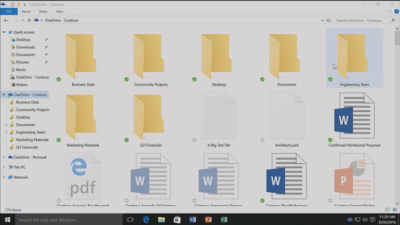
Return of OneDrive placeholders

Since the launch of Windows 10, many users have been petitioning Microsoft to reintroduce placeholders to the OS’ built-in OneDrive cloud storage service.

In Windows 8.1, placeholders, also called smart files, let users see all of their files stored on OneDrive, whether those files were stored on the device or not.

This feature was removed from Windows 10 but is now due to be bought back in Windows 10 File Explorer when browsing OneDrive. The returning feature will work in a similar fashion to Windows 8.1’s placeholders, showing users files both stored locally and on OneDrive, allowing them to download files and folders to the device and keep them in sync with OneDrive.

Orchestrate Windows apps using Linux tools

Microsoft recently updated Windows 10 to let users run a range of Linux tools from inside the OSand seems committed to continuing to improve support for Linux command-line software in Windows.

In Windows 10, Ubuntu/Linux software runs on top of the Windows Subsystem for Linux (WSL). Users run Linux software and issue commands at the command line via the Bash shell.

Microsoft is working to increase the range of commands that can be run via the shell but perhaps the most significant change on the horizon is increased interoperability between the Bash and Windows environments. Effectively this will let developers call Windows applications from within Bash — allowing them to write a Bash script to automate a complex build that includes Windows applications — and to invoke Bash applications from Windows PowerShell.

These changes will be generally available in Windows 10 after the Creators Update early next year.

Easy communication with friends and family

Next year’s Creators Update will boost Windows 10’s social credentials, with a series of changes to make it simpler to stay in touch and share content with friends and family.

The Windows MyPeople feature will allow users to pin their favorite contacts to the right-hand side of Windows taskbar. Clicking on a pinned contact’s face brings up email or Skype messages from only that person and files can be dragged files to that person’s face for quick sharing. Informal check-ins also become easier, with the Shoulder Taps feature allowing pinned contacts to send friends animated emojis and other clipart, which pop up above that contact’s face on the taskbar.

Focusing Windows around virtual and augmented reality

Microsoft plans to put 3D and virtual reality at the heart of Windows 10, as it bets on the success of low-cost headsets due out next year.

Acer, Asus, Dell, HP and Lenovo will release virtual reality head-mounted displays, with prices starting from $299.

Some of these headsets will be released in March, to coincide with the release of the Windows 10 Creators Update, which will include various tools to simplify the creation and sharing of 3D content, including a new version of Microsoft Paint.

In a demo earlier this year, Microsoft showed how Windows 10 could work on virtual reality headsets, demonstrating a mock-up of a virtual space with a large TV screen and virtual shelves stocked with apps and 3D models, and with the Edge browser appearing as a large window in the wearer’s view.

Another demo, this time using the far more expensive Microsoft HoloLens, showed Microsoft’s Edge browser as a window in the user’s vision, from which the demoer dropped actual-sized 3D models of stools from the furniture site Houzz around the room, in order to see what they looked like in real life.

Allowing Windows to function in this way is Windows Holographic, a variant of the Microsoft OS that provides a platform for virtual and augmented reality headsets to run Universal Windows Platform apps.

More detail on Microsoft’s VR and AR plans are expected this week at the WinHEC conference in China.

Better battery life

Windows 10 PCs and tablets should have better battery life after the Creators Update lands in March, thanks to changes to how the OS is patched.

The steady stream of updates isn’t going to slow down but they are going to suck up less bandwidth and reduce strain on phone and laptop batteries.

Download sizes for major updates will be cut by about 35 percent and battery life of Windows 10 mobile devices will improve, due to each device spending less time checking for updates.

The improvements will stem from Windows 10’s new Unified Update Platform, already used for Windows 10 on phones, which only updates each device with the files it needs, rather than delivering all updates to date, and doesn’t rely so heavily on the user’s device to process update data.

Windows Defender Application Guard

Coming to Windows 10 Enterprise users early next year, Windows Defender Application Guard is designed to help protect firms against online threats.

The new safeguard will add container-based isolation to Windows 10’s Edge browser.

Application Guard will ensure that when Edge accesses a website not designated as trusted, the browser will be launched inside a container, a virtualized environment isolated from the rest of the Windows OS.

If the site tries to download and run malicious code on the device, that code remains within the container, unable to permanently compromise the Windows device or the wider network, and disappears when the browser session shuts down.

Unlike the software-based sandboxes that are offered by other browsers, Microsoft says that Application Guard provides a hardware-based container that offers greater protection to the device.

Other enterprise-focused changes in the forthcoming Creators Update include improvements to Windows Defender Advanced Threat Protection’s ability to detect and respond to network attacks, an upgrade to the Windows Analytics dashboard to display additional information about the composition of IT estates, a new tool for in-place UEFI conversion, and a mobile application management feature for protecting data on employees’ personal devices.

Home Hub

Rather than building hardware to challenge voice-controlled virtual assistants such as Amazon Echo and Google Home, it seems as if Microsoft is working on transforming Windows 10 into what it calls a Home Hub.

Evidence of this shift comes from a Windows Central interview with unnamed sources. These sources claim that Home Hub will turn Windows into a shared computing environment for the home, allowing family members to more easily share calendars, apps and services.

A future-gazing Microsoft video from 2013, dug out by ZDNet’s Mary Jo Foley, shows how this system might eventually work. In it, family members share access to photos, apps and calendars on a screen attached to a wall and interact with computers around the home, for example scanning carrots to find appropriate recipes. Adding credence to the Home Hub rumor are references to Home Hub being a shared family account in Windows 10, as discovered by Twitter user WalkingCat.

ZDNet’s Foley also references a recent Microsoft job posting for a software engineer in the Windows and Devices Group, which is seeking someone to expand Windows’ “family” credentials.

According to the ad, this engineer will play a critical role in helping families to “share pictures, videos, applications, games, and other purchases easily” and to “communicate freely and stay in touch” using Windows 10.

Blue light reduction

One more unconfirmed new feature appears to be aimed at helping Windows 10 users get a good night’s sleep.

Being exposed to blue light from computer screens late at night can supposedly disrupt the body’s sleep cycle.

To counter this disturbance, Windows 10 already has f.lux software that reduces blue light emitted by screens close to bedtime.

But it seems that Microsoft may be working on its own feature to address the issue.

Twitter user Core has discovered references to “BlueLightReduction” hidden within early builds of the OS being tested under the Windows Insider Program, a setting which appears as if would be toggled from Windows 10’s Action Center.

Have questions?

Get answers from Microsofts Cloud Solutions Partner!
Call us at: 856-745-9990 or visit: https://southjerseytechies.net/

South Jersey Techies, LL C is a full Managed Web and Technology Services Company providing IT Services, Website Design ServicesServer SupportNetwork ConsultingInternet PhonesCloud Solutions Provider and much more. Contact for More Information.

To read this article in its entirety click here.

How to take control of your privacy in Windows 10

Where do you draw the line on personal privacy? The right options are different for everyone. This guide shows the privacy settings that will help you to create the right balance of privacy and convenience in Windows 10.

windows-10-privacy-blinds

Over the past year, We’ve read countless “privacy guides” for Windows 10. Most are well-intentioned, but they invariably take a simplistic approach to privacy: Just turn off every switch in the Privacy section of the Settings app.

If you do that, you’re not understanding the privacy landscape, which encompasses far more than just those settings. You’re also missing some important additional steps.

Windows 10 is a mix of software and services. With every session, a Windows 10 device exchanges a great deal of information with Microsoft’s servers. That’s neither unusual nor alarming. Microsoft’s chief rivals, Google and Apple, are also blending services into their software, with the goal of making your life easier and making that software more reliable.

So are other tech companies that you don’t think of as software companies: Amazon, with the Echo. Tesla, with its self-updating, software-driven cars. Your thermostat and your home security system.

There’s something profoundly satisfying about a service that anticipates your every move, reminding you when to leave for an appointment to arrive on time, or to pick up flowers for your anniversary tomorrow. Your digital personal assistant, whether it’s Siri or Cortana or Alexa or Google, needs to be able to see your calendar and contacts to make that magic happen.

But when that sort of personal attention goes too far, it “crosses the creepy line,” to use a phrase that Eric Schmidt probably regrets uttering when he was Google’s CEO.

The thing about that line is that it’s drawn in a different place for everyone. There are people who are thrilled at the idea that their PC or mobile device is so familiar with their actions that it can anticipate what they’ll do next. I know others who would like to build a virtual Faraday cage around their computing hardware so that none of their personal details can escape.

Both of those viewpoints, and everything in between, are perfectly valid. That’s why the software and services we use are loaded with switches and dials designed to help you take control of their potential privacy impact.

In this post, We’ll walk you through the big privacy questions for Windows 10, with enough context to help you decide which settings are right for you.

Note that this guide assumes you are using Windows 10 on a personal PC or one in your small business. If you are in an enterprise setting, or if you are in a regulated industry, you should seek professional assistance to ensure that you’re meeting proper standards.

Let’s start with the part of your PC that has the biggest impact on your personal privacy.

THE NETWORK

No one knows more about your online identity than your Internet service provider. Every packet you send or receive from anywhere online goes through their servers. When you travel and connect to Wi-Fi networks that are under the control of others, the owners of those networks can see every connection you make and can intercept their contents.

Regardless of the platform you use, that’s why it’s important you use encrypted connections for any kind of sensitive communications. Using a virtual private network whenever possible is an excellent best practice.

Windows 10 does offer one obscure option that can help protect third parties from tracking your movements based on your connections to Wi-Fi networks. (Note that this feature requires support from your Wi-Fi adapter, so if you don’t see this option, the most likely explanation is that your hardware doesn’t support it.) Under Settings > Network & Internet > Wi-Fi, turn the Use random hardware addresses setting to On.

windowsprivacy02

That step keeps third parties from matching your Wi-Fi adapter’s hardware address with your personal information, making it more difficult to track your location.

THE BROWSER

Countless third-party ad networks and analytics companies use cookies and other tracking technology to record your movements around the web and to correlate your online activities with your offline identity.

The result is a digital fingerprint that can be extraordinarily detailed and, unfortunately, outside of your ability to change.

To limit the amount of information that those ad and analytics companies know about you from your web browsing, consider third-party anti-tracking software such as Abine’s Blur, which is available for every web browser except Microsoft Edge. (That lack of solid support for add-ons is one reason I can’t yet recommend Edge as a full-time browser for most Windows 10 users.)

Another privacy product worth considering is Ghostery, although some are suspicious of this browser extension because of its uncomfortably close ties to the online advertising industry.

Ad-blocking software can also provide some privacy protection as a side-effect of performing its basic function. Here, too, watch out for close ties between some ad-blocking add-ins and the third-party trackers they supposedly protect you from.

Note that none of these steps is unique to Windows 10. Anti-tracking software is typically a browser add-in and works with most popular browsers.

THE OPERATING SYSTEM

With those two big, platform-independent factors out of the way, we can now turn to Windows 10 itself. When you use a Windows 10 device, it is capable of sharing the following types of information with Microsoft’s servers:

Your location

Windows 10 can determine your location to help with actions like automatically setting your current time zone. It can also record a location history on a per-device basis. Go to Settings > Privacy > Location to control the following:

  • Location on/off?Use the master switch at the top of this page to disable all location features for all users of the current device.
  • Location service on/off?If location is on for Windows, you can still turn it off for your user account here.
  • General location?This allows you to set a city, zip code, or region so that apps can deliver relevant content.
  • Default location?Click Set default to open the Maps app and specify the location you want Windows to use when a more precise location is not available.
  • Location history?Click Clear to erase the saved history for a Windows 10 device.

If location is on, a list at the bottom of the Settings > Privacy > Location page allows you to disable access to that data on a per-app basis.

Your input

If you enable Cortana, Windows 10 uploads some info from your devices, such as your calendar, contacts, and location and browsing history, so that Cortana can make personalized recommendations. If you don’t want any accounts on your PC to use Cortana, follow the steps in this article to disable the feature completely: Turn off Cortana completely.

Windows 10 uses some feedback from the way you type, write, and speak to improve performance for you and as a way to improve the overall platform. This isn’t keystroke logging; rather, the operating system uses a very small amount of information. A separate feature uses your speech and writing history to make better suggestions in Windows and Cortana.

You can control this collection with two sets of controls:

Under Settings > Privacy > General, click Info about how I write and turn it off so that your typos aren’t used to improve things like the built-in spell checker.

Under Settings > Privacy > Speech, inking, & typing, under the Getting to know you heading, click Stop getting to know me to turn off personalization.

To clear previously saved information associated with your Microsoft account, click the first link under the Manage cloud info heading. That takes you to this Bing Personalization page, which includes this prominent button:

windows-privacy01

Click Clear to remove that saved information from the cloud.

Files and settings

When you sign in with a Microsoft account, you have the option to save files to the cloud using OneDrive. Windows 10 also syncs some settings to OneDrive, allowing you to have the same desktop background, saved passwords, and other personalized settings when you sign in with that account on multiple PCs.

If you use a local account, of course, none of your settings are synced. If you use a Microsoft account, you can turn off syncing completely or remove certain settings from the sync list by going to Settings > Accounts > Sync Your Settings.

OneDrive is an opt-in service. If you don’t sign in, it does nothing. You can’t save files to OneDrive accidentally, and no files are uploaded without your explicit permission, which you can revoke any time. To disable OneDrive for all users on your PC, follow these instructions: Shut down OneDrive completely.

Telemetry

Microsoft, like all modern software companies, uses feedback from its installed base to identify problems and improve performance. In Windows 10, this feedback mechanism produces diagnostics data (aka telemetry) that is uploaded to Microsoft at regular intervals. The data is anonymized and is not used to create a profile of you.

The default telemetry setting for all consumer and small business versions of Windows 10 is Full, which means that the uploaded data also includes details (also anonymized) about app usage. If you are concerned about possible inadvertent leakage of personal information, I recommend that you go to Settings > Privacy > Feedback & diagnostics and change the Diagnostic and usage data setting to Basic.

THE APPS

Although the number of subcategories under the Privacy heading in Settings seems daunting, most of them govern access to your information by Windows Store apps. That set of apps includes those that are preinstalled (Mail, Calendar, Groove Music, Photos, and so on) as well as those you acquire from the Store.

Most of the categories offer a single on-off switch at the top, which you can use to disable all access to that feature by all apps. If you leave the feature enabled, you can use a list of apps at the bottom of the page to enable or disable access on a per-app basis.

This capability works the same with the following categories: Camera, Microphone, Notifications, Account Info, Call History, and Radios. The Other Devices category lets apps automatically share and sync info with wireless devices that aren’t explicitly paired with your PC. Use the Background Apps category to specify which apps are allowed to work in the background.

If Location is enabled, you have the option to disable location access on a per-app basis and to disable Geofencing.

The Contacts, Calendar, Email, and Messaging categories allow you to control which apps can have access to these features. If you want to share content from an app using email or messaging, this option has to be on for that app. Note that Mail and Calendar, People, and Phone always have access to your contacts; Mail and Calendar are always allowed to access and send email and always have access to your calendar.

Finally, one horribly misunderstood setting is available under Settings > Privacy > General. Advertising ID controls whether Microsoft serves personalized ads to ad-supported apps. If you turn this option off, you still get ads, but they’re not personalized. In any case, your information is not shared with advertisers.

Have questions?

Get answers from Microsofts Cloud Solutions Partner!
Call us at: 856-745-9990 or visit: https://southjerseytechies.net/

South Jersey Techies, LL C is a full Managed Web and Technology Services Company providing IT Services, Website Design ServicesServer SupportNetwork ConsultingInternet PhonesCloud Solutions Provider and much more. Contact for More Information.

To read this article in its entirety click here.

Microsoft Surface Studio: The smart person’s guide

Everything you need to know about the Surface Studio, Microsoft’s new all-in-one PC designed to tempt professional artists and designers over to Windows.

The Surface Studio is an all-in-one PC with premium specs, designed to wow professional artists, designers, architects and other creatives.

While the $2,999 price tag will deter most consumers, Microsoft seems to be targeting the Studio at design professionals, who would otherwise be using Apple Macs alongside specialist devices like Wacom’s Cintiq drawing tablet.

The Studio is a machine with a lot to recommend it, but one that could still be a leap too far for creatives already heavily invested in alternative tech.

Read More

The best new features coming to Microsoft’s latest OS: Windows 10

Windows10

Microsoft continues to build out Windows 10 – with a bumper crop of new features announced at its Build conference last week.

These enhancements will be pushed to to Windows 10 users over the coming months, with many arriving in summer when the OS will get a major upgrade dubbed the Windows 10 Anniversary Edition.

Here are the key upgrades heading to Windows 10.

The write stuff

ink-SJTechies

Using a digital pen to write and scribble on the screen of Windows 10 PCs and tablets will get easier.

In a boost to devices that support such pens, such as the Microsoft’s Surface tablet, the OS’ new Windows Ink feature will allow users to jot down notes on the screen without unlocking the device.

Windows Ink will also allow users to write messages on sticky notes and, if appropriate, have them automatically translated into calendar appointments and reminders.

Support for Windows Ink in Microsoft Office, Maps, the Edge browser and other apps will allow users to draw, write and annotate using their pen. Windows Ink will make using the pen in Office more satisfying than it currently is, for example tidying up highlighted marks on documents so they neatly align with text.

Windows 10 will also gain the Ink Workspace, a hub for launching apps that support writing and sketching using the Surface Pen.

Ink everywhere

win10-inking-SJTechies

Support for drawing, writing and annotating using digital pens will likely come to many apps.

Microsoft says that support for Microsoft Ink will be easily added to Universal Windows Platform apps, requiring just two lines of XAML code.

Digital ruler

win10-ruler-SJTechies

It sounds simple, but the new on-screen ruler should prove to be a useful addition for those who want to draw straight lines using a digital pen.

Smarter Cortana

The attraction of a virtual assistant is the simplicity with which they allow you to carry out tasks.

To ease the process of using Windows 10’s Cortana, the voice-controlled assistant will no longer require you to log into Windows, with users able to make a note, play music or set a reminder from the lock screen.

Cortana will also become more proactive and make suggestions based on a user’s past behaviour – offering to order lunch or to arrange transportation.

More apps will also be able to use Cortana to automatically complete tasks for users or to carry out actions based on context, such as the user’s current location or time of day.

Windows Hello comes to apps and the web

hello-SJTechies

Windows 10 already lets you log into the OS using your face.

The anniversary edition will extend this biometric log-in to Windows apps and websites via Microsoft Edge. As with the OS, users will be able to authenticate their identity using a facial, iris or fingerprint scan.

Another new feature will allow users to unlock a PC running Windows 10 Enterprise Edition by tapping a Windows Hello-enabled phone, although Microsoft has said the feature will only be available on “select premium phones”.

Android app notifications on Windows 10

In future, notifications on Android devices will be able to show on Windows 10 PCs.

Any notification popping up on the Android notification panel can, via the Cortana Android app, also appear as a notification on a linked Windows 10 desktop.

Microsoft demoed the ability at its recent Build conference for developers.

Browser extensions

extensions-SJTechies

Microsoft’s Edge browser will soon gain support for extensions.

Extensions are small programs that can be downloaded to add new functionality to a browser, and are already found in Chrome, Firefox and other browsers today.

Support for extensions has already been added to Edge for those testing pre-release builds of Windows 10 under the Insider program.

The first extensions to be supported by Edge are Microsoft Translator, an extension that automatically translates pages in over 50 different languages, an extension to augment mouse gestures support, and a preview version of the Reddit Enhancement Suite.

Microsoft promises more extensions will be added later this year, including AdBlock, LastPass and Evernote.

Pinned browser tabs

pinned-tabs-SJTechies

Microsoft is also adding to Edge the ability to pin your favorite sites and web apps so they always have a tab open in the browser.

Updated Maps app

maps-app-pc-SJTechies

The Maps app has several new features, as well as UI and performance improvements.

Additions include one-tap access to search and directions, the ability to view multiple searches and directions at the same time, labels for search results on the map and turn-by-turn directions read by Cortana.

The improved app is available now to those testing Windows 10 under the Insider program.

Access Linux command-line tools in Windows

bash-win10-SJTechies

More one for developers, Microsoft is also bringing the ability to run the Bash shell to Windows.

The Bash shell is a command line interpreter that is available on many different Linux distributions, as well as Mac OS X.

The shell includes a host of tools that allow power users to carry out and orchestrate complex chains of commands.

Bash will be available via a Universal Windows Platform app, which will provide an image of the Linux distribution Ubuntu and run on the Windows 10 desktop.

Users will be able to use the Bash shell to download and install programs from the command line, as they do from inside Ubuntu. Microsoft says Ubuntu software will run as fast in the Windows app as it does natively, thanks to a software subsystem for handling Linux system calls.

Microsoft has described the app as offering a developer toolset. While it has access to the files on the Windows PC, the app only provides access to a command line — not a graphical desktop — and reportedly has limits on what it can be used for, such as not being able to run a server.

Have questions?

Get answers from Microsofts Cloud Solutions Partner!
Call us at: 856-745-9990 or visit: https://southjerseytechies.net/

South Jersey Techies, LL C is a full Managed Web and Technology Services Company providing IT Services, Website Design ServicesServer SupportNetwork ConsultingInternet PhonesCloud Solutions Provider and much more. Contact for More Information.

To read this article in its entirety click here.

Windows 10: Ten big things to watch for in 2016

Next year will mark the first full year of release for Microsoft’s new OS. A look at what’s in store for Windows 10 next year.

Windows10


Windows 10 was described as the “last version of Windows” – an OS that would evolve over time rather than be superceded.

In the few months since Windows 10’s launch Microsoft says it has been installed on more than 110 million devices. But just what lies in store for the OS in 2016, how will it get better and what new devices will it find its way onto?

1. Windows 10 will begin automatically installing on your old machine

Windows 10 is available as a free upgrade to Windows 7 and 8.1 users and Microsoft is getting increasingly aggressive about moving these users to the new OS.

From next year Windows 10 will automatically begin installing on most Windows 7 and 8.1 machines.

Users will still need to confirm the installation manually for it to continue. However, if they choose not to proceed it’s unclear if they can cancel it altogether, with Jeremy Korst, general manager of the Windows and Devices team at Microsoft, saying only that “the customer will have the ability to delay it for some period”.

If users do upgrade but don’t like Windows 10 they will have 31 days to roll back to their previous OS.

The automatic installation, the result of Microsoft changing the status of the Windows 10 upgrade to a Recommended update, will be preceded by increasingly insistent nag messages to upgrade. These notices are already being shown to some Windows users and have been criticised for not offering an easy opt-out.

2. Microsoft Edge will get extensions

Windows 10 launched with Microsoft Edge, a new browser that cast off a lot of the legacy code holding Internet Explorer back.

However, while speedy and capable on paper, the browser suffers from its share of bugs and is missing support for extensions, a key feature found in competitors such as Chrome and Firefox.

Microsoft will rectify this omission “early next year” when Korst said it will add extensions to Edge in test builds of Windows 10, ahead of being made generally available.

Extensions are small software programs, typically written using HTML, CSS and JavaScript, that augment the functionality of a browser.

Earlier this month, Microsoft accidentally published a website announcing the introduction of extensions to test builds of Windows 10. The site, which was taken down, referenced extensions for Pinterest and Reddit.

Microsoft originally planned to add support for extensions to Edge this year.

3. Windows 10 will blur the virtual and real world

Microsoft’s Windows 10-powered augmented reality headset HoloLens will ship to developers in the first quarter of 2016.

The augmented reality headset places 3D virtual images in the wearer’s vision so that they appear part of the real world – for instance, a Minecraft landscape sits on a coffee table or a Skype video sits on the wall.

After trying a demo of the headset this week, TechRepublic senior writer Dan Patterson said that though the headset had a limited “field of vision”, “the 3D animations are smooth, easy to interactive with, and result in only marginal eyestrain”.

The HoloLens doesn’t come cheap, with the developer kit priced at $3,000 – although Microsoft says this early release is meant for developers and commercial customers.

Although HoloLens has obvious consumer and gaming uses, Microsoft is stressing its use for business and is working with NASA, AutoDesk, Volvo, Dassault Aviation, Case Western Reserve University, and other large organisations to develop applications for it.

4. More security for enterprise

The coming year will also see some notable new features added to the enterprise version of Windows 10.

Key among these additions is Enterprise Data Protection, which will allow companies to separate work and personal data on devices using containerisation file techniques. It will also encrypt data as it moves around the organisation – helping to ensure that information isn’t accessed by the wrong people.

The feature will be rolled out to people testing Windows under the Insider Program “early next year”.

5. Testers will get a peek at even earlier builds

Those testing early releases of Windows 10 under the Windows Insider Program will be able to get earlier access to new features from January next year.

Those who choose to be in the “fast” ring of the Insider Program will receive builds of Windows 10 more frequently in 2016, according to Microsoft VP Gabe Aul.

The price of testers getting their hands on early builds more regularly will be that this software will likely include more bugs, he said. Those testers who prefer stability to early access should opt for the “slow” ring, he said.

6. Cortana will be everywhere

Microsoft is planning a major upgrade to Windows 10, codenamed Redstone, next year – with reports the upgrade will put Microsoft’s virtual assistant Cortana at the core of the OS.

An unnamed source told The Verge the new Cortana will help users with a much wider range of tasks inside Windows 10, appearing contextually in documents to provide “information and assistance” and giving Cortana control over a wider range of notifications.

The other major upgrade to Cortana will reportedly be an ability to start a task on one device and pick it up on another, for instance if you get a missed call on an Android phone running the Cortana app you could reply from your Windows 10 PC via text.

7. Microsoft doubles down on Windows 10 phones as desktops

A much touted feature of Windows 10 is its ability to run a desktop OS from a phone.

Microsoft’s new Lumia 950 and 950XL handsets can – wirelessly or via a dock – be hooked up to a monitor, mouse and keyboard and used to run a Windows desktop.

The Windows 10 OS can change the look and feel of certain apps, as well as its own appearance, to suit the phone or the desktop, as well as coping with everyday desktop tasks, such as multitasking and copying files from a USB stick.

The expectation is that Microsoft will further commit to this idea of using your phone as a desktop in 2016, with rumours that Panos Panay and the team behind the high-end Surface Book laptop are working on a Surface Phone that will release next year.

8. No more free upgrade

Windows 10 is available as a free upgrade to everyone running Windows 7 or 8.1 but only for a limited time.

The offer of a free upgrade will expire on 29 July 2016 – after which point it seems that users will have to buy a Windows 10 licence.

However, due to the in-your-face tactics that Microsoft is adopting to persuade people to upgrade, it seems unlikely that Windows 7 and 8.1 users will inadvertently miss out on the offer.

9. Windows 10 replaces its predecessors on new PCs

If you’re not a fan of Windows 10 then you should buy a new PC before October.

From the end of October 2016, PC makers will have to sell new machines with Windows 10, rather than Windows 7 or 8.1.

After that point businesses that want to run older Windows versions on new machines will have to rely on downgrade rights or software assurance rights under volume license agreements.

10. Windows 10 Surface Hub arrives

From January 2016 Windows 10 will power another new piece of hardware,Microsoft’s touchscreen computer the Surface Hub.

The successor to its large-screen Perceptive Pixel displays, the Surface Hub will run a custom version of Windows 10 and various apps needed for workplace communication and collaboration, including OneNote, Skype for Business and Office.

The 55-inch, Intel Core i5-based Surface Hub model will sell for $6,999 (estimated retail price), and the Intel Core i7-based 84-inch version for $19,999 ERP.

Have questions?

Get answers from Microsofts Cloud Solutions Partner!
Call us at: 856-745-9990 or visit: https://southjerseytechies.net/

South Jersey Techies, LL C is a full Managed Web and Technology Services Company providing IT Services, Website Design ServicesServer SupportNetwork ConsultingInternet PhonesCloud Solutions Provider and much more. Contact for More Information.


Microsoft updates support policy: New CPUs will require Windows 10

In a change to its longstanding support policy, Microsoft says PCs based on new CPU architectures, including Intel’s Skylake chips, will require Windows 10. A list of preferred systems will support older Windows versions on new hardware, but only for 18 months.

Windows 10

Enterprise customers are still the bulwark of Microsoft’s Windows business, in both the client and server segments.

Historically, those customers have also been among the most conservative, lagging years behind the latest releases of an operating system release. Those practices have been encouraged by Microsoft’s support lifecycle, which offers a generous ten years of support for each Windows release.

Effective today, that policy is changing in a subtle but significant way, with the addition of new hardware requirements for support of pre-Windows 10 releases. The company’s also publishing a preferred list of systems that will receive special attention for updates and support.

Yes, Windows 7 (currently in the Extended support phase) will continue to receive updates until January 14, 2020, and Windows 8.1 will be supported until January 10, 2023. But in a series of “clarifications” to its support policy today, the company announced that support for those older Windows versions will be available only for “previous generations of silicon.”

Going forward, as new silicon generations are introduced, they will require the latest Windows platform at that time for support… Windows 10 will be the only supported Windows platform on Intel’s upcoming “Kaby Lake” silicon, Qualcomm’s upcoming “8996” silicon, and AMD’s upcoming “Bristol Ridge” silicon.

The policy will be phased in beginning with systems based on Intel’s new 6th-generation CPUs (code-named Skylake), which debuted a few months ago. New consumer-based Skylake devices must run Windows 10 to be supported.

For enterprise customers that want to buy “future proof” new hardware based on Skylake processors running older Windows versions, Microsoft will publish “a list of specific new Skylake devices we will support to run Windows 7 and Windows 8.1.” That support will run for a period 18 months, until July 17, 2017, after which those enterprise customers will be expected to upgrade to Windows 10.

Examples of systems that will be on the initial release of the list include Dell’s Latitude 12, Latitude 13 7000 Ultrabook, and XPS 13; HP’s EliteBook Folio, EliteBook 1040 G3; and Lenovo’s ThinkPad T460s, X1 Carbon, and P70 models.

The list will continue to be updated, Microsoft says.

Any machine that earns a place on the elite enterprise support list will get very special treatment indeed, with the idea being to reassure corporate customers that these models are especially likely to perform well on Windows 10 in the new era of continuous updates:

For the listed systems, along with our OEM partners, we will perform special testing to help future proof customers’ investments, ensure regular validation of Windows Updates with the intent of reducing potential regressions including security concerns, and ensure all drivers will be on Windows Update with published BIOS/UEFI upgrading tools, which will help unlock the security and power management benefits of Windows 10 once the systems are upgraded.

These models also get special treatment for enterprises that are still planning their Windows 10 migration, with an 18-month grace period where the older OS versions are fully supported.

Through July 17, 2017, Skylake devices on the supported list will also be supported with Windows 7 and 8.1. During the 18-month support period, these systems should be upgraded to Windows 10 to continue receiving support after the period ends. After July 2017, the most critical Windows 7 and Windows 8.1 security updates will be addressed for these configurations, and will be released if the update does not risk the reliability or compatibility of the Windows 7/8.1 platform on other devices.

Of course, enterprise customers who want to stick with earlier Windows versions beyond that mid-2017 deadline have lots and lots of options, based on current generations of Intel processors such as the Broadwell and Haswell lines. Those systems, which are based on what Microsoft calls “downlevel silicon,” will continue to be fully supported for pre-Windows 10 operating systems.

In today’s blog post, Microsoft says it’s seeing “unprecedented demand from our enterprise customers” in Windows 10. Enterprise customers are especially interested in new Windows 10 security features like Credential Guard, which uses hardware virtualization to safeguard credentials from attack.

Windows 8-era enhancements like Secure Boot, which protects systems from being compromised by rootkits and bootkits, also require new hardware.

Not surprisingly, today’s announcement contains the usual cheery statements from Microsoft’s three biggest hardware partners: Dell, HP, and Lenovo. All three companies compete aggressively in the low-margin consumer market, where virtually all new systems will run Windows 10. But enterprises will pay premium prices for the improvements in battery life and security in Skylake-based mobile systems, making this the most attractive segment to target.

Have questions?

Get help from IT Experts/Microsofts Cloud Solutions Partner
Call us at: 856-745-9990 or visit: https://southjerseytechies.net/

South Jersey Techies, LL C is a full Managed Web and Technology Services Company providing IT Services, Website Design ServicesServer SupportNetwork ConsultingInternet PhonesCloud Solutions Provider and much more. Contact for More Information.

To read this article in its entirety click here.

Windows 10: Ten big things to watch for in 2016

This year will mark the first full year of release for Microsoft’s new OS. A look at what’s in store for Windows 10 this year.

Windows

Windows 10 was described as the “last version of Windows” – an OS that would evolve over time rather than be superceded.

In the few months since Windows 10’s launch Microsoft says it has been installed on more than 110 million devices. But just what lies in store for the OS in 2016, how will it get better and what new devices will it find its way onto?

1. Windows 10 will begin automatically installing on your old machine

Windows 10 is available as a free upgrade to Windows 7 and 8.1 users and Microsoft is getting increasingly aggressive about moving these users to the new OS.

From this year Windows 10 will automatically begin installing on most Windows 7 and 8.1 machines.

Users will still need to confirm the installation manually for it to continue. However, if they choose not to proceed it’s unclear if they can cancel it altogether, with Jeremy Korst, general manager of the Windows and Devices team at Microsoft, saying only that “the customer will have the ability to delay it for some period”.

If users do upgrade but don’t like Windows 10 they will have 31 days to roll back to their previous OS.

The automatic installation, the result of Microsoft changing the status of the Windows 10 upgrade to a Recommended update, will be preceded by increasingly insistent nag messages to upgrade. These notices are already being shown to some Windows users and have been criticised for not offering an easy opt-out.

2. Microsoft Edge will get extensions

Windows 10 launched with Microsoft Edge, a new browser that cast off a lot of the legacy code holding Internet Explorer back.

However, while speedy and capable on paper, the browser suffers from its share of bugs and is missing support for extensions, a key feature found in competitors such as Chrome and Firefox.

Microsoft will rectify this omission “early next year” when Korst said it will add extensions to Edge in test builds of Windows 10, ahead of being made generally available.

Extensions are small software programs, typically written using HTML, CSS and JavaScript, that augment the functionality of a browser.

Earlier this month, Microsoft accidentally published a website announcing the introduction of extensions to test builds of Windows 10. The site, which was taken down, referenced extensions for Pinterest and Reddit.

Microsoft originally planned to add support for extensions to Edge this year.

3. Windows 10 will blur the virtual and real world

Microsoft’s Windows 10-powered augmented reality headset HoloLens will ship to developers in the first quarter of 2016.

The augmented reality headset places 3D virtual images in the wearer’s vision so that they appear part of the real world – for instance, a Minecraft landscape sits on a coffee table or a Skype video sits on the wall.

After trying a demo of the headset this week, TechRepublic senior writer Dan Patterson said that though the headset had a limited “field of vision”, “the 3D animations are smooth, easy to interactive with, and result in only marginal eyestrain”.

The HoloLens doesn’t come cheap, with the developer kit priced at $3,000 – although Microsoft says this early release is meant for developers and commercial customers.

Although HoloLens has obvious consumer and gaming uses, Microsoft is stressing its use for business and is working with NASA, AutoDesk, Volvo, Dassault Aviation, Case Western Reserve University, and other large organisations to develop applications for it.

4. More security for enterprise

The coming year will also see some notable new features added to the enterprise version of Windows 10.

Key among these additions is Enterprise Data Protection, which will allow companies to separate work and personal data on devices using containerisation file techniques. It will also encrypt data as it moves around the organisation – helping to ensure that information isn’t accessed by the wrong people.

The feature will be rolled out to people testing Windows under the Insider Program “early this year”.

5. Testers will get a peek at even earlier builds

Those testing early releases of Windows 10 under the Windows Insider Program will be able to get earlier access to new features from January this year.

Those who choose to be in the “fast” ring of the Insider Program will receive builds of Windows 10 more frequently in 2016, according to Microsoft VP Gabe Aul.

The price of testers getting their hands on early builds more regularly will be that this software will likely include more bugs, he said. Those testers who prefer stability to early access should opt for the “slow” ring, he said.

6. Cortana will be everywhere

Microsoft is planning a major upgrade to Windows 10, codenamed Redstone, next year – with reports the upgrade will put Microsoft’s virtual assistant Cortana at the core of the OS.

An unnamed source told The Verge the new Cortana will help users with a much wider range of tasks inside Windows 10, appearing contextually in documents to provide “information and assistance” and giving Cortana control over a wider range of notifications.

The other major upgrade to Cortana will reportedly be an ability to start a task on one device and pick it up on another, for instance if you get a missed call on an Android phone running the Cortana app you could reply from your Windows 10 PC via text.

7. Microsoft doubles down on Windows 10 phones as desktops

A much touted feature of Windows 10 is its ability to run a desktop OS from a phone.

Microsoft’s new Lumia 950 and 950XL handsets can – wirelessly or via a dock – be hooked up to a monitor, mouse and keyboard and used to run a Windows desktop.

The Windows 10 OS can change the look and feel of certain apps, as well as its own appearance, to suit the phone or the desktop, as well as coping with everyday desktop tasks, such as multitasking and copying files from a USB stick.

The expectation is that Microsoft will further commit to this idea of using your phone as a desktop in 2016, with rumours that Panos Panay and the team behind the high-end Surface Book laptop are working on a Surface Phone that will release next year.

8. No more free upgrade

Windows 10 is available as a free upgrade to everyone running Windows 7 or 8.1 but only for a limited time.

The offer of a free upgrade will expire on 29 July 2016 – after which point it seems that users will have to buy a Windows 10 licence.

However, due to the in-your-face tactics that Microsoft is adopting to persuade people to upgrade, it seems unlikely that Windows 7 and 8.1 users will inadvertently miss out on the offer.

9. Windows 10 replaces its predecessors on new PCs

If you’re not a fan of Windows 10 then you should buy a new PC before October.

From the end of October 2016, PC makers will have to sell new machines with Windows 10, rather than Windows 7 or 8.1.

After that point businesses that want to run older Windows versions on new machines will have to rely on downgrade rights or software assurance rights under volume license agreements.

10. Windows 10 Surface Hub arrives

From January 2016 Windows 10 will power another new piece of hardware,Microsoft’s touchscreen computer the Surface Hub.

The successor to its large-screen Perceptive Pixel displays, the Surface Hub will run a custom version of Windows 10 and various apps needed for workplace communication and collaboration, including OneNote, Skype for Business and Office.

The 55-inch, Intel Core i5-based Surface Hub model will sell for $6,999 (estimated retail price), and the Intel Core i7-based 84-inch version for $19,999 ERP.

Have questions?

Get help from IT Experts/Microsofts Cloud Solutions Partner
Call us at: 856-745-9990 or visit: https://southjerseytechies.net/

South Jersey Techies, LLC is a full Managed Web and Technology Services Company providing IT Services, Website Design ServicesServer SupportNetwork ConsultingInternet PhonesCloud Solutions Provider and much more. Contact for More Information.

To read this article in its entirety click here.