Category Quick Reference Guides

Windows Tip of the week: How to keep your desktop clutter-free

cluttered-desktop-screenshot

Clean up your desktop:

There’s nothing wrong with a messy desktop, but at some point you might need to impose a little order on the chaos. Cleaning the piles of paper and junk from your real-life office might take a weekend of labor. Fortunately, cleaning up the Windows desktop is considerably simpler.

If you like the convenience of using the Desktop folder as a temporary storage place, you can hide the clutter in seconds: Right-click any empty space on the desktop, click View, and then click to remove the checkmark from Show Desktop Icons.

All your desktop shortcuts and files are still there, but they’re no longer covering up your carefully chosen background image. To get to those files, open File Explorer and type Desktop in the address bar. Even quicker: Pin a Desktop shortcut to Start.

Other options on the desktop’s View menu allow you to change icon size (warning: The Large Icons setting is really large) and to align those icons to a grid so they snap neatly into position.

Have questions?

For More Tips & Info from Microsofts Cloud Solutions Partner!
Call us at: 856-745-9990 or visit: https://southjerseytechies.net/

South Jersey Techies, LL C is a full Managed Web and Technology Services Company providing IT Services, Website Design ServicesServer SupportNetwork ConsultingInternet PhonesCloud Solutions Provider and much more. Contact for More Information.

Windows Tip of the week: Keyboard shortcuts that work for all major browsers

browsers

Keyboard shortcuts that work with every major browser:

The major browsers might have different rendering engines and user interface designs, but they have at least a few things in common. And surprisingly, keyboard shortcuts are on that list. Regardless of whether you use Google Chrome, Mozilla Firefox, Internet Explorer, or the new Microsoft Edge, the following keyboard shortcuts will work:

Ctrl+D?Add current page to Bookmarks/Favorites

Ctrl+J?Open Downloads list

Ctrl+H?Show history

Ctrl+I?Show Bookmarks/Favorites

Ctrl+T?Open a new tab

Ctrl+W?Close the current tab

Ctrl+Shift+T?Reopen most recently closed tab

Have questions?

For More Tips & Info from Microsofts Cloud Solutions Partner!
Call us at: 856-745-9990 or visit: https://southjerseytechies.net/

South Jersey Techies, LL C is a full Managed Web and Technology Services Company providing IT Services, Website Design ServicesServer SupportNetwork ConsultingInternet PhonesCloud Solutions Provider and much more. Contact for More Information.

10 killer PC upgrades that are shockingly cheap

Looking to put more pep in your PC’s step? These surprisingly cheap PC upgrades and accessories do the trick without breaking the bank.

PCupgrades1

No need to break the bank

Sure, swanky new Surface Pros and $1,200 graphics cards may capture all the headlines, but on a practical level, the real story is that PCs aren’t cheap. But if your computer’s starting to feel pokey, there’s fortunately no reason to rush out a spend hundreds on a new one.

Investing small amounts in key new PC hardware can keep your computer running strong for years to come. These upgrades—most costing well under $100—breathe new life into slow machines. You just have to be strategic and make sure you’re putting your money in the best place for your particular system.

PCupgrades2

Speed up your PC with an SSD

Let’s start in the most obvious place. If your PC still runs with a mechanical hard drive, swapping it out with an SSD will make it feel like a whole new computer. SSDs inject face-melting speed into a PC, drastically improving boot times, file transfers, and overall system responsiveness.

A lot of PCs don’t have SSDs, for two reasons: Solid-state drives use to be extravagantly expensive, and computer makers often charge hefty mark-ups for upgrading to an SSD. Fortunately, SSD prices have plummeted in recent years. Superb models like theSamsung 850 EVO ($89.39 for 250GB on Amazon) and the OCZ Trion 150 ($45 for 120GB on Amazon) can be found for well under $100 online. If you find the storage capacities a bit too tight, you can always install the SSD as a boot drive alongside your current hard drive.

A word of warning about SSDs, and all the hardware discussed in this article: You can often find lower prices if you sift through Amazon or Newegg for no-name or lesser-known brands. But you’re gambling on reliability and support when you move away from established PC hardware makers. Stick with name brand gear unless you absolutely, positively can’t afford it.

PCupgrades3

Mass storage is dirt cheap

Good news if your available storage space is filled to the brim: Traditional hard drives are even cheaper than SSDs these days. A 1TB Western Digital Blue hard drive spinning at a speedy 7,200rpm will only set you back $50 on Amazon, while a 3TB WD Blue drive is just $90 on Amazon (albeit at a slower 5,400rpm).

Hybrid drives blend the best of both worlds, combining a large amount of traditional storage with a small, speedy flash storage cache. The drive monitors your oft-used files and keeps them on the cache, where they benefit from SSD-esque speeds. A Seagate 1TB hybrid drive goes for $85 on Amazon with an 8GB SSD cache, or $114 on Amazonwith a 32GB cache.

PCupgrades4

Add RAM for more multitasking

If your computer’s having trouble running multiple tasks simultaneously, low memory is a likely culprit. Two gigabytes of RAM is the absolute minimum modern Windows systems need to run smoothly, and even PCs with 4GB of memory can start to feel pokey if you’re running several programs, keep a dozen Chrome tabs open, or game with some background processes still running.

Fortunately, memory is dirt cheap. Picking up an 8GB memory kit from Corsair ($36 for 2x4GB kit on Amazon) or Kingston ($36 for 2x4GB kit on Amazon)—two reliable brands I’ve had nothing but success with personally—will set you back less than $5 per gigabyte.

Just be sure to get the right type of memory for your PC! RAM comes in all sorts of different packages. The easiest way to tell what type of RAM resides in your PC is to download the free, superb CPU-Z software, then open the Memory tab and look for the “type” option.

PCupgrades5

MAYBE upgrade your CPU

A pokey PC may be the result of an outdated processor. Unfortunately, replacing your CPU often means replacing your motherboard too, making the endeavor pretty pricey. But not always—especially if you have an AMD-powered system.

AMD’s AM3+ and FM2 motherboards have been powering AMD’s CPUs and APUs, respectively, since mid-2012. Since many prebuilt AMD systems sport modest processors, upgrading to a modern CPU can give your PC a shot in the arm. If you’re on FM3+, the new Athlon X4 860K ($75 on Amazon) is a solid entry-level quad-core processor for gaming, while the 8-core FX-8320E ($130 on Amazon) is a great step-up option and price-to-performance champion. If you have an FM2-based system with an AMD APU, the A10-7860K ($110 on Amazon) could be a solid upgrade, complete withintegrated graphics that let you get into e-sports games at modest frame rates.

Intel switches out its motherboards and socket types much more often, and its chips tend to be much more expensive. Replacing Intel chips aren’t really an affordable upgrade in most cases.

It’s important to make sure your new chip is compatible with your existing motherboard! Before you buy, fire up CPU-Z and search for the “Package” entry in the main CPU tab to see what sort of socket your motherboard packs.
PCupgrades6

Gaming doesn’t have to be expensive

Want to dip your toes into PC gaming? Despite what fearmongers may tell you, gaming doesn’t have to cost an arm and a leg.

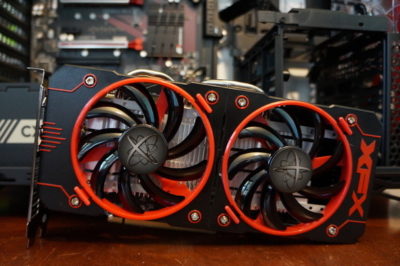
AMD’s Radeon RX 460 ($110 and up on Newegg) delivers great performance in e-sports games like League of Legends and Overwatch. It also lets you play modern games at a console-esque 30 frames per second with High graphics settings at 1080p, or up to 60fps at Medium settings. That’s damned good for a hair over $100. Even better: Many models pull their power directly from your motherboard, with no need for additional power connectors. That makes AMD’s budget card a great option for adding gaming capabilities to prebuilt “big box” PCs from the likes of HP and Dell, as they often pack modest power supplies that lack extra connectors.

Be careful though: Some of the more potent Radeon RX 460 models require extra 6-pin power connectors. You don’t want that if you don’t have one available—unless you want to buy a power supply, too. A 500 watt power supply from a reputable company doesn’t cost much, as evidenced by the EVGA 500 W1, which only costs $35 on Amazon.
PCupgrades7

Buy some canned air

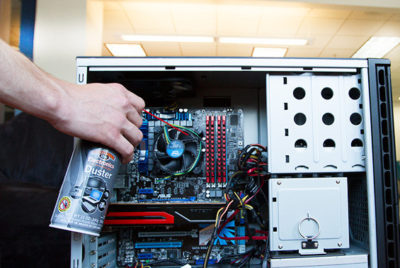
No, seriously. If you haven’t cleaned out your PC in a year or more, mounds of dust and debris can be collected inside. Clogged fans and exhaust ports lead to overheating, which leads to your PC throttling back performance. Single containers of canned air can be relatively pricey; grab a four pack ($16.22 on Amazon) for a lower price and enough air to clean out your PC for years to come.
PCupgrades8

Improve your cooling, improve your performance

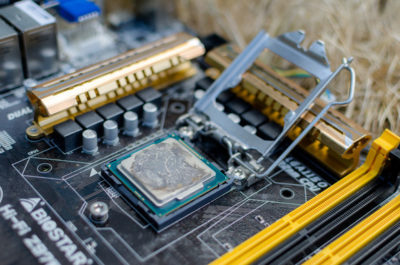
If your PC’s still running hot after blowing out the dust, the thermal paste coating the area where your CPU or GPU touches its cooler could be old, dry, and ineffective, especially if you’ve had the equipment for several years.

First, install SpeedFan and double check that your CPU or GPU is indeed overheating. If one (or both!) is, grab a syringe of thermal paste—Arctic Silver 5 ($7.43 on Amazon)—then use guides to installing a CPU cooler and refreshing your graphics card to help you apply new thermal paste after scraping off the old stuff.

Still running hot overall? Try adding a case fan or two. Case fans from reputable vendors are shockingly cheap ($7.91 from Cooler Master on Amazon, or $9 from NZXT on Amazon) and can be installed in mere minutes.
PCupgrades9

A better monitor

You spend most of your time interacting with your computer’s input and output devices, so it’s definitely worth investing in decent peripherals if you spend considerable time at your PC.

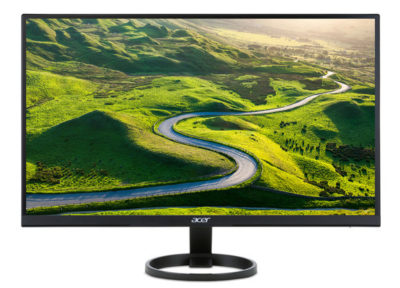
Start with your monitor. If you’re still using a lower-resolution display or (shudder) a fat CRT display, embracing a high-definition 1080p monitor will provide a huge step up in usability. It won’t break the bank either: You can buy a 1080p HP with a 21.5-inch IPS screen for just $100 on Amazon. IPS screens provide a much more vibrant image than the twisted-nematic panels found in most budget monitors.

Alternatively, if you’re a gamer with a Radeon graphics card, consider buying a monitor that supports AMD’s FreeSync technology. FreeSync synchronizes the refresh rate of your graphics card and display to eliminate stutter and screen tearing in games. While monitors with Nvidia’s competing G-Sync technology fetch steep price premiums, FreeSync adds minimal cost to a display. A 22-inch 1080p FreeSync display by ViewSonic costs just $110 on Amazon, for example.

PCupgrades10

Aural bliss

Treat your ears, too. The speakers that come bundled with prebuilt PCs tend to be utter garbage. While audio gear pricing can escalate to frightening levels, some of our favorite headsets will set you back less than a Benjamin.

If you’re a gamer, our favorite all-around gaming headset is the Kingston HyperX Cloud($67.93 on Amazon). The sound quality is second to none in this bracket, the build quality is superb, and it’s extremely comfortable—though its microphone is merely average.

Don’t need a mic? Music lovers will find a lot to love in the Sennheiser HD 280 Pro ($99.95 on Amazon), which I’ve personally been using for years now. The comfortably snug cans lack the extreme bass kick of, say, Beats or Monster headphones, but make up for it by delivering rich, accurate, and dynamic audio across the full sound spectrum. They’re beloved among Amazon buyers for a reason.
PCupgrades11

Enhance the parts you physically touch

If you’re used to crappy bundled PC keyboards, or laptop keyboards, upgrading to a mechanical keyboard will change your life. The well-reviewed Logitech G610 Orion withCherry MX Brown or Red switches only costs $90 on Amazon.That’s probably more than most people have spent on a keyboard before, but it’s cheap by mechanical standards. Once you’ve tried it, you won’t be able to go back to a rubber-dome board.

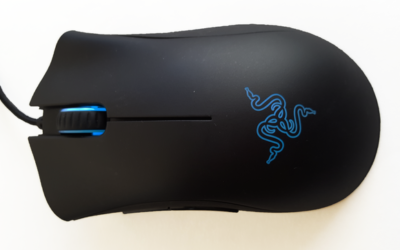
Likewise, investing in a decent mouse makes interacting with your PC that much more pleasant. The Razer DeathAdder ($42.69 on Amazon) is ostensibly a gaming mouse, but its ergonomic design and high DPI sensor help it feel good in your palm and generate nice, smooth cursor movements. I’ve been using one for more than five years now, and grimace whenever i’m forced to use a cheap mouse bundled with a prebuilt PC.
PCupgrades12

But first…

Speeding up your well-loved PC doesn’t actually have to cost any money. You’ll find a few tips repeated from here—seriously, buy an SSD—but for the most part, it focuses on no-cost software solutions for potentially boosting your computer’s performance. Try those before dropping dough on new gear!

Have questions?

Get answers from Microsofts Cloud Solutions Partner!
Call us at: 856-745-9990 or visit: https://southjerseytechies.net/

South Jersey Techies, LL C is a full Managed Web and Technology Services Company providing IT Services, Website Design ServicesServer SupportNetwork ConsultingInternet PhonesCloud Solutions Provider and much more. Contact for More Information.

To read this article in its entirety click here.

Windows Tip of the week: Create a system image backup

systemImageRecoveryWindows

Create a system image backup:

The surest way to recover from a data disaster, such as a system drive failure, is to restore that drive from an image-based backup. You’ll need an external hard disk–at least as large as the amount of space in use on the system drive and ideally the same size as your system drive.

The capability to back up and restore a system image is in the Windows 7 Backup And Restore program. That same program is also in Windows 8, 8.1, and 10, although it’s somewhat hidden. (In Windows 10, you can find it by typing backup in the search box.)

To start the program, press Windows key + R to open the Run box, type sdclt, and press Enter. Click Create A System Image from the column on the left, choose your external hard disk as the location where you want to save the backup, and click Next. On the following page, all partitions on the system drive should be selected. Just click Next and then click Start Backup.

Have questions?

For More Tips & Info from Microsofts Cloud Solutions Partner!
Call us at: 856-745-9990 or visit: https://southjerseytechies.net/

South Jersey Techies, LL C is a full Managed Web and Technology Services Company providing IT Services, Website Design ServicesServer SupportNetwork ConsultingInternet PhonesCloud Solutions Provider and much more. Contact for More Information.

Windows Tip of the week: Benefits of the Shutdown command

The surprisingly useful Shutdown command:

shutdown

If you want to shut down a PC, you can always use the Power menu on Start. But the Shutdown command, which runs from a Command Prompt window, can help with a few tasks you can’t do from any menu.

To see the full syntax, open a Command Prompt window and type Shutdown /? Here are a few options you might find especially useful:

  • Shutdown /i – Show a graphical interface (note that this does not include all options available via command-line switches)
  • Shutdown /s – Full shutdown
  • Shutdown /r – Full shutdown and restart
  • Shutdown /h – Hibernate the local computer
  • For UEFI-based Windows 10 PCs, you have two extra options that can be invaluable:
  • Shutdown /s /fw – After a full shutdown, opens firmware user interface on next start
  • Shutdown /r /o – Restarts and displays the advanced boot options menu

Have questions?

For More Tips & Info from Microsofts Cloud Solutions Partner!
Call us at: 856-745-9990 or visit: https://southjerseytechies.net/

South Jersey Techies, LL C is a full Managed Web and Technology Services Company providing IT Services, Website Design ServicesServer SupportNetwork ConsultingInternet PhonesCloud Solutions Provider and much more. Contact for More Information.

Windows Tip of the week: Reduce clutter with a mouse gesture

Shake the clutter away:

Windows-Macbook

On a modern Windows PC with gobs of memory, it’s easy to have dozens of windows open at one time. But all that multitasking can create a distracting mess of overlapping panes that makes it difficult to concentrate on the task at hand.

The solution is a little gesture that debuted in Windows 7. Bring the app you want to focus on to the foreground, point to its title bar, hold down the left mouse button, and make a gentle left-right-left shaking gesture. It doesn’t need to be violent; just make sure you move the window an inch or so in each direction. Do it right, and every other open window is minimized to the taskbar. Shake again to restore all windows to their previous position.

Want to minimize every window, including the current one? Aim for a narrow strip at the end of the taskbar, just to the right of the system clock, and click once. Click again to restore all windows.

Have questions?

For More Tips & Info from Microsofts Cloud Solutions Partner!
Call us at: 856-745-9990 or visit: https://southjerseytechies.net/

South Jersey Techies, LL C is a full Managed Web and Technology Services Company providing IT Services, Website Design ServicesServer SupportNetwork ConsultingInternet PhonesCloud Solutions Provider and much more. Contact for More Information.

Windows Tip of the week: Keyboard tricks for switching between programs

Keyboard tricks for switching between programs:

windows-switch

Do you know all the program switching techniques for Windows? The more programs you have open, the more you can benefit from these keyboard shortcuts.

Here are three worth memorizing:

  • Alt+Tab: This is the classic shortcut, the one most Windows users are likely to know. Hold down the Alt key and tap Tab to see a list of running programs as thumbnails. If you continue holding down Alt and keep tapping Tab, you’ll cycle through all of them.
  • Alt+Esc: Use this shortcut if you want skip the thumbnails and just cycle through the actual programs. Keep holding down Alt and tapping Esc until you reach the window you want.
  • Ctrl+Alt+Tab: Most people don’t know this one. Press this combination and you get the same thumbnails as with Alt+Tab, with one crucial difference: When you take your hands off the keyboard the thumbnails remain visible. Use the left and right arrow keys to move through thumbnails. To choose one, tap the spacebar or press Enter.

And one last secret: Add Shift to any of these shortcuts to move in reverse.

Have questions?

For More Tips & Info from Microsofts Cloud Solutions Partner!
Call us at: 856-745-9990 or visit: https://southjerseytechies.net/

South Jersey Techies, LL C is a full Managed Web and Technology Services Company providing IT Services, Website Design ServicesServer SupportNetwork ConsultingInternet PhonesCloud Solutions Provider and much more. Contact for More Information.

Why you’ll never buy a 3D printer

Mattel’s ThingMaker 3D Printer and ThingMaker Design App is expected to ship later this year. Could a $300 3D printer capable of making hundreds of parts that can be assembled into toys finally place the technology next to the inkjet printer in the home?

The consumer 3D printer market, which has even tried to connect itself to video gaming, still seeks ‘killer app’

While 3D printer sales will experience healthy growth over the next four years, consumer machines remain a technology in search of a purpose, according to researcher IDC.

Read More

Windows Tip of the week: Get additional Snap Assist options

Get additional Snap Assist options:

Most users are familiar with the Snap Assist function in Windows 10, where dragging a window to either side will snap that window into one-half of the screen. However, many users are unaware of how the Snap Assist function has been enhanced for Windows 10.

Not only can you drag and snap to one-half screen—now, if you drag a window to one of the four corners of the screen, it will snap to fill one-quarter of it. This means you can easily position four windows to be open at once, as shown in Figure.

Figure

h10quicktips

Have questions?

For More Tips & Info from Microsofts Cloud Solutions Partner!
Call us at: 856-745-9990 or visit: https://southjerseytechies.net/

South Jersey Techies, LL C is a full Managed Web and Technology Services Company providing IT Services, Website Design ServicesServer SupportNetwork ConsultingInternet PhonesCloud Solutions Provider and much more. Contact for More Information.

Windows Tip of the week: Add more places to send files

Add more places to send files:

When you are working in File Explorer and you right-click a file and navigate to the Send To menu item, you’ll see a small list of suggested places where you can send the file. If you Shift + right-click that file instead and then navigate to the Send To Menu item, you will be shown a much more extensive list of places where you can send that file.

Read More