Category Quick Reference Guides

Symantec Endpoint Protection (SBE)- Upgrading the cloud agent

Symantec has recently become aware of a medium vulnerability in older versions of the server agent. The latest version addresses this vulnerability in new installations and was released February 15th, 2017. Server agents that are not already upgraded will be identified in the SEP SBE cloud management console starting on March 8th. A manual upgrade will be required to ensure you have the latest protection.

Read More

Cyber Ransom Attacks in 2016

Ransom is the top motivation behind cyber attacks, according to a report from Radware, and IT professionals are most concerned about data loss. Here’s what you need to know.

Nearly half of businesses report that they were the subject of a cyber-ransom campaign in 2016, according to Radware’s, Global Application and Network Security Report 2016-2017.

Data loss topped the list of IT professionals’ cyber attack concerns, the report found, with 27% of tech leaders reporting this as their greatest worry. It was followed by service outage (19%), reputation loss (16%), and customer or partner loss (9%).

Read More

Windows Tip of the week: How to turn hibernation on and off

How to turn hibernation on and off:

When your PC goes to sleep, it enters a low-power state, ready to spring back into action when Windows detects a tap on the keyboard or determines that it’s time to run a scheduled task. If you’re planning to be away from the PC for a while, you might prefer to save the current state so that you can restore it quickly, without the chance that the computer will wake up on its own.

There’s an option that lets you save the contents of memory to a hibernation file and then shuts down the PC, so it uses no power at all. When you restart, Windows restores the system state from the hibernation file.

To enable or disable hibernation, open a Command Prompt window and enter the powercfg command with the -h switch. Type powercfg -h on to enable hibernation; substitute the word off to disable it.

Normally, the Hibernate option is hidden from the Shutdown menu. To make it visible, open Power Options in Control Panel and then click Choose What The Power Buttons Do. Under the Shutdown Settings heading, select the Hibernate checkbox to display it in the Power menu.

Have questions?

For More Tips & Info from Microsofts Cloud Solutions Partner!
Call us at: 856-745-9990 or visit: https://southjerseytechies.net/

South Jersey Techies, LL C is a full Managed Web and Technology Services Company providing IT Services, Website Design ServicesServer SupportNetwork ConsultingInternet PhonesCloud Solutions Provider and much more. Contact for More Information.

Windows Tip of the week: How to wipe a disk clean


Wipe a disk clean:

If you’re planning to dispose of a PC by giving it away, selling it, or discarding it, your top priority should be making sure that no personal information is left on the device. The same is true if you’re recycling a hard disk drive or USB flash drive.

The first step with a PC is to reinstall Windows, using the option to delete the existing partitions on the device and then do a clean install. For a secondary disk, you can use the Format command to erase any existing content. But that still leaves the possibility that some data will still be available in the erased space, where a determined spy could recover it using a disk utility.

The solution? Encrypt the disk before formatting it. Without a recovery key, any recovered data will be unreadable. The easiest way to accomplish this on the system drive is to open an elevated command prompt and run the following command:

cipher /w:c:

If you’re working with a secondary disk, substitute the drive letter for that drive.

The /w switch stands for wipe, and the result is the effective obliteration of every bit of data in unused disk space, leaving existing files untouched.

Have questions?

For More Tips & Info from Microsofts Cloud Solutions Partner!
Call us at: 856-745-9990 or visit: https://southjerseytechies.net/

South Jersey Techies, LL C is a full Managed Web and Technology Services Company providing IT Services, Website Design ServicesServer SupportNetwork ConsultingInternet PhonesCloud Solutions Provider and much more. Contact for More Information.

Surface Book i7 vs. MacBook Pro: Fight!

Now that Apple’s introduced the first major update to its MacBook Pro lineup in years, it’s time to square off the best of the best in Mac and PC laptops to see who currently prevails in this age-old rivalry. 

The contenders

The newest Surface Book is a top-of-the-line model with a Core i7-6600U, a GeForce GTX 965M, 16GB of RAM, and a 1TB SSD. The updated product line varies from $2,400 to $3,300 (our model) in price. All three net you a 6th-gen Skylake dual-core Core i7 chip, and all three get you the same Performance Base with a GeForce GTX 965M. The only differences are in the size of the SSD and how much RAM you get. Only the SSD would affect performance significantly.

Read More

Here’s how Microsoft will integrate LinkedIn into its products

Microsoft’s massive $26.2 billion acquisition of LinkedIn finally closed, and CEO Satya Nadella explained how the companies will begin working together.

Microsoft’s $26.2 billion purchase of professional networking site LinkedIn officially came to a close on Thursday, after the deal was approved by regulators. Following the close, Microsoft CEO Satya Nadella penned a blog post on LinkedIn detailing how the website would begin integrating with Microsoft’s products.

For starters, LinkedIn identity and network capabilities will be coming to Microsoft Outlook, and to the Office suite in general, the post stated. Additionally, LinkedIn notifications will be available to users in the Windows action center as well.

Since LinkedIn is known as a digital CV of sorts, Microsoft will enable LinkedIn members who draft a résumé in Word to directly update their LinkedIn profile page, and more easily search for and apply to relevant job postings, the post said.

One of the potentially troubling integrations is “extending the reach of Sponsored Content across Microsoft properties,” as Nadella wrote on his blog. Whether that means that users will begin seeing ads in their Office apps remains to be seen, but it sets the stage for a potentially tricky user experience.

Enterprise LinkedIn Lookup will soon be powered by Active Directory and Office 365, which could make it easier for employees to connect with one another. Nadella’s blog post also noted that LinkedIn Learning will be made available across the Office 365 and Windows ecosystem, giving Microsoft shops access to new forms of training and continued learning that could prove valuable to their employees.

Additionally, Nadella wrote that the two companies would begin developing a business news desk across their existing ecosystem of content, and for MSN.com. Sales Navigator and Dynamics 365 will also be integrated in hopes of improving social selling capabilities.

Since the acquisition was first announced, it’s been fairly clear that data was the driving force behind the deal. The two companies had non-overlapping, complementary data graphs, and these integrations show just the first steps that Microsoft is taking to leverage LinkedIn’s data, along with its own, to build out a more holistic ecosystem of business technologies and services.

Current LinkedIn CEO Jeff Weiner will continue to lead the company after the acquisition, and theNew York Times reported that roughly 10,000 LinkedIn employees will join Microsoft.

The 3 big takeaways for readers

  1. Microsoft closed its $26.2 billion acquisition of social networking site LinkedIn on Thursday, with Microsoft CEO Satya Nadella outlining how the two companies will merge.
  2. LinkedIn features and services will be coming to Outlook, Office 365, Dynamics 365, and even MSN.com, with LinkedIn search getting a boost from Active Directory.
  3. The deal has always been about data, and the integrations are just the start of how the two companies will merge their individual data graphs.

Have questions?

Get answers from Microsofts Cloud Solutions Partner!
Call us at: 856-745-9990 or visit: https://southjerseytechies.net/

South Jersey Techies, LL C is a full Managed Web and Technology Services Company providing IT Services, Website Design ServicesServer SupportNetwork ConsultingInternet PhonesCloud Solutions Provider and much more. Contact for More Information.

Windows Tip of the week: Search for files and folders by date

Search for files and folders by date:

The more files you have, the more frustrating it can be to find the exact one you’re looking for. That’s especially true when you’re using search terms that are common to dozens or even hundreds of saved documents.

One great way to narrow the list is to enter a date-related search operator along with matching parameters, using the search box in the upper-right portion of File Explorer (Windows Explorer in Windows 7). For example, datemodified:2013 tax allows you to filter search results to show only files that contain the word tax and were last saved in 2013.

The search parameter you enter after the colon can be any date, even a partial one. So datemodified: June 2016 works even with the space included. To find only files before or after a given date, use the > and < operators, as in datemodified: >1/1/2016

If you prefer a point-and-click interface, just type datemodified: by itself and use the calendar or predefined options below it.

In Windows 8.1 and Windows 10, you’ll find date-related shortcuts on the Search tab, which appears on the File Explorer ribbon when you click in the search box.

Have questions?

For More Tips & Info from Microsofts Cloud Solutions Partner!
Call us at: 856-745-9990 or visit: https://southjerseytechies.net/

South Jersey Techies, LL C is a full Managed Web and Technology Services Company providing IT Services, Website Design ServicesServer SupportNetwork ConsultingInternet PhonesCloud Solutions Provider and much more. Contact for More Information.

Windows Tip of the week: Check your System Restore settings

Check your System Restore settings:

For many years, System Restore has been one of the most useful tools available for diagnosing and repairing Windows problems. Using System Restore (especially in Safe Mode), you can undo troublesome app installations or driver updates.

But System Restore only works if it’s turned on and properly configured. On Windows 10 devices, you might find that System Restore is disabled for the system (C:) drive.

Unless you’re convinced you’ll never need to use System Restore, I strongly recommend that you turn this feature on. From any supported Windows version, you can check the current configuration and change it if necessary by opening Control Panel > System And Security > System. Click Advanced System Settings in the sidebar on the left and then click the System Protection tab.

Select the C: drive from the Protection Settings list and click Configure. In Windows 8.1 and 10, this leads to a simple on-off switch. In Windows 7, you can choose whether to save previous versions of files as well as system settings. In either case, make sure you reserve enough space for the last restore point.

Have questions?

For More Tips & Info from Microsofts Cloud Solutions Partner!
Call us at: 856-745-9990 or visit: https://southjerseytechies.net/

South Jersey Techies, LL C is a full Managed Web and Technology Services Company providing IT Services, Website Design ServicesServer SupportNetwork ConsultingInternet PhonesCloud Solutions Provider and much more. Contact for More Information.

How to take control of your privacy in Windows 10

Where do you draw the line on personal privacy? The right options are different for everyone. This guide shows the privacy settings that will help you to create the right balance of privacy and convenience in Windows 10.

windows-10-privacy-blinds

Over the past year, We’ve read countless “privacy guides” for Windows 10. Most are well-intentioned, but they invariably take a simplistic approach to privacy: Just turn off every switch in the Privacy section of the Settings app.

If you do that, you’re not understanding the privacy landscape, which encompasses far more than just those settings. You’re also missing some important additional steps.

Windows 10 is a mix of software and services. With every session, a Windows 10 device exchanges a great deal of information with Microsoft’s servers. That’s neither unusual nor alarming. Microsoft’s chief rivals, Google and Apple, are also blending services into their software, with the goal of making your life easier and making that software more reliable.

So are other tech companies that you don’t think of as software companies: Amazon, with the Echo. Tesla, with its self-updating, software-driven cars. Your thermostat and your home security system.

There’s something profoundly satisfying about a service that anticipates your every move, reminding you when to leave for an appointment to arrive on time, or to pick up flowers for your anniversary tomorrow. Your digital personal assistant, whether it’s Siri or Cortana or Alexa or Google, needs to be able to see your calendar and contacts to make that magic happen.

But when that sort of personal attention goes too far, it “crosses the creepy line,” to use a phrase that Eric Schmidt probably regrets uttering when he was Google’s CEO.

The thing about that line is that it’s drawn in a different place for everyone. There are people who are thrilled at the idea that their PC or mobile device is so familiar with their actions that it can anticipate what they’ll do next. I know others who would like to build a virtual Faraday cage around their computing hardware so that none of their personal details can escape.

Both of those viewpoints, and everything in between, are perfectly valid. That’s why the software and services we use are loaded with switches and dials designed to help you take control of their potential privacy impact.

In this post, We’ll walk you through the big privacy questions for Windows 10, with enough context to help you decide which settings are right for you.

Note that this guide assumes you are using Windows 10 on a personal PC or one in your small business. If you are in an enterprise setting, or if you are in a regulated industry, you should seek professional assistance to ensure that you’re meeting proper standards.

Let’s start with the part of your PC that has the biggest impact on your personal privacy.

THE NETWORK

No one knows more about your online identity than your Internet service provider. Every packet you send or receive from anywhere online goes through their servers. When you travel and connect to Wi-Fi networks that are under the control of others, the owners of those networks can see every connection you make and can intercept their contents.

Regardless of the platform you use, that’s why it’s important you use encrypted connections for any kind of sensitive communications. Using a virtual private network whenever possible is an excellent best practice.

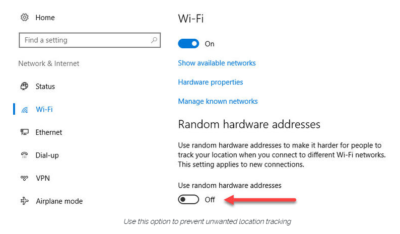
Windows 10 does offer one obscure option that can help protect third parties from tracking your movements based on your connections to Wi-Fi networks. (Note that this feature requires support from your Wi-Fi adapter, so if you don’t see this option, the most likely explanation is that your hardware doesn’t support it.) Under Settings > Network & Internet > Wi-Fi, turn the Use random hardware addresses setting to On.
windowsprivacy02

That step keeps third parties from matching your Wi-Fi adapter’s hardware address with your personal information, making it more difficult to track your location.

THE BROWSER

Countless third-party ad networks and analytics companies use cookies and other tracking technology to record your movements around the web and to correlate your online activities with your offline identity.

The result is a digital fingerprint that can be extraordinarily detailed and, unfortunately, outside of your ability to change.

To limit the amount of information that those ad and analytics companies know about you from your web browsing, consider third-party anti-tracking software such as Abine’s Blur, which is available for every web browser except Microsoft Edge. (That lack of solid support for add-ons is one reason I can’t yet recommend Edge as a full-time browser for most Windows 10 users.)

Another privacy product worth considering is Ghostery, although some are suspicious of this browser extension because of its uncomfortably close ties to the online advertising industry.

Ad-blocking software can also provide some privacy protection as a side-effect of performing its basic function. Here, too, watch out for close ties between some ad-blocking add-ins and the third-party trackers they supposedly protect you from.

Note that none of these steps is unique to Windows 10. Anti-tracking software is typically a browser add-in and works with most popular browsers.

THE OPERATING SYSTEM

With those two big, platform-independent factors out of the way, we can now turn to Windows 10 itself. When you use a Windows 10 device, it is capable of sharing the following types of information with Microsoft’s servers:

Your location

Windows 10 can determine your location to help with actions like automatically setting your current time zone. It can also record a location history on a per-device basis. Go to Settings > Privacy > Location to control the following:

  • Location on/off?Use the master switch at the top of this page to disable all location features for all users of the current device.
  • Location service on/off?If location is on for Windows, you can still turn it off for your user account here.
  • General location?This allows you to set a city, zip code, or region so that apps can deliver relevant content.
  • Default location?Click Set default to open the Maps app and specify the location you want Windows to use when a more precise location is not available.
  • Location history?Click Clear to erase the saved history for a Windows 10 device.

If location is on, a list at the bottom of the Settings > Privacy > Location page allows you to disable access to that data on a per-app basis.

Your input

If you enable Cortana, Windows 10 uploads some info from your devices, such as your calendar, contacts, and location and browsing history, so that Cortana can make personalized recommendations. If you don’t want any accounts on your PC to use Cortana, follow the steps in this article to disable the feature completely: Turn off Cortana completely.

Windows 10 uses some feedback from the way you type, write, and speak to improve performance for you and as a way to improve the overall platform. This isn’t keystroke logging; rather, the operating system uses a very small amount of information. A separate feature uses your speech and writing history to make better suggestions in Windows and Cortana.

You can control this collection with two sets of controls:

Under Settings > Privacy > General, click Info about how I write and turn it off so that your typos aren’t used to improve things like the built-in spell checker.

Under Settings > Privacy > Speech, inking, & typing, under the Getting to know you heading, click Stop getting to know me to turn off personalization.

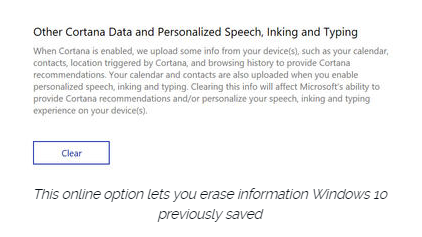
To clear previously saved information associated with your Microsoft account, click the first link under the Manage cloud info heading. That takes you to this Bing Personalization page, which includes this prominent button:
windows-privacy01

Click Clear to remove that saved information from the cloud.

Files and settings

When you sign in with a Microsoft account, you have the option to save files to the cloud using OneDrive. Windows 10 also syncs some settings to OneDrive, allowing you to have the same desktop background, saved passwords, and other personalized settings when you sign in with that account on multiple PCs.

If you use a local account, of course, none of your settings are synced. If you use a Microsoft account, you can turn off syncing completely or remove certain settings from the sync list by going to Settings > Accounts > Sync Your Settings.

OneDrive is an opt-in service. If you don’t sign in, it does nothing. You can’t save files to OneDrive accidentally, and no files are uploaded without your explicit permission, which you can revoke any time. To disable OneDrive for all users on your PC, follow these instructions: Shut down OneDrive completely.

Telemetry

Microsoft, like all modern software companies, uses feedback from its installed base to identify problems and improve performance. In Windows 10, this feedback mechanism produces diagnostics data (aka telemetry) that is uploaded to Microsoft at regular intervals. The data is anonymized and is not used to create a profile of you.

The default telemetry setting for all consumer and small business versions of Windows 10 is Full, which means that the uploaded data also includes details (also anonymized) about app usage. If you are concerned about possible inadvertent leakage of personal information, I recommend that you go to Settings > Privacy > Feedback & diagnostics and change the Diagnostic and usage data setting to Basic.

THE APPS

Although the number of subcategories under the Privacy heading in Settings seems daunting, most of them govern access to your information by Windows Store apps. That set of apps includes those that are preinstalled (Mail, Calendar, Groove Music, Photos, and so on) as well as those you acquire from the Store.

Most of the categories offer a single on-off switch at the top, which you can use to disable all access to that feature by all apps. If you leave the feature enabled, you can use a list of apps at the bottom of the page to enable or disable access on a per-app basis.

This capability works the same with the following categories: Camera, Microphone, Notifications, Account Info, Call History, and Radios. The Other Devices category lets apps automatically share and sync info with wireless devices that aren’t explicitly paired with your PC. Use the Background Apps category to specify which apps are allowed to work in the background.

If Location is enabled, you have the option to disable location access on a per-app basis and to disable Geofencing.

The Contacts, Calendar, Email, and Messaging categories allow you to control which apps can have access to these features. If you want to share content from an app using email or messaging, this option has to be on for that app. Note that Mail and Calendar, People, and Phone always have access to your contacts; Mail and Calendar are always allowed to access and send email and always have access to your calendar.

Finally, one horribly misunderstood setting is available under Settings > Privacy > General. Advertising ID controls whether Microsoft serves personalized ads to ad-supported apps. If you turn this option off, you still get ads, but they’re not personalized. In any case, your information is not shared with advertisers.

Have questions?

Get answers from Microsofts Cloud Solutions Partner!
Call us at: 856-745-9990 or visit: https://southjerseytechies.net/

South Jersey Techies, LL C is a full Managed Web and Technology Services Company providing IT Services, Website Design ServicesServer SupportNetwork ConsultingInternet PhonesCloud Solutions Provider and much more. Contact for More Information.

To read this article in its entirety click here.

Microsoft Surface Studio: The smart person’s guide

Everything you need to know about the Surface Studio, Microsoft’s new all-in-one PC designed to tempt professional artists and designers over to Windows.

The Surface Studio is an all-in-one PC with premium specs, designed to wow professional artists, designers, architects and other creatives.

While the $2,999 price tag will deter most consumers, Microsoft seems to be targeting the Studio at design professionals, who would otherwise be using Apple Macs alongside specialist devices like Wacom’s Cintiq drawing tablet.

The Studio is a machine with a lot to recommend it, but one that could still be a leap too far for creatives already heavily invested in alternative tech.

Read More