How to install and activate Windows 10 using your Windows 7 or Windows 8 product key

windowsproductkey

Summary

Microsoft recently announced the first major update to Windows 10 which includes numerous improvements for end users and businesses. One of the welcome improvements is the compliance check when qualifying for the Windows 10 upgrade. Previously, Windows 7, Windows 8.0 and Windows 8.1 users needed to have either of those versions Windows installed and activated in order to qualify for the free upgrade offer. For persons who needed to perform a clean install of Windows 10 from the outset, it was a two step process of first validating the machine through the upgrade routine, ensure the Windows 10 Upgrade was activated, then proceed to perform a Reset. With the latest November Update (1511), users no longer have to go through this process. In this article, we take a look at how to install and activate Windows 10 using your Windows 7 or Windows 8 product key.

Details

For the purposes of this article, We are using a Windows 7 license to perform clean install using Windows 10.

Please note: The copy of Windows 10 you download must correspond with the edition of Windows you are licensed for:

  • Windows 7 Starter, Home Basic, Home Premium, Windows 8.0 Core, Windows 8.1 Core must use a Windows 10 Home ISO
  • Windows 7 Professional, Windows 7 Ultimate, Windows 8.0 Pro, Windows 8.1 Pro must use a Windows 10 Pro ISO
  • If you are using Windows 7 Enterprise, Windows 8.0 Enterprise, Windows 8.1 Enterprise editions you won’t be able to use the free upgrade offer.

Review complete instructions how to download the Windows 10 ISO in the following article:

How to download official Windows 10 ISO files

Review instructions here how to start a clean install if you desire, if you want to perform an upgrade, clickhere.

Have your Windows 7 or 8/8.1 product key ready. If you purchased a retail license, you can find the product key within the product box. The Windows 7 product key is normally found on an orange sticker attached to a pamphlet inside the box. The Windows 8/8.1 product key is found on a small business size card. See examples below. Please note, you can also use your OEM product key too if Windows came preinstalled on your computer.

Retail:

retail

Windows 8/8.1

windows-8

If your computer came preinstalled with an OEM version of Windows 7, look for the Certificate of Authenticity sticker attached to the chassis of your computer. Normally this can be at the side or top of the system unit. For laptops, look at the bottom of the chassis or inside the battery or memory compartment. It looks like the following:

productkey

If you are running an OEM preinstalled Windows 8/8.1 license, Windows 10 setup should automatically detect the product key and install it automatically.

With Windows 8, Microsoft had changed from stickers that have the product key that the user has to type in when installing the operating system to new BIOS embedded product keys. The idea is that by eliminating the sticker, you eliminate one of the easier ways for nefarious users to get a legitimate product key. Eliminating the product key sticker also removes any worry that the sticker might get damaged while at the same time eliminating the long and irritating process of typing in various letters and numbers when installing the operating system.

If the user has to reinstall the operating system on a machine that came with Windows 8, the installation process automatically grabs the software product key from the motherboard BIOS with no input from the user. This means that those familiar Windows product key stickers will no longer appear on the Windows 8 computers.

If you have lost your Windows product key, Microsoft recommends you purchase a new one. 

http://windows.microsoft.com/en-gb/windows/where-find-windows-product-key#where-find-windows-product-key=windows-7

You might be lucky by contacting Microsoft Support who might be sympathetic to your situation:
http://support2.microsoft.com/kb/326246/en-us

Contact the Microsoft store:
US: http://www.store.microsoft.com/Help/Contact-Us
1-877-696-77861-877-696-7786 FREE
Canada: https://www.microsoftstore.ca/shop/en-CA/Contact-Us

Microsoft Support Contact Information:
http://support.microsoft.com/contactus/?ws=support

General Microsoft contact site: http://support.microsoft.com/contactus#tab0

If you are prompted to enter a product key during Windows 10 setup (November Update aka 1511) from within a running version of Windows, your Windows 7 or Windows 8/8.1 product key will not work. Instead, you should activate your Windows 7 or Windows 8/8.1 first, then re-run Windows 10 setup. You will not be prompted to enter a product key.

windows10productkey

During Setup: If you are prompted to enter a product key when you boot from the Windows 10 setup installation media, click the option ‘I don’t have a product key’. Select the appropriate edition you are licensed for.

Windows 7 Starter, Home Basic, Home Premium, Windows 8.0 Core, Windows 8.1 Core will install Windows 10 Home ISO

  • Windows 7 Professional, Windows 7 Ultimate, Windows 8.0 Pro, Windows 8.1 Pro will installWindows 10 Pro ISO

setup

  • Out of Box Experience, if you are prompted for a product key, Click Do this Later.Complete the installationReview instructions how to activateHow to troubleshoot Product Activation in Windows 10windowstroubleshootSuppose you decide to reinstall Windows 7 or Windows 8?You can reinstall or restore a system image of your previous version of Windows and continue using it, this will not affect the validity of the license.

    If you continue to experience problems entering your product key:

    Click Start > Settings (press Windows key + i) > Update & security > Activation then click Change product key

    windowsupdatekey

    OR

    Press Windows key + X

    Click Command Prompt (Admin)

    At the command prompt, type the following commands:

    slmgr.vbs -ipk xxxx-xxxx-xxxx-xxxx (allows you to replace the current product key with the specified)

    xxxx-xxxx-xxxx-xxxx – represents your product key

    Hit Enter on your keyboard

    Exit the command prompt

    Restart your computer

    Wait a while and it should activate, if not, give it a few days.

Have questions?

Get answers from Microsofts Cloud Solutions Partner!
Call us at: 856-745-9990 or visit: https://southjerseytechies.net/

South Jersey Techies, LL C is a full Managed Web and Technology Services Company providing IT Services, Website Design ServicesServer SupportNetwork ConsultingInternet PhonesCloud Solutions Provider and much more. Contact for More Information.

To read this article in its entirety click here.

Prepare for removal of PPTP VPN before you upgrade to iOS 10 and macOS Sierra

Prepare for removal of PPTP VPN before you upgrade to iOS 10 and macOS Sierra

System administrators preparing for iOS 10 and macOS Sierra should stop using PPTP connections for VPN. Learn about alternatives you can use to protect your data.

If you’ve set up a PPTP VPN server, iOS 10 and macOS Sierra users won’t be able to connect to it. iOS 10 and macOS Sierra will remove PPTP connections from any VPN profile when a user upgrades their device.

Even though PPTP protocol is still available on iOS 9 and earlier or OS X El Capitan and earlier, we don’t recommend that you use it for secure, private communication.

Alternatives to PPTP connections for VPN

Try one of these other VPN protocols for user-based authentication that are more secure:

  • L2TP/IPSec
  • IKEv2/IPSec
  • Cisco IPSec
  • SSL VPN clients on the App Store such as those from AirWatch, Aruba, Check Point, Cisco, F5 Networks, MobileIron, NetMotion, Open VPN, Palo Alto Networks, Pulse Secure, and SonicWall

Have questions?

Get answers from Microsofts Cloud Solutions Partner!
Call us at: 856-745-9990 or visit: https://southjerseytechies.net/

South Jersey Techies, LL C is a full Managed Web and Technology Services Company providing IT ServicesWebsite Design ServicesServer SupportNetwork ConsultingInternet PhonesCloud Solutions Provider and much more. Contact for More Information.

Microsoft Surface Studio: The smart person’s guide

Everything you need to know about the Surface Studio, Microsoft’s new all-in-one PC designed to tempt professional artists and designers over to Windows.

The Surface Studio is an all-in-one PC with premium specs, designed to wow professional artists, designers, architects and other creatives.

While the $2,999 price tag will deter most consumers, Microsoft seems to be targeting the Studio at design professionals, who would otherwise be using Apple Macs alongside specialist devices like Wacom’s Cintiq drawing tablet.

The Studio is a machine with a lot to recommend it, but one that could still be a leap too far for creatives already heavily invested in alternative tech.

Read More

Windows Tip of the week: How to keep your desktop clutter-free

cluttered-desktop-screenshot

Clean up your desktop:

There’s nothing wrong with a messy desktop, but at some point you might need to impose a little order on the chaos. Cleaning the piles of paper and junk from your real-life office might take a weekend of labor. Fortunately, cleaning up the Windows desktop is considerably simpler.

If you like the convenience of using the Desktop folder as a temporary storage place, you can hide the clutter in seconds: Right-click any empty space on the desktop, click View, and then click to remove the checkmark from Show Desktop Icons.

All your desktop shortcuts and files are still there, but they’re no longer covering up your carefully chosen background image. To get to those files, open File Explorer and type Desktop in the address bar. Even quicker: Pin a Desktop shortcut to Start.

Other options on the desktop’s View menu allow you to change icon size (warning: The Large Icons setting is really large) and to align those icons to a grid so they snap neatly into position.

Have questions?

For More Tips & Info from Microsofts Cloud Solutions Partner!
Call us at: 856-745-9990 or visit: https://southjerseytechies.net/

South Jersey Techies, LL C is a full Managed Web and Technology Services Company providing IT Services, Website Design ServicesServer SupportNetwork ConsultingInternet PhonesCloud Solutions Provider and much more. Contact for More Information.

iPhone 7: What business users need to know

Apple recently announced the latest version of its flagship smartphone. Here are the features and functions that will matter to professionals.
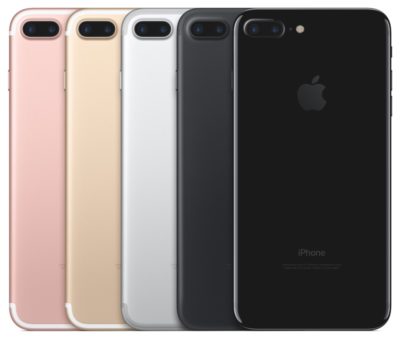
iphone7lineup

The iPhone 7 is officially here. At an Apple event in California on Wednesday (September 7, coincidentally), the phone was unveiled by Tim Cook and the crew amid a variety of Apple announcements.

The first mention of the new device came in a now-deleted tweet that read: “New cameras. Water-resistant. Stereo speakers. Longer battery life. This is 7.” Apple is known for being tight-lipped until the last possible second, so it was definitely a surprise.

The phone has a new design, featuring an aluminum body with almost non-existent seams and is available in gold, silver, rose gold, black, and Jet Black. The home button was also redesigned, with Force sensitivity and a new Taptic engine. It can also be programmed by third-party applications and customized as well.

The above tweet wasn’t a fluke. The new enclosure is both water and dust resistant, with IP67 protection standard.

The new, 12-megapixel iPhone 7 camera has image stabilization and a wider f1.8 aperture lens that is made up of six distinct layers. The sensor for the camera is faster and more efficient, and a quad-LED flash can help users take better photos. The iPhone 7+ gets a second 12MP camera to use as a telephoto lens.

A new image processor helps balance colors and tone in an image, among many other features. This could be helpful for small marketing departments, or businesses that rely on image content, to produce better photos.

The front camera is a 7MP FaceTime HD camera. This will be helpful for road warriors and remote workers alike, as it could provide a better experience for mobile video conferencing.

The new Retina HD display is now 25% brighter than previous generations. The iPhone 7 has stereo speakers with twice the volume and better quality sound. If you want to use headphones, the traditional auxiliary input jack is gone, and the Apple EarPods now connect via Lightning connector only. If you have traditional headphones, though, Apple will include an adapter in the box with the new iPhone 7 and 7+.

Apple also debuted a wireless version of its earbuds called AirPods. They use a W1 chip to enable “intelligent connection” and users can access Siri through the AirPods with a tap. The batteries provide five hours of listening per charge.

In terms of performance, the iPhone 7 has a new A10 Fusion 64-bit, four core processor. Using two high-efficient cores, tasks like checking email will take less battery power. It also has stronger graphics performance while consuming less power than previous models. Pro apps, like those from Adobe, can perform better on the device as well.

Storage-wise, the new iPhones will be available with 32GB, 128GB, or 256GB of space.

Apple also announced the Apple Watch Series 2. The watch is swim-proof, which is a fancy way of saying that it is water resistant up to 50 meters. Its second-generation SiP (system in a package) has a dual-core processor that’s up to 50% faster, and a stronger GPU for better graphics performance as well.

A new display is easier to read, and the more powerful hardware allows for more complex apps to be built for the device. Built-in GPS will be good for business travelers, and developers can take advantage of it to build more contextual apps. Of course, watchOS 3 came to preview back in June, but Apple was expected to bring a new version of the hardware for quite some time.

Real-time collaboration is coming to the iWork suite as well. Apple showcased the functionality by editing the slide deck live on stage. Of course, Google Docs and Office 365 have had similar functionality for some time, and iWork has struggled to gain traction in the enterprise, but it’s a welcome update.

Have questions?

Get answers from Microsofts Cloud Solutions Partner!
Call us at: 856-745-9990 or visit: https://southjerseytechies.net/

South Jersey Techies, LL C is a full Managed Web and Technology Services Company providing IT Services, Website Design ServicesServer SupportNetwork ConsultingInternet PhonesCloud Solutions Provider and much more. Contact for More Information.

To read this article in its entirety click here.

11 awesome back-to-school gadgets for students

Whether you’re just starting high school or about to graduate college, our list of essential gear for students will ensure that you have a productive—and fun—school year.

SchoolGadgets1

New school year, new school gear

With classes back in session (or about to begin), hopefully you already have everything from your back-to-school list. Laptop? Check. The perfect bag for said laptop? Check. Schedule and text books? Check and check. Though your laptop and books are, of course, your school lifeline, there are some other gadgets you can add to your list to make your life easier. From practical picks (mice, keyboards, hard drives) to streaming sticks (hey, it’s all about that work/life balance!), our gear guide is full of recommendations designed to aid you in all the demands of student life.

SchoolGadgets2

Logitech K480 Bluetooth Multi-Device Keyboard

Your standard laptop keyboard is fine, but a wireless Bluetooth keyboard that you can sync with your mobile devices might be more comfortable for serious study work.Logitech’s K480 ($50 MSRP, $30 on Amazon) can be connected to three devices at once on any platform—Mac, PC, iOS, or Android—with familiar shortcut keys for all. It also has a handy groove at the top to prop up your phone or tablet.

SchoolGadgets3

Logitech MX Master

Your laptop’s trackpad, however, is not going to cut it for extended use—you’ll be much more comfortable with a mouse. The MX Master ($100 MSRP, $70 on Amazon), also by Logitech, has customizable buttons, supports trackpad gestures, and is comfortable to use. It’s a wireless mouse; pick between Bluetooth or 2.4GHz radio frequency to connect.

SchoolGadgets4

Bose QuietComfort 35 wireless headphones

A good pair of noise-cancelling headphones is a must—something to block out roommates (If you have them) or excess library/coffee shop sounds as you’re cranking out your midterm paper. Bose’s QuietComfort 35 ($349.95 MSRP, same price onAmazon) is a pricey pair, but worth it—they’re wireless, so they won’t get in the way as you’re moving about. There’s no way to disable the noise-cancelling feature, but that’s okay—they run for 20 hours on a single charge. While the audio quality varies, the noise-cancelling feature is second to none.

SchoolGadgets5

Altec Lansing Mini Life Jacket 3

You’ll want a great-sounding Bluetooth speaker, but one that’s easy to schlep around from party to party, and one that won’t die if it gets into an accident with a red cup.Altec Lansing’s Mini Life Jacket 3 ($100 MSRP, same price on Best Buy) has a rugged exterior that’s also waterproof—it can survive a dunk for up to 30 minutes—so it’s up for the challenge. We were impressed with its good fidelity and sound quality, and loved that it comes with a hardware kit for you to mount the speaker on your bike as you cruise around campus. And at $100, it’s priced for students, too.

SchoolGadgets6

Seagate Backup Plus Slim Portable

A hard drive may not be the most exciting thing on our list, but it’s the most practical—you’ll need something to back up your hard work just in case your laptop crashes.Seagate’s Backup Plus Slim Portable ($50 to $90 MSRP, same price on Amazon) will do just that. It’s compact, comes in a variety of capacities, and is available in four different colors and finishes.

SchoolGadgets7

Fitbit Alta

A smartwatch or fitness tracker is a must-have for maintaining your work-study balance. If you’re looking for a device that handles your push notifications, reminders, and more, then go with an all-around smartwatch that’s an extension of your phone. For iPhone users, that’s easy—go with the Apple Watch ($299 MSRP and up, available at the Apple Store). For Android users, we like the Huawei Watch ($350 MSRP and up, $299 and up on Amazon) for its style, features, and customizable options.

If it’s just the fitness stuff you’re after, you can’t go wrong with the Fitbit Alta ($129.95 MSRP, $119 on Amazon). This sleek activity tracker monitors your workouts, steps, and sleep automatically, and pairs it all within the Fitbit app on your phone (it’s compatible with both iOS and Android phones) so that you can keep an eye on your habits. Reminding yourself to stay active in between study sessions has never been so easy.

SchoolGadgets8

Livescribe 3

Spend one lecture with the Livescribe 3 Smartpen ($150 MSRP, $138.84 on Amazon) and corresponding app for your smartphone, and you’ll never want to go back to a regular old Bic. As you write in the Livescribe’s specialty notebooks, the smartpen sends a digital copy of your hand-written notes to your phone via Bluetooth, so you can access them at any time. It can also record audio notes through the Livescribe app on your smartphone, which get linked to your hand-written notes. When reviewing notes later, tap any word to hear what your professor was saying at that moment. If you’ve left yourself a doodle, abbreviation, or mnemonic device, tapping that word will bring you right back to the lecture. The pen itself can last 14 hours on a single charge.

SchoolGadgets9

Roku Streaming Stick

Your dorm may include a cable hookup for your TV, but it won’t play well with your Netflix subscription. The solution? Roku’s Streaming Stick ($50 MSRP, $39.01 onAmazon) a thumb-sized device that plugs into your TV or monitor’s HDMI port that streams web-based content—Netflix, Hulu, HBO Now, and more. It’s fast, has a dedicated remote, and is compatible with most of the major streaming content players.

SchoolGadgets10

OtterBox Universe Case System

Some school days, you never know what kind of gear you’ll need. Will your smartphone make it through the day without needing a recharge? Will you want to snap a picture of something being presented during lecture? What if you need to quickly transfer a file to a classmate?

OtterBox’s Universe Case System ($49.95 MSRP for the base, modules are extra; $44.95 on Amazon) has extra add-ons that can help you do all of those things. This system consists of various accessory modules that you can attach to your iPhone via its protective case—so you can snap on a battery pack ($50 on Amazon), a flash drive (64GB for $60 on Amazon), a tripod ($30 on Amazon), and more in a pinch.

SchoolGadgets11

Anker PowerCore 20100

A one-device battery pack might not cut it—you may want a dedicated battery pack for a long school day, to power up your tablet or other gear besides your phone. Anker’s PowerCore 20100 ($80 MSRP, $43 on Amazon) is small, light, and powerful, with two USB ports to charge two devices at once. Its whopping 20,000mAh battery can charge your phone seven times, or your iPad mini (or other small tablet) twice.

SchoolGadgets12

Stir Kinetic Desk M1

Standing desks are still having a moment in the health-tech spotlight, so if you’re considering a splurge on a new desk setup, dream big with Stir’s Kinetic Desk M1 ($2,990 MSRP, same price on Amazon). This smart desk is a well-built, comfortable workstation that smoothly adjusts between sitting and standing positions set to your preferences. You can tell the desk how often you’d like to stand up, and it will gently “nudge” you into your standing position by slightly raising up to coax you to move. The future is here, and this desk is proof.

Don’t have an extra $3,000 lying around? Grovemade’s Desk Collection (pictured in first slide) will keep your desk organized—and make it look like a million bucks for a fraction of the cost.

Have questions?

Get answers from Microsofts Cloud Solutions Partner!
Call us at: 856-745-9990 or visit: https://southjerseytechies.net/

South Jersey Techies, LL C is a full Managed Web and Technology Services Company providing IT Services, Website Design ServicesServer SupportNetwork ConsultingInternet PhonesCloud Solutions Provider and much more. Contact for More Information.

To read this article in its entirety click here.

Windows Tip of the week: Keyboard shortcuts that work for all major browsers

browsers

Keyboard shortcuts that work with every major browser:

The major browsers might have different rendering engines and user interface designs, but they have at least a few things in common. And surprisingly, keyboard shortcuts are on that list. Regardless of whether you use Google Chrome, Mozilla Firefox, Internet Explorer, or the new Microsoft Edge, the following keyboard shortcuts will work:

Ctrl+D?Add current page to Bookmarks/Favorites

Ctrl+J?Open Downloads list

Ctrl+H?Show history

Ctrl+I?Show Bookmarks/Favorites

Ctrl+T?Open a new tab

Ctrl+W?Close the current tab

Ctrl+Shift+T?Reopen most recently closed tab

Have questions?

For More Tips & Info from Microsofts Cloud Solutions Partner!
Call us at: 856-745-9990 or visit: https://southjerseytechies.net/

South Jersey Techies, LL C is a full Managed Web and Technology Services Company providing IT Services, Website Design ServicesServer SupportNetwork ConsultingInternet PhonesCloud Solutions Provider and much more. Contact for More Information.

10 killer PC upgrades that are shockingly cheap

Looking to put more pep in your PC’s step? These surprisingly cheap PC upgrades and accessories do the trick without breaking the bank.

PCupgrades1

No need to break the bank

Sure, swanky new Surface Pros and $1,200 graphics cards may capture all the headlines, but on a practical level, the real story is that PCs aren’t cheap. But if your computer’s starting to feel pokey, there’s fortunately no reason to rush out a spend hundreds on a new one.

Investing small amounts in key new PC hardware can keep your computer running strong for years to come. These upgrades—most costing well under $100—breathe new life into slow machines. You just have to be strategic and make sure you’re putting your money in the best place for your particular system.

PCupgrades2

Speed up your PC with an SSD

Let’s start in the most obvious place. If your PC still runs with a mechanical hard drive, swapping it out with an SSD will make it feel like a whole new computer. SSDs inject face-melting speed into a PC, drastically improving boot times, file transfers, and overall system responsiveness.

A lot of PCs don’t have SSDs, for two reasons: Solid-state drives use to be extravagantly expensive, and computer makers often charge hefty mark-ups for upgrading to an SSD. Fortunately, SSD prices have plummeted in recent years. Superb models like theSamsung 850 EVO ($89.39 for 250GB on Amazon) and the OCZ Trion 150 ($45 for 120GB on Amazon) can be found for well under $100 online. If you find the storage capacities a bit too tight, you can always install the SSD as a boot drive alongside your current hard drive.

A word of warning about SSDs, and all the hardware discussed in this article: You can often find lower prices if you sift through Amazon or Newegg for no-name or lesser-known brands. But you’re gambling on reliability and support when you move away from established PC hardware makers. Stick with name brand gear unless you absolutely, positively can’t afford it.

PCupgrades3

Mass storage is dirt cheap

Good news if your available storage space is filled to the brim: Traditional hard drives are even cheaper than SSDs these days. A 1TB Western Digital Blue hard drive spinning at a speedy 7,200rpm will only set you back $50 on Amazon, while a 3TB WD Blue drive is just $90 on Amazon (albeit at a slower 5,400rpm).

Hybrid drives blend the best of both worlds, combining a large amount of traditional storage with a small, speedy flash storage cache. The drive monitors your oft-used files and keeps them on the cache, where they benefit from SSD-esque speeds. A Seagate 1TB hybrid drive goes for $85 on Amazon with an 8GB SSD cache, or $114 on Amazonwith a 32GB cache.

PCupgrades4

Add RAM for more multitasking

If your computer’s having trouble running multiple tasks simultaneously, low memory is a likely culprit. Two gigabytes of RAM is the absolute minimum modern Windows systems need to run smoothly, and even PCs with 4GB of memory can start to feel pokey if you’re running several programs, keep a dozen Chrome tabs open, or game with some background processes still running.

Fortunately, memory is dirt cheap. Picking up an 8GB memory kit from Corsair ($36 for 2x4GB kit on Amazon) or Kingston ($36 for 2x4GB kit on Amazon)—two reliable brands I’ve had nothing but success with personally—will set you back less than $5 per gigabyte.

Just be sure to get the right type of memory for your PC! RAM comes in all sorts of different packages. The easiest way to tell what type of RAM resides in your PC is to download the free, superb CPU-Z software, then open the Memory tab and look for the “type” option.

PCupgrades5

MAYBE upgrade your CPU

A pokey PC may be the result of an outdated processor. Unfortunately, replacing your CPU often means replacing your motherboard too, making the endeavor pretty pricey. But not always—especially if you have an AMD-powered system.

AMD’s AM3+ and FM2 motherboards have been powering AMD’s CPUs and APUs, respectively, since mid-2012. Since many prebuilt AMD systems sport modest processors, upgrading to a modern CPU can give your PC a shot in the arm. If you’re on FM3+, the new Athlon X4 860K ($75 on Amazon) is a solid entry-level quad-core processor for gaming, while the 8-core FX-8320E ($130 on Amazon) is a great step-up option and price-to-performance champion. If you have an FM2-based system with an AMD APU, the A10-7860K ($110 on Amazon) could be a solid upgrade, complete withintegrated graphics that let you get into e-sports games at modest frame rates.

Intel switches out its motherboards and socket types much more often, and its chips tend to be much more expensive. Replacing Intel chips aren’t really an affordable upgrade in most cases.

It’s important to make sure your new chip is compatible with your existing motherboard! Before you buy, fire up CPU-Z and search for the “Package” entry in the main CPU tab to see what sort of socket your motherboard packs.

PCupgrades6

Gaming doesn’t have to be expensive

Want to dip your toes into PC gaming? Despite what fearmongers may tell you, gaming doesn’t have to cost an arm and a leg.

AMD’s Radeon RX 460 ($110 and up on Newegg) delivers great performance in e-sports games like League of Legends and Overwatch. It also lets you play modern games at a console-esque 30 frames per second with High graphics settings at 1080p, or up to 60fps at Medium settings. That’s damned good for a hair over $100. Even better: Many models pull their power directly from your motherboard, with no need for additional power connectors. That makes AMD’s budget card a great option for adding gaming capabilities to prebuilt “big box” PCs from the likes of HP and Dell, as they often pack modest power supplies that lack extra connectors.

Be careful though: Some of the more potent Radeon RX 460 models require extra 6-pin power connectors. You don’t want that if you don’t have one available—unless you want to buy a power supply, too. A 500 watt power supply from a reputable company doesn’t cost much, as evidenced by the EVGA 500 W1, which only costs $35 on Amazon.

PCupgrades7

Buy some canned air

No, seriously. If you haven’t cleaned out your PC in a year or more, mounds of dust and debris can be collected inside. Clogged fans and exhaust ports lead to overheating, which leads to your PC throttling back performance. Single containers of canned air can be relatively pricey; grab a four pack ($16.22 on Amazon) for a lower price and enough air to clean out your PC for years to come.

PCupgrades8

Improve your cooling, improve your performance

If your PC’s still running hot after blowing out the dust, the thermal paste coating the area where your CPU or GPU touches its cooler could be old, dry, and ineffective, especially if you’ve had the equipment for several years.

First, install SpeedFan and double check that your CPU or GPU is indeed overheating. If one (or both!) is, grab a syringe of thermal paste—Arctic Silver 5 ($7.43 on Amazon)—then use guides to installing a CPU cooler and refreshing your graphics card to help you apply new thermal paste after scraping off the old stuff.

Still running hot overall? Try adding a case fan or two. Case fans from reputable vendors are shockingly cheap ($7.91 from Cooler Master on Amazon, or $9 from NZXT on Amazon) and can be installed in mere minutes.

PCupgrades9

A better monitor

You spend most of your time interacting with your computer’s input and output devices, so it’s definitely worth investing in decent peripherals if you spend considerable time at your PC.

Start with your monitor. If you’re still using a lower-resolution display or (shudder) a fat CRT display, embracing a high-definition 1080p monitor will provide a huge step up in usability. It won’t break the bank either: You can buy a 1080p HP with a 21.5-inch IPS screen for just $100 on Amazon. IPS screens provide a much more vibrant image than the twisted-nematic panels found in most budget monitors.

Alternatively, if you’re a gamer with a Radeon graphics card, consider buying a monitor that supports AMD’s FreeSync technology. FreeSync synchronizes the refresh rate of your graphics card and display to eliminate stutter and screen tearing in games. While monitors with Nvidia’s competing G-Sync technology fetch steep price premiums, FreeSync adds minimal cost to a display. A 22-inch 1080p FreeSync display by ViewSonic costs just $110 on Amazon, for example.

PCupgrades10

Aural bliss

Treat your ears, too. The speakers that come bundled with prebuilt PCs tend to be utter garbage. While audio gear pricing can escalate to frightening levels, some of our favorite headsets will set you back less than a Benjamin.

If you’re a gamer, our favorite all-around gaming headset is the Kingston HyperX Cloud($67.93 on Amazon). The sound quality is second to none in this bracket, the build quality is superb, and it’s extremely comfortable—though its microphone is merely average.

Don’t need a mic? Music lovers will find a lot to love in the Sennheiser HD 280 Pro ($99.95 on Amazon), which I’ve personally been using for years now. The comfortably snug cans lack the extreme bass kick of, say, Beats or Monster headphones, but make up for it by delivering rich, accurate, and dynamic audio across the full sound spectrum. They’re beloved among Amazon buyers for a reason.

PCupgrades11

Enhance the parts you physically touch

If you’re used to crappy bundled PC keyboards, or laptop keyboards, upgrading to a mechanical keyboard will change your life. The well-reviewed Logitech G610 Orion withCherry MX Brown or Red switches only costs $90 on Amazon.That’s probably more than most people have spent on a keyboard before, but it’s cheap by mechanical standards. Once you’ve tried it, you won’t be able to go back to a rubber-dome board.

Likewise, investing in a decent mouse makes interacting with your PC that much more pleasant. The Razer DeathAdder ($42.69 on Amazon) is ostensibly a gaming mouse, but its ergonomic design and high DPI sensor help it feel good in your palm and generate nice, smooth cursor movements. I’ve been using one for more than five years now, and grimace whenever i’m forced to use a cheap mouse bundled with a prebuilt PC.

PCupgrades12

But first…

Speeding up your well-loved PC doesn’t actually have to cost any money. You’ll find a few tips repeated from here—seriously, buy an SSD—but for the most part, it focuses on no-cost software solutions for potentially boosting your computer’s performance. Try those before dropping dough on new gear!

Have questions?

Get answers from Microsofts Cloud Solutions Partner!
Call us at: 856-745-9990 or visit: https://southjerseytechies.net/

South Jersey Techies, LL C is a full Managed Web and Technology Services Company providing IT Services, Website Design ServicesServer SupportNetwork ConsultingInternet PhonesCloud Solutions Provider and much more. Contact for More Information.

To read this article in its entirety click here.

Windows Tip of the week: Create a system image backup

systemImageRecoveryWindows

Create a system image backup:

The surest way to recover from a data disaster, such as a system drive failure, is to restore that drive from an image-based backup. You’ll need an external hard disk–at least as large as the amount of space in use on the system drive and ideally the same size as your system drive.

The capability to back up and restore a system image is in the Windows 7 Backup And Restore program. That same program is also in Windows 8, 8.1, and 10, although it’s somewhat hidden. (In Windows 10, you can find it by typing backup in the search box.)

To start the program, press Windows key + R to open the Run box, type sdclt, and press Enter. Click Create A System Image from the column on the left, choose your external hard disk as the location where you want to save the backup, and click Next. On the following page, all partitions on the system drive should be selected. Just click Next and then click Start Backup.

Have questions?

For More Tips & Info from Microsofts Cloud Solutions Partner!
Call us at: 856-745-9990 or visit: https://southjerseytechies.net/

South Jersey Techies, LL C is a full Managed Web and Technology Services Company providing IT Services, Website Design ServicesServer SupportNetwork ConsultingInternet PhonesCloud Solutions Provider and much more. Contact for More Information.

Windows Tip of the week: Benefits of the Shutdown command

The surprisingly useful Shutdown command:

shutdown

If you want to shut down a PC, you can always use the Power menu on Start. But the Shutdown command, which runs from a Command Prompt window, can help with a few tasks you can’t do from any menu.

To see the full syntax, open a Command Prompt window and type Shutdown /? Here are a few options you might find especially useful:

  • Shutdown /i – Show a graphical interface (note that this does not include all options available via command-line switches)
  • Shutdown /s – Full shutdown
  • Shutdown /r – Full shutdown and restart
  • Shutdown /h – Hibernate the local computer
  • For UEFI-based Windows 10 PCs, you have two extra options that can be invaluable:
  • Shutdown /s /fw – After a full shutdown, opens firmware user interface on next start
  • Shutdown /r /o – Restarts and displays the advanced boot options menu

Have questions?

For More Tips & Info from Microsofts Cloud Solutions Partner!
Call us at: 856-745-9990 or visit: https://southjerseytechies.net/

South Jersey Techies, LL C is a full Managed Web and Technology Services Company providing IT Services, Website Design ServicesServer SupportNetwork ConsultingInternet PhonesCloud Solutions Provider and much more. Contact for More Information.