What you need to know about the WannaCry Ransomware

What has happened?

On May 12, 2017 a new variant of the Ransom.CryptXXX ransomware family (detected as Ransom.Wannacry) began spreading widely, impacting a large number of organizations, particularly in Europe.

What is the WannaCry ransomware?

WannaCry encrypts data files and asks users to pay a US$300 ransom in bitcoins. The ransom note indicates that the payment amount will be doubled after three days. If payment is not made after seven days, the encrypted files will be deleted.

Figure 1. Ransom demand screen displayed by the WannaCry Trojan

It also drops a file named !Please Read Me!.txt which contains the ransom note.

Figure 2. Ransom demand note from WannaCry Trojan

It propagates to other computers by exploiting a known SMB remote code execution vulnerability (MS17-010) in Microsoft Windows computers.

Are you protected against this threat?

South Jersey Techies, LLC recommends and offers Symantec Endpoint Protection to its clients. Symantec Endpoint Protection customers are protected against WannaCry using a combination of technologies: Antivirus, SONAR protection, Network-based protection.

All South Jersey Techies Managed IT Services client computers have the latest Windows security updates installed, in particular MS17-010, to prevent spreading. If your business / organization is not on our Managed IT Services plan please check or contact us to ensure that you have the latest updates installed.

Who is impacted?

A number of organizations globally have been affected, the majority of which are in Europe.

Is this a targeted attack?

No, this is not believed to be a targeted attack at this time. Ransomware campaigns are typically indiscriminate.

Can I recover the encrypted files?

Decryption is not available at this time but companies are investigating. South Jersey Techies, LLC does not recommend paying the ransom. Encrypted files should be restored from back-ups where possible. South Jersey Techies offers a number of backup solutions including Carbonite Online Backup and cloud storage solutions. If you are unsure about your computer / server backups, please check or contact us to discuss the best solution for your business.

What are best practices for protecting against ransomware?

  • New ransomware variants appear on a regular basis. Always keep your security software up to date to protect yourself against them.
  • Keep your operating system and other software updated. Software updates will frequently include patches for newly discovered security vulnerabilities that could be exploited by ransomware attackers.
  • Email is one of the main infection methods. Be wary of unexpected emails especially if they contain links and/or attachments.
  • Be extremely wary of any Microsoft Office email attachment that advises you to enable macros to view its content. Unless you are absolutely sure that this is a genuine email from a trusted source, do not enable macros and instead immediately delete the email.
  • Backing up important data is the single most effective way of combating ransomware infection. Attackers have leverage over their victims by encrypting valuable files and leaving them inaccessible. If the victim has backup copies, they can restore their files once the infection has been cleaned up. However organizations should ensure that back-ups are appropriately protected or stored off-line so that attackers can’t delete them.
  • Using cloud services could help mitigate ransomware infection, since many retain previous versions of files, allowing you to “roll back” to the unencrypted form.

Have additional questions?

Feel free to call us at contact us or (856) 745-9990 with any questions you may have.

Quick Tips: Flush the ARP cache in Windows 7

Here’s how to clear the Address Resolution Protocol cache and how to manage that cache with a few command switches.

The Address Resolution Protocol (ARP) cache is a crucial component of IP networking on any operating system. What ARP does is link Ethernet addressing (IP addressing) to hardware addressing (MAC addressing). Without this system, a machine could not communicate to the outside world as one addressing scheme could not communicate with the other.

The ARP Cache is a collection of ARP entries (mostly dynamic) that are created when a hostname is resolved to an IP address and then an IP address is resolved to a MAC address (so the computer can effectively communicate with the IP address).

When this happens, the PC will store that newly mapped address in the ARP cache, and it will stay there until the ARP cache entry timeout expires. This isn’t usually a problem, but sometimes a bad ARP entry can cause issues with Internet connections and Web page loading. When this occurs, one step that can be taken toward resolution is to clear the ARP cache. Yes, this means the ARP cache has to be rebuilt, which means a little more work for the PC, but that cache will rebuild fairly quickly.

Clearing the ARP cache is done completely through the command line, so stretch out those fingers and get ready to type. After we show you how to clear the ARP cache, we will show you how to manage that cache with a few command switches.

Flush the cache

Step 1: Open the command prompt

Click Start and then type “cmd” (no quotes) in the search dialog box, but don’t hit Enter yet. Right-click the cmd.exe icon and select Run as Administrator (Figure A). After answering the UAC, the terminal window will open offering up the command prompt.

Figure A

If the icon is already pinned in the Start menu, entering cmd is not necessary.

Step 2: Run the commands

The first command to run is

arp -a

This command will display all your ARP entries (Figure B). Naturally the -a option is not the only option available. The arp command also allows for the following switches:

-d Delete an IP address (arp -d 192.168.100.10)
-d -a Delete all entries in the ARP table
-s Add an entry to the ARP table (arp -s ADDRESS MAC_ADDRESS – Where ADDRESS is the address to be added and MAC_ADDRESS is the MAC address of the machine)

Figure B

Here you see the arp cache for two different interfaces on a single machine.

To flush the entire cache, issue the following command:

netsh interface ip delete arpcache

The above command will flush the entire ARP cache on your system. Now as soon as network connections are made, the ARP cache will begin to repopulate.

Verify the flush

Once you have flushed the ARP cache, make sure to issue the command arp -a to see if the cache has, in fact, been flushed. If it does not flush, it could be the system is a victim of a Windows bug caused when Routing and Remote Services is enabled. This is a simple bug to fix:

1.           Click Start | Control Panel.

2.           Click Administrative Tools.

3.           Click Computer Management.

4.           Double-click Services and Applications.

5.           Double-click Services.

6.           Scroll down to Routing and Remote Services.

7.           Double-click Routing and Remote Services.

8.           Set the Startup Type to Disable.

9.           Make sure the service is stopped.

Now try flushing the ARP cache again. It should work this time.

Troubleshooting

It is also possible to troubleshoot network connections using the ARP cache. For example, it is important to look out for invalid ARP entries that go to a MAC address of 00-00-00-00-00-00. If one such entry shows up, make sure to delete it from the cache using the -d switch. Say you have an ARP entry that looks like:

224.0.0.24           00-00-00-00-00-00 static

In order to delete this entry, use the arp command like so:

arp -d 224.0.0.24

And that invalid entry will be gone.

Final thoughts

There are so many ways to troubleshoot networking connections. Flushing the ARP cache is just one of those methods that is rarely thought of, but when all else fails this might be the last-gasp effort that makes you the hero of the day.

Have questions?

Get answers from Microsofts Cloud Solutions Partner!
Call us at: 856-745-9990 or visit: https://southjerseytechies.net/

South Jersey Techies, LL C is a full Managed Web and Technology Services Company providing IT Services, Website Design ServicesServer SupportNetwork ConsultingInternet PhonesCloud Solutions Provider and much more. Contact for More Information.

To read this article in its entirety click here.

What did Microsoft get right in 2016?

2016 was a very good year for Microsoft in terms of decision making. Here is a  list of five things the company got right.

Since its inception way back in the ancient epoch known as the 1970s, Microsoft has often been ridiculed for making mistakes. Whether it was for bad business strategies, poor products, or unscrupulous practices, Microsoft seemed to bring out the passionate ire in many people.

But what often gets overlooked is what Microsoft does right each year. And by just about any measurement, 2016 was a remarkable year for the company. Under the leadership of Satya Nadella, Microsoft has changed its business strategy to reflect what it describes as a mobile-first, cloud-first business world. And in 2016, that strategy began show results.

Here, in no particular order, are five things Microsoft got right in 2016.

1. Windows 10 Anniversary Update

To mark the one-year anniversary of Windows 10, Microsoft released a large patch it dubbed the Windows 10 Anniversary Update. Okay, so Microsoft is not very clever in naming things. But the patch itself was well received. It included new security measures, new program features, Microsoft Edge browser extensions, and advanced support for digital pens, among many other enhancements. If you were already using Windows 10, the Anniversary Update was a must.

2. Surface Studio

While not its primary business, Microsoft has been developing some noteworthy pieces of hardware the past few years and in 2016, the company generated a large amount of buzz with the release of the Surface Studio. This elegant computer combines the best of the desktop, laptop, and tablet to create a unique and innovative platform perfect for artists, designers, and other creative people. With data visualization becoming ever more important, Microsoft may have invented the perfect tool for the big data generation.

3. Microsoft Office 365

I have been wondering aloud if it is a bit too much, but there can be no doubt that with the dozens of program and feature updates released in 2016, Microsoft Office 365 is the alpha and omega of productivity software. Rather than trying to name all of the new features, it would be best to concentrate on the underlying theme: collaboration. Whether it is Yammer, Skype for Business, or the intelligent cloud, Microsoft is concentrating on features necessary for success in a collaborative environment.

4. LinkedIn

In 2016, Microsoft made several acquisitions of both companies and their technologies. Perhaps the most high-profile of these acquisitions was LinkedIn. Despite all of its efforts to create a collaboration platform with Office 365, the one thing Microsoft needed was a social networking component. LinkedIn gives the company a jump start toward establishing a social networking presence that can compete with the likes of Twitter and Facebook. It will be interesting to see what Microsoft does with this acquisition.

5. IoT, AI, and machine learning

While we may live in a mobile-first, cloud-first world right now, the future may very well revolve around the Internet of Things (IoT), artificial intelligence, and machine learning. To its credit, Microsoft sees the potential of these technologies and has taken steps to get ahead of the curve. In terms of recent history, getting ahead of the curve is not something Microsoft has done very well, so it is difficult to know where the research will lead, but it should prove to be worth watching closely.

Despite what some people may tell you, Microsoft does do some things right. In fact, for the most part, the company does more things right than it does wrong. In 2016, Microsoft did many things right and consumers and businesses have been the beneficiaries. Let’s hope Microsoft can continue the trend in 2017.

Have questions?

Get answers from Microsofts Cloud Solutions Partner!
Call us at: 856-745-9990 or visit: https://southjerseytechies.net/

South Jersey Techies, LL C is a full Managed Web and Technology Services Company providing IT Services, Website Design ServicesServer SupportNetwork ConsultingInternet PhonesCloud Solutions Provider and much more. Contact for More Information.

To read this article in its entirety click here.

How Microsoft rebounded to outshine Apple

As more consumers grow disenchanted with Apple, Microsoft has taken the opportunity to cash in on the growing popularity of Surface devices.

Microsoft claims that more people are switching to Surface devices from Macs than ever before. That’s a concept that would have been hard to picture when Microsoft first released the Microsoft Surface RT and Surface Pro in 2012 and 2013, respectively. The Surface RT suffered from a watered-down version of the new — and generally disliked — Windows 8 operating system and, while the Surface Pro featured the full desktop version, it came with hardware limitations and a high price tag.

Read More

Surface Book i7 vs. MacBook Pro: Fight!

Now that Apple’s introduced the first major update to its MacBook Pro lineup in years, it’s time to square off the best of the best in Mac and PC laptops to see who currently prevails in this age-old rivalry. 

The contenders

The newest Surface Book is a top-of-the-line model with a Core i7-6600U, a GeForce GTX 965M, 16GB of RAM, and a 1TB SSD. The updated product line varies from $2,400 to $3,300 (our model) in price. All three net you a 6th-gen Skylake dual-core Core i7 chip, and all three get you the same Performance Base with a GeForce GTX 965M. The only differences are in the size of the SSD and how much RAM you get. Only the SSD would affect performance significantly.

Read More

How to take control of your privacy in Windows 10

Where do you draw the line on personal privacy? The right options are different for everyone. This guide shows the privacy settings that will help you to create the right balance of privacy and convenience in Windows 10.

windows-10-privacy-blinds

Over the past year, We’ve read countless “privacy guides” for Windows 10. Most are well-intentioned, but they invariably take a simplistic approach to privacy: Just turn off every switch in the Privacy section of the Settings app.

If you do that, you’re not understanding the privacy landscape, which encompasses far more than just those settings. You’re also missing some important additional steps.

Windows 10 is a mix of software and services. With every session, a Windows 10 device exchanges a great deal of information with Microsoft’s servers. That’s neither unusual nor alarming. Microsoft’s chief rivals, Google and Apple, are also blending services into their software, with the goal of making your life easier and making that software more reliable.

So are other tech companies that you don’t think of as software companies: Amazon, with the Echo. Tesla, with its self-updating, software-driven cars. Your thermostat and your home security system.

There’s something profoundly satisfying about a service that anticipates your every move, reminding you when to leave for an appointment to arrive on time, or to pick up flowers for your anniversary tomorrow. Your digital personal assistant, whether it’s Siri or Cortana or Alexa or Google, needs to be able to see your calendar and contacts to make that magic happen.

But when that sort of personal attention goes too far, it “crosses the creepy line,” to use a phrase that Eric Schmidt probably regrets uttering when he was Google’s CEO.

The thing about that line is that it’s drawn in a different place for everyone. There are people who are thrilled at the idea that their PC or mobile device is so familiar with their actions that it can anticipate what they’ll do next. I know others who would like to build a virtual Faraday cage around their computing hardware so that none of their personal details can escape.

Both of those viewpoints, and everything in between, are perfectly valid. That’s why the software and services we use are loaded with switches and dials designed to help you take control of their potential privacy impact.

In this post, We’ll walk you through the big privacy questions for Windows 10, with enough context to help you decide which settings are right for you.

Note that this guide assumes you are using Windows 10 on a personal PC or one in your small business. If you are in an enterprise setting, or if you are in a regulated industry, you should seek professional assistance to ensure that you’re meeting proper standards.

Let’s start with the part of your PC that has the biggest impact on your personal privacy.

THE NETWORK

No one knows more about your online identity than your Internet service provider. Every packet you send or receive from anywhere online goes through their servers. When you travel and connect to Wi-Fi networks that are under the control of others, the owners of those networks can see every connection you make and can intercept their contents.

Regardless of the platform you use, that’s why it’s important you use encrypted connections for any kind of sensitive communications. Using a virtual private network whenever possible is an excellent best practice.

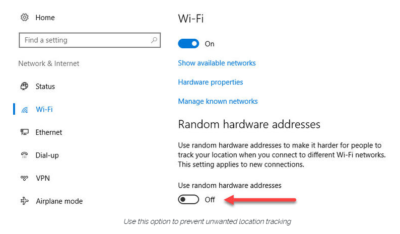
Windows 10 does offer one obscure option that can help protect third parties from tracking your movements based on your connections to Wi-Fi networks. (Note that this feature requires support from your Wi-Fi adapter, so if you don’t see this option, the most likely explanation is that your hardware doesn’t support it.) Under Settings > Network & Internet > Wi-Fi, turn the Use random hardware addresses setting to On.
windowsprivacy02

That step keeps third parties from matching your Wi-Fi adapter’s hardware address with your personal information, making it more difficult to track your location.

THE BROWSER

Countless third-party ad networks and analytics companies use cookies and other tracking technology to record your movements around the web and to correlate your online activities with your offline identity.

The result is a digital fingerprint that can be extraordinarily detailed and, unfortunately, outside of your ability to change.

To limit the amount of information that those ad and analytics companies know about you from your web browsing, consider third-party anti-tracking software such as Abine’s Blur, which is available for every web browser except Microsoft Edge. (That lack of solid support for add-ons is one reason I can’t yet recommend Edge as a full-time browser for most Windows 10 users.)

Another privacy product worth considering is Ghostery, although some are suspicious of this browser extension because of its uncomfortably close ties to the online advertising industry.

Ad-blocking software can also provide some privacy protection as a side-effect of performing its basic function. Here, too, watch out for close ties between some ad-blocking add-ins and the third-party trackers they supposedly protect you from.

Note that none of these steps is unique to Windows 10. Anti-tracking software is typically a browser add-in and works with most popular browsers.

THE OPERATING SYSTEM

With those two big, platform-independent factors out of the way, we can now turn to Windows 10 itself. When you use a Windows 10 device, it is capable of sharing the following types of information with Microsoft’s servers:

Your location

Windows 10 can determine your location to help with actions like automatically setting your current time zone. It can also record a location history on a per-device basis. Go to Settings > Privacy > Location to control the following:

  • Location on/off?Use the master switch at the top of this page to disable all location features for all users of the current device.
  • Location service on/off?If location is on for Windows, you can still turn it off for your user account here.
  • General location?This allows you to set a city, zip code, or region so that apps can deliver relevant content.
  • Default location?Click Set default to open the Maps app and specify the location you want Windows to use when a more precise location is not available.
  • Location history?Click Clear to erase the saved history for a Windows 10 device.

If location is on, a list at the bottom of the Settings > Privacy > Location page allows you to disable access to that data on a per-app basis.

Your input

If you enable Cortana, Windows 10 uploads some info from your devices, such as your calendar, contacts, and location and browsing history, so that Cortana can make personalized recommendations. If you don’t want any accounts on your PC to use Cortana, follow the steps in this article to disable the feature completely: Turn off Cortana completely.

Windows 10 uses some feedback from the way you type, write, and speak to improve performance for you and as a way to improve the overall platform. This isn’t keystroke logging; rather, the operating system uses a very small amount of information. A separate feature uses your speech and writing history to make better suggestions in Windows and Cortana.

You can control this collection with two sets of controls:

Under Settings > Privacy > General, click Info about how I write and turn it off so that your typos aren’t used to improve things like the built-in spell checker.

Under Settings > Privacy > Speech, inking, & typing, under the Getting to know you heading, click Stop getting to know me to turn off personalization.

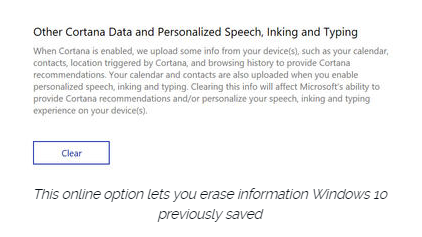
To clear previously saved information associated with your Microsoft account, click the first link under the Manage cloud info heading. That takes you to this Bing Personalization page, which includes this prominent button:
windows-privacy01

Click Clear to remove that saved information from the cloud.

Files and settings

When you sign in with a Microsoft account, you have the option to save files to the cloud using OneDrive. Windows 10 also syncs some settings to OneDrive, allowing you to have the same desktop background, saved passwords, and other personalized settings when you sign in with that account on multiple PCs.

If you use a local account, of course, none of your settings are synced. If you use a Microsoft account, you can turn off syncing completely or remove certain settings from the sync list by going to Settings > Accounts > Sync Your Settings.

OneDrive is an opt-in service. If you don’t sign in, it does nothing. You can’t save files to OneDrive accidentally, and no files are uploaded without your explicit permission, which you can revoke any time. To disable OneDrive for all users on your PC, follow these instructions: Shut down OneDrive completely.

Telemetry

Microsoft, like all modern software companies, uses feedback from its installed base to identify problems and improve performance. In Windows 10, this feedback mechanism produces diagnostics data (aka telemetry) that is uploaded to Microsoft at regular intervals. The data is anonymized and is not used to create a profile of you.

The default telemetry setting for all consumer and small business versions of Windows 10 is Full, which means that the uploaded data also includes details (also anonymized) about app usage. If you are concerned about possible inadvertent leakage of personal information, I recommend that you go to Settings > Privacy > Feedback & diagnostics and change the Diagnostic and usage data setting to Basic.

THE APPS

Although the number of subcategories under the Privacy heading in Settings seems daunting, most of them govern access to your information by Windows Store apps. That set of apps includes those that are preinstalled (Mail, Calendar, Groove Music, Photos, and so on) as well as those you acquire from the Store.

Most of the categories offer a single on-off switch at the top, which you can use to disable all access to that feature by all apps. If you leave the feature enabled, you can use a list of apps at the bottom of the page to enable or disable access on a per-app basis.

This capability works the same with the following categories: Camera, Microphone, Notifications, Account Info, Call History, and Radios. The Other Devices category lets apps automatically share and sync info with wireless devices that aren’t explicitly paired with your PC. Use the Background Apps category to specify which apps are allowed to work in the background.

If Location is enabled, you have the option to disable location access on a per-app basis and to disable Geofencing.

The Contacts, Calendar, Email, and Messaging categories allow you to control which apps can have access to these features. If you want to share content from an app using email or messaging, this option has to be on for that app. Note that Mail and Calendar, People, and Phone always have access to your contacts; Mail and Calendar are always allowed to access and send email and always have access to your calendar.

Finally, one horribly misunderstood setting is available under Settings > Privacy > General. Advertising ID controls whether Microsoft serves personalized ads to ad-supported apps. If you turn this option off, you still get ads, but they’re not personalized. In any case, your information is not shared with advertisers.

Have questions?

Get answers from Microsofts Cloud Solutions Partner!
Call us at: 856-745-9990 or visit: https://southjerseytechies.net/

South Jersey Techies, LL C is a full Managed Web and Technology Services Company providing IT Services, Website Design ServicesServer SupportNetwork ConsultingInternet PhonesCloud Solutions Provider and much more. Contact for More Information.

To read this article in its entirety click here.

How to get the Windows 10 Anniversary Update

windows10anniversary

Update 8/16/16: The Windows 10 Anniversary Update has begun rolling out for Windows 10 Mobile. The Anniversary Update includes additional features and improvements for your Windows 10 phone. To manually check for the update, on Start, swipe over to the All apps list, then select Settings > Update & security > Phone update > Check for updates. Note that availability may vary by manufacturer, model, country or region, mobile operator or service provider, hardware limitations and other factors.

The Windows 10 Anniversary Update has begun rolling out for customers around the world*. The Windows 10 Anniversary Update is full of new features and innovations that bring Windows Ink and Cortana** to life; a faster, more accessible and more power-efficient Microsoft Edge browser; advanced security features; new gaming experiences and more. The Windows 10 Anniversary Update will start rolling out to Windows 10 Mobile phones in the coming weeks.

The Windows 10 Anniversary Update is being rolled out to Windows 10 PCs across the world in phases starting with the newer machines first. You don’t have to do anything to get the Windows 10 Anniversary Update, it will roll out automatically to you through Windows Update if you’ve chosen to have updates installed automatically on your device. However, if you don’t want to wait for the update to roll out to you, you can manually get the update yourself on your personal PC. If you’re using a Windows 10 PC at work, you will need to check with your IT administrator for details on your organization’s specific plans to update.

Here are a couple ways you can manually get the Windows 10 Anniversary Update

Go to Settings > Updates & Security > Windows Update

settings

1. In Windows Update simply click Check for Updates.

checkfor-updates

2. The Anniversary Update will appear as, Feature update to Windows 10, version 1607. Click update and the update will begin downloading and installing.

updateinstalling

Another way to get the Windows 10 Anniversary Update will be by clicking “Learn more” just below the “Looking for info on the latest updates? In Windows Update.

learnmore

From there you’ll be taken to a support page on Microsoft.com that will allow you to download the ISO file to your PC.

We hope you enjoy the Windows 10 Anniversary Update!

*Windows 10 Anniversary Update will be available in all countries where Windows 10 is available.
**Cortana available in select markets

Have questions?

Get answers from Microsoft’s Cloud Solutions Partner!
Call us at: 856-745-9990 or visit: https://southjerseytechies.net/

South Jersey Techies, LL C is a full Managed Web and Technology Services Company providing IT ServicesWebsite Design ServicesServer SupportNetwork ConsultingInternet PhonesCloud Solutions Provider and much more. Contact for More Information.

To read this article in its entirety click here.

Microsoft Surface Studio: The smart person’s guide

Everything you need to know about the Surface Studio, Microsoft’s new all-in-one PC designed to tempt professional artists and designers over to Windows.

The Surface Studio is an all-in-one PC with premium specs, designed to wow professional artists, designers, architects and other creatives.

While the $2,999 price tag will deter most consumers, Microsoft seems to be targeting the Studio at design professionals, who would otherwise be using Apple Macs alongside specialist devices like Wacom’s Cintiq drawing tablet.

The Studio is a machine with a lot to recommend it, but one that could still be a leap too far for creatives already heavily invested in alternative tech.

Read More

Everything Microsoft revealed: Surface Studio, Windows 10 Creators Update and more

Microsoft announced a slew of new goodies at its Windows event in New York. Catch up on everything from the Surface Studio all-in-one to the Windows 10 Creators Update here.

One Windows

Microsoft’s big event in New York on Tuesday included plenty of new Surface hardware, but nevertheless, it’s easy to see why the company called this a Windows event rather than a Surface shindig.


Windows and devices chief Terry Myerson kicked things off with a tantalizing glimpse of the features that will debut with the new Windows 10 Creators Update, scheduled to release in the spring. The rest of event was dedicated to new Surface gear designed specifically to marry powerful, thoughtful hardware with the best of those new software features. But don’t take my word for it! Here’s everything Microsoft announced at its October 26 Windows event.


microsoft2
Windows 10 Creators Update

As I said, the freshly revealed Windows 10 Creators Update, scheduled to arrive in early 2017, kicked off the show. The update’s built around three key pillars: the creation and manipulation of 3D content, sharing your Xbox Live gaming experiences, and easily communicating with others—hence the name.


microsoft3
Surface Studio

Microsoft’s first-ever desktop PC is the paragon for all those Windows ideals. The Surface Studio all-in-one mixes stunning physical design and impressive internal hardware, focused on creating the best experience possible for professionals and content creators. From an ultra-slim 4,500×3,000-resolution screen with “True Scale” 1:1 image recreation, to the ability to lay at a 20-degree angle for natural positioning while sketching, to the 6th-gen (Skylake) Core i7 CPU and Nvidia GPU powering it all, the Surface Studio is laser-focused on helping you get things done. (And showing off Windows in the best possible light, naturally.)

These tidbits are just the tip of the iceberg. If you like what you see, the Surface Studio starts at $3,000 and is available for preorder now.


microsoft4
Surface Dial

The Surface Studio’s content-friendly design and Windows 10’s new content creation tools are amplified by the Surface Dial, a radical puck that can control Microsoft’s new PC. It’s primarily designed to work in conjunction with Microsoft’s Surface Pen. Priced at $100, you can preorder it now.

The Surface Dial doesn’t have any buttons of its own. Instead, using it reveals an interface wheel customized for specific applications, with selections occurring as you twist the device back and forth. You may cycle through tool-tip brushes in an image editing app, for instance, or rewind and fast-forward through written notes in Office. A virtual version of the Dial appears even if you don’t place the puck directly onscreen, letting you zoom, scroll, and adjust various options like screen brightness and volume. Mark Hachman’s Surface Dial hands-on explains it all.

Support for the Surface Dial will be baked right into Windows 10, and the accessory will be compatible with the existing Surface Pro 3, Surface Pro 4, and Surface Book.


microsoft5
Surface Book i7

Handily enough, Microsoft also revealed a newer, more powerful version of the Surface Book, the aptly named Surface Book i7. The Surface Book i7 swaps in a sixth-gen Skylake Intel Core i7 processor and an Nvidia GTX 965M GPU to deliver twice the power of the most potent original Surface Book, and (Microsoft claims) three times the power of the beefiest 13-inch MacBook Pro—though Apple’s expected to roll out new Macs tomorrow.

Microsoft also managed to up the Surface Book i7’s battery life to a claimed 15 hours, despite the additional firepower, thanks to a redesigned cooling system and, well, more batteries. The Surface Book i7 starts at $2,400 and is available to preorder now.


microsoft6
Paint 3D

Windows’ venerable Paint app is being dragged into the 21st century. The Windows 10 Creators Update adds Paint 3D, a Windows Store app designed from the ground up to create 3D images even out of 2D pictures.

Paint 3D includes numerous tools for editing three-dimensional images. It also integrates with a new Windows 10 3D-scanning app dubbed Windows Capture 3D, which allows you to digitize real-world objects. Microsoft plans to introduce a “community” hub on Remix3D.com for shared 3D images, plus it’ll let you drag your creations out of Minecraft. Microsoft Office applications will also support 3D images after the Windows 10 Creators Update rolls out.

You have to wonder how many non-professionals are interested in 3D image creation, but there’s no doubting that Paint 3D looks mighty nifty—and like a perfect match for the Surface Studio and Surface Dial’s capabilities.


microsoft7
Windows Holographic VR headsets

You’ll be able to view those 3D creations through Microsoft’s own HoloLens, or via an onslaught of Windows Holographic-compatible VR headsets apparently coming from Dell, HP, Lenovo, Asus, and Acer.

“These headsets will be the first and only to ship with inside-out, six-degree-of-freedom sensors,” said Microsoft’s Terry Myerson. “Unlike every other VR headset on the market today, this means there will be zero need for a separate room. Zero need for a complicated setup.”


microsoft8
My People

Microsoft wants to make your friends the center of your Windows experience with My People, a feature that borrows from Android and iOS. In the Creators Update, five important contacts will appear as profile images in your taskbar. You’ll be able to drop files onto these contacts to immediately share items, or click the contact to interact in a specific app like Mail, Skype, SMS, or Xbox Live. Handy!


microsoft9
Live PC game streaming

Microsoft’s muscling in on Twitch. The Windows 10 Creators Update adds the ability to easily start broadcasting your Xbox Live games via the operating system’s Game DVR toolbar, sending notifications out to your pals and fellow club members to let them know when you’re online. Once they hop into your stream they’ll be able to chat with you, as with every other streaming service out there.

The service is powered by Microsoft’s recent Beam acquisition and looks dead-simple to use. It’s easy to envision Windows 10 Game DVR livestreaming becoming popular on consoles, but Microsoft faces an uphill battle on PCs, where Twitch and tools like Nvidia Shadowplay and OBS already enjoy massive, entrenched user bases.


microsoft10
Custom tournaments and fancy audio

Microsoft’s tying console and PC users closer together with custom tournaments powered by Xbox Live’s Arena platform. Next year, you’ll be able to create your own custom gaming tournaments, controlling everything from the games, to the rules, to the players, to the start times. Previously, Area tournaments were only created by Microsoft and its official partners.

The Xbox One S, which is itself powered by Windows 10, is adding support for bitstreaming Blu-ray audio pass-through and Dolby Atmos. Soon, those 4K videos and games will sound just as glorious as they look.


microsoft11
Surface Mouse and keyboards

The niche Surface Dial isn’t the only Studio peripheral Microsoft announced today, though none of the others made it onto the stage during the big event. Microsoft quietly launched a Surface Mouse and a pair of desktop Surface keyboards—one standard, the other ergonomic—to complement its premium all-in-one PC. All three match the gray aesthetic of Microsoft first-ever desktop PC. The Surface Studio includes a Surface Mouse and basic Surface Keyboard, however.

You can preorder all three on Microsoft’s Surface accessories page, with shipments scheduled for early November.

Have questions?

Get answers from Microsofts Cloud Solutions Partner!
Call us at: 856-745-9990 or visit: https://southjerseytechies.net/

South Jersey Techies, LL C is a full Managed Web and Technology Services Company providing IT Services, Website Design ServicesServer SupportNetwork ConsultingInternet PhonesCloud Solutions Provider and much more. Contact for More Information.

To read this article in its entirety click here.

Read More

Killer keyboard shortcuts to help you master Windows

These Windows keyboard shortcuts help you navigate your PC faster, master documents, wrangle various virtual desktops, and shut down and secure a computer, using just a few keys. Despite notable advancements in speech-recognition technology and voice input, and the popularity of tablets, the humble PC continues to be the workhorse device of choice for many workers around the world. And whether you’re an office-bound professional slouched behind a desktop PC, or a globetrotting executives armed with the latest Ultrabook, the “physical” hardware keyboard continues to play a crucial role in productivity. The last thing you want in the heat of the moment is to fumble around for a mouse or have to take multiple steps to complete a task that could be done with a quick keyboard shortcut. Of course, learning and remembering such shortcuts can be hard work, and you’ll need to take some time to find the appropriate shortcuts for you. We’re here to assist. This list of valuable Windows keyboard shortcuts will help you work smarter and faster.Keyboard shortcuts for the Windows surfer

windows-surfer


If you hope to master Windows keyboard shortcuts, you should start with the Windows desktop. The following shortcuts let you toggle between app windows and quickly resize them without having to reach for a mouse or align your apps.

  • Windows key (a.k.a., “Winkey“) + D.  Minimize all app windows and jump straight to the desktop. Hit the shortcut again to bring all apps back to the foreground.
  • Winkey + Comma. Take a quick peek at your desktop, and then release the keys to snap all apps back to the foreground.
  • Winkey + Left Arrow, or Winkey + Right Arrow. Dock your app windows to the left or right of the screen.
  • Winkey + Down Arrow, or Winkey + Up Arrow. Maximize or minimize a selected app. Or dock your app windows to the top or bottom of your display, when app windows are already docked to the left or right.
  • F11 – Toggle an active window in and out of full screen mode.
  • Ctrl + Esc – Bring up your Start menu. (This is particularly helpful if you use a keyboard that doesn’t have a Winkey.)

Windows keyboard shortcuts for the Kung Fu typer

These useful shortcuts help zoom the cursor around your page much quicker than if you use a mouse or trackpad.

  • Ctrl + Right Arrow, or Ctrl + Left Arrow. Move the cursor one word to the right or left.
  • Ctrl + Down Arrow, or Ctrl + Up Arrow. Move the cursor to the start or end of the next or previous paragraph.
  • Ctrl + Z, or Ctrl + Y. Undo or redo almost any action, as long as the app supports the feature.

Windows keyboard shortcuts for virtual desktop Jujutsu

Long a staple feature in Linux and the Mac, Microsoft finally officially incorporated virtual desktops into its Windows 10 OS. The indispensable feature lets you create additional desktops to better manage multiple app windows.

  • Winkey + Ctrl + D, or Winkey + Ctrl + F4. Create or close a virtual desktop.
  • Winkey + Ctrl + Left Arrow, or Winkey + Ctrl +Right Arrow. Toggle through your virtual desktops.
  • Winkey + Tab. Display the “Task View” interface for an overview of all virtual desktops. You can use the Arrow keys to toggle through desktops if you also hit Tab when in this mode. Hit Enter to jump to a selected desktop.

Windows keyboard shortcuts for the browser ninja

You’ve probably used a web browser for as long as you’ve had a computer, but do you take full advantage of keyboard shortcuts for browser navigation? These browser shortcuts all work the in latest versions of Internet Explorer, Microsoft Edge, Mozilla Firefox and Google Chrome.

  • Alt + D. Put the cursor into the browser’s address bar.
  • Ctrl + W, or Ctrl + T. Close or open a new browser tab.
  • Ctrl + Shift + T. Reopen the last browser tab you closed. (This comes in handy when if you hit Ctrl + W too quickly.)
  • Ctrl + Plus sign, or Ctrl + Minus sign. Zoom in and out on a web page. Reset the zoom level with Ctrl + 0.
  • Ctrl + Tab, or Ctrl + Shift + Tab. Toggle to the next browser tab from left to right, or from right to left.
  • Alt + Right Arrow, or Alt + Left Arrow. Browse forward or backward through recently visited websites. These shortcuts perform the same function as a browser’sForward and Back buttons.

Windows keyboard shortcuts for locking up and shutting down

This guide wouldn’t be complete without some shortcuts that help you shut down your PC and then lock things up.

  • Winkey + L. Immediately lock your PC.
  • Ctrl + Shift + Esc. Open the Task Manager to monitor app or forcibly shut down frozen programs.
  • Alt + F4. Close an active app. Using this shortcut key when your desktop is at the forefront invokes the “Shut Down Windows” prompt.

Have questions?

Get answers from Microsofts Cloud Solutions Partner!
Call us at: 856-745-9990 or visit: https://southjerseytechies.net/

South Jersey Techies, LL C is a full Managed Web and Technology Services Company providing IT Services, Website Design ServicesServer SupportNetwork ConsultingInternet PhonesCloud Solutions Provider and much more. Contact for More Information.

To read this article in its entirety click here.

Read More